Showing posts with label Facebook. Show all posts

Monday, April 1, 2013

Facebook desktop api not working Fine from 19th of March


 Is there any changes in facebook desktop api , as FacebookDesktop.login's callback function that was working fine ago,now returns fail for my Flex-Air desktop application. Here i means same code was working file before 19th of March.

protected function init(event:AIREvent):void
                {
                    //Initialize Facebook library               
                    FacebookDesktop.init(APP_ID , handleLogin);
                }
    // function to handle login
    protected function handleLogin(result:Object, fail:Object):void {
            trace (fail +" handleLogin " + result);
            if (result) { // User successfully logged in.                   
            FacebookDesktop.api("/me",getStatusHandler);
                } else { // User unsuccessfully logged in.
                                   // code
                    }
                }

    // btnLogin click handler
    protected function handleLoginBtnClick(event:MouseEvent):void {

            FacebookDesktop.login(handleLogin, permissions);

                }
 Thanks

Monday, February 4, 2013

How to Schedule Pins on Pinterest Using Pingraphy


One of the techniques I use most when managing my social media accounts is automation. I love using Buffer to schedule posts for Twitter, LinkedIn, and my Facebook page. I also use HootSuite from time to time to schedule posts for Google+.

When it comes to Pinterest, there aren’t many tools available for scheduling your posts. Pingraphy is a “Pinterest management tool for brands” that can help you schedule pins, among other things.
You can check out the other features after creating your account. For now, let’s see how to schedule pins on Pinterest via Pingraphy.
1. Log in to Pingraphy using your Pinterest email and password. For those of you using Facebook or Twitter to log in, there doesn’t seem to be a way to log in using those methods; you’ll need to create an account on Pinterest using your email.
2. Drag the Pingraphy bookmarklet to your bookmarks bar.
Drag the Pingraphy bookmarklet to your bookmarks bar.
3. When you find an item or items that you want to pin, click on the Pinography bookmarklet and choose the item(s).
4. Once you click on the “next” button, another window will pop up. Here, you can choose the board that the item(s) should be pinned to. You can also edit the description and URL of each item if needed.
Customize your pin and choose to upload now or schedule for later.
5. Finally, choose to “upload now” or “schedule” the pin.
6. When you click on “Schedule,” you’ll be able to choose a start time, interval between each pin (if you’re adding more than one item), and time zone.
Pingraphy is obviously set up to schedule pins in bulk (i.e. you can select more than one image at a time), which is why you can choose a start time and interval. If you only have one item to schedule, you can leave out the interval.
Customize your pin schedule on Pingraphy.
7. You can also enhance your images by adding effects, changing the orientation, cropping, changing the brightness, and more.
Enhance your images on Pingraphy.
8. Once scheduled, you can see your item(s) on the Pingraphy dashboard, along with the time(s) they’ll get posted.
View your scheduled pins and recent uploads on the Pingraphy dashboard.
From what I’ve gathered, there doesn’t seem to be a limitation to the number of pins that you can schedule. As you can see, with Pingraphy it’s really easy to schedule pins from anywhere on the Web.

Saturday, October 6, 2012

How To Block Access To Facebook (HTTP & HTTPS) On Ubuntu 12.10/12.04/Linux Mint 13


Facebook is a popular social networking site that allows users to stay connected with their friends and family online. Sometimes, Facebook may have some disadvantages like parents worrying that their children will be addicted to Facebook, and the bad effect that Facebook addiction may bring on students results. Also, using this distracting social media website may decrease productivity in work-related environments (office, companies, etc.).

Whether you want to block access to Facebook for yourself or keep other users from doing so, you can easily follow this simple method to block access to Facebook under Linux-based systems. The method will block access to both HTTP and HTTPS protocols and can be used in the following Linux distributions:


  • Ubuntu 12.10/12.04/11.10
  • Linux Mint 13/12
  • Debian 6.0 (Squeeze)
Getting Started

1. Open the terminal and edit the /etc/hosts file with this command:

sudo gedit /etc/hosts

Note: For Linux Mint, you can use "pluma" instead of "gedit".
2. At the end of the file, add these lines:
# Block Facebook
127.0.0.1 www.facebook.com


Save and exit, the reboot your system with this command:

sudo reboot

You have now remapped "facebook.com" to 127.0.0.1. Anyone who tries to browse Facebook will get this:


Note: You can use this method to block other websites.

Friday, August 3, 2012

HOW TO GET RID OF UN-NECESSARY FRIEND-STORIES FROM ‘YOUR’ FACEBOOK NEWSFEED


Since the arrival of timeline layout on FACEBOOK along with many other ‘Me-Too’ features of Google+. It has been noticed that whenever you go to your newsfeed, you will figure out a lot of unnecessary friend-stories i.e. be it their liking a stuff, commenting over something or else. All would be appearing on your newsfeed to further aggravate the clutter.
 
So as a solution, we suggest you not to look up for any browser extension to get rid of the mess because FACEBOOK has a built-in solution for your dilemma. All you need to do is,

  1. Choose a Friend list out of the given/created lists on the leftmost side bar
  2. Choose ‘Manage List’ button on the upper-right corner of the selected list
  3. Click on ‘Choose Update Type’ option
  4. Click on ‘Manage List’ button again
  5. Now, you can choose & control the kinds of friend-updates, you would like to see in your newsfeed

Tuesday, July 31, 2012

4k Video Downloader: Download Videos From YouTube, Facebook, DailyMotion, and Vimeo - Ubuntu/Linux Mint


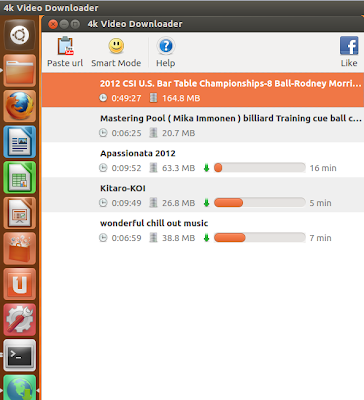
4k Video Downloader is a powerful video downloader written in C++ and QT having a simple user interface and support popular video sharing sites like YouTube, Facebook, Vimeo, DailyMotion, Metacafe, etc. You can also use it for extracting audio in MP3 formats from processed  videos. The program is available in many platforms, but in this tutorial we will help you install it under Ubuntu and Linux Mint from PPA. You can also install it using Debian packages provided in the home page of the software


4k Video Downloader

To install 4k Video Downloader on Ubuntu 12.10/12.04/11.10 or Linux Mint 13 or older, open the terminal and run these commands:

sudo add-apt-repository ppa:upubuntu-com/multimedia
sudo apt-get update
sudo apt-get install 4kvideodownloader

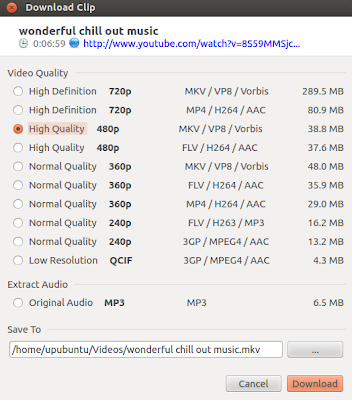
After launching the application, copy any video url from your web browser and click Paste URL. A dialog box will show up containing conversion formats (mkv, flv, mp4, 3gp, etc.) with support of HD videos including 720P:


4k Video Downloader Home Page

Friday, July 20, 2012

Honda’s Integrating FACEBOOK & YELP In New Accord And Crosstour


Honda is all set to make new offering in the market by launching HONDALINK app & service in new Accord, Crosstour and future vehicles under the partnership with Harman International. This service would enable the driver to listen to a variety of Internet-based stations, featuring everything from Slacker radio to Yelp listings of nearby restaurants. However the key is it will also provide Facebook integration.

All is required, a HondaLink app in your iPhone or Android device, you will run the app and connect it to the car via Bluetooth. Once done with this, the app will deliver a driver’s own Facebook news feed, including friends’ status updates as audio feeds. However, the driver won’t be able to update his own status. Moreover, HondaLink also uses the car’s GPS location to find nearby restaurants for the Yelp audio feeds. It provides you with two options one is ‘Hungary’ and the other one is ‘Coffee’. You will have to trade off between the two via touch screen display and then, Yelp will inform you about the nearby restaurants and cafes accordingly.  Though the app is similar to AHA app but this time it is enriched with more promising features to be look forward at.

Thursday, July 12, 2012

Ubuntu One No Longer Supports Facebook Sync


Canonical announced yesterday, July 11th, on the Ubuntu One blog that they will completely remove support for Facebook from the Ubuntu One cloud storage.

I always thought that technologies are getting improved all the time with new features, but it looks like they are also regressing, as importing and syncing Facebook contacts option from the Ubuntu One web dashboard has been removed.

Users who already imported their Facebook contacts into the Ubuntu One web dashboard can still manually add new ones or edit the existing contacts.

"As we communicated back in December, we’re continuing to invest in our new data sync infrastructure U1DB. Therefore, we’ve been gradually turning off services that are reliant on the old infrastructure and providing little value to users in their current form."

"Contacts will also be one of the first services that we will build on top of our upcoming new data sync infrastructure." - was stated in the blog announcement.

Sunday, June 24, 2012

How to add website shortcuts to the Favorites list of Mint Menu


Everybody has his own favorite websites to visit frequently. Normally to open these websites we will open the web browser, type the url address or get it from bookmarks. A quicker that we usually use is to create shortcut launchers for these sites on the desktop or on the panel. However, because I prefer a clean desktop, I added these shortcuts to the Favorites list of the Mint Menu on my Linux Mint 13 (MATE) box. Here is how my Mint Menu looks with shortcuts of my favorite websites on the Favorites list:


Add website shortcuts to the Favorites list of Mint Menu

To add website shortcuts to the Favorites list of the Mint Menu, you need to create desktop shortcuts for them. To avoid confusion, I store all the new desktop shortcuts into the default folder for them, ie /usr/share/applications. To create a new shortcut in MATE, just open the terminal and run the following command:
 sudo mate-desktop-item-edit /usr/share/applications --create-new  

A create launcher window will appear, on which you can create a new launcher. You need to give the launcher a name, then the command to use a web-browser to open the website url. To change the shortcut icon ( which will appear on the Mint Menu later on, just double click on the icon image and select the logo for your website shortcut). Here is an example of my shortcut for Facebook:

Add website shortcuts to the Favorites list of MintMenu

Click OK and you will have a launcher for Facebook.

To add the new shortcuts to the Favorites list of the Mint Menu,  you just need to append these launchers to the file ~/.linuxmint/mintMenu/applications.list.

Here is how this file looks to have my Mint Menu in the above screenshot:
 location:/usr/share/applications/firefox.desktop  
 location:/usr/share/applications/gimp.desktop  
 location:/usr/share/applications/pidgin.desktop  
 location:/usr/share/applications/banshee.desktop  
 separator  
 location:/usr/share/applications/mate-terminal.desktop  
 location:/usr/share/applications/pluma.desktop  
 separator  
 location:/usr/share/applications/BBC.desktop  
 location:/usr/share/applications/Gmail.desktop  
 location:/usr/share/applications/Wikipedia.desktop  
 location:/usr/share/applications/Facebook.desktop  
 location:/usr/share/applications/ED.desktop  
 location:/usr/share/applications/RFA.desktop  

After you edit this file, right click on the Mint Menu button on the panel, select the "Reload plugins" option and the Mint Menu will have a new Favorites list.

For quicker access, you also need to set the Mint Menu to always display the Favorites list at when opening up. To do so, hit Alt + F2 and type "mateconf-editor" and the mate configuration window will appear. You go to apps >  MintMenu then check the line "start_with_favorites" and after that, the Mint Menu will always show the Favorites list when you open it up: