Showing posts with label Shell. Show all posts

Friday, November 16, 2012

GNOME Shell 3.6.2 Released! Install It on Ubuntu/Linux Mint


 GNOME Shell 3.6.2 Released! Install It on Ubuntu/Linux Mint 
Second update of maintenance for the family 3.6 of GNOME Shell, on which way the famous desktop environment version 3.6.2 . And, as happens in every update less of respect, even this time we are going to attend or drastic changes immediately visible to the eye, but in this maintenance release have been resolved a little ‘extremely annoying bugs that, in a few seconds, we analyze together.
First, here is the full changelog :
    • Implement org.gnome.ScreenSaver.GetActiveTime
    • Explicitly load gnome-screensaver When not running GDM
    • September Empathy as preferred handler When delegating channels
    • Tweak ScreenShield animations
    • Restore Fittsability summary of items in message tray
    • App search: Match GenericName too
Add
  • setting to force log out menuitem
  • Fix auto-scroll to bottom in chat notifications
  • Update man page
  • Hide button is clicked notifications When closed
  • Fix screenshots on Big Endian
  • Implement ‘disable-user-list’ in the login screen
  • Error message in ‘Run’ should use a symbolic icon
  • usermenu: Hide menu immediately before suspending
  • workspacesView: Fix some errors in code paths for non-default settings
  • “has been added to your favorites.” message Appears as left-to-right in Hebrew locale
  • messageTray: Fix lightbox
  • close-window.svg is overscaled in GNOME shell
  • messageTray: Fix close button position in RTL locales (gnome-3-6)
  • Extensions Should be disabled in lock screen
  • screen locks with modals still up
  • libedataserverui Drop unnecessary dependency
  • not log out Offered When logged in as root
  • Regression: Dash item labels fail to report accessible names
  • Misc fixes for the login dialogs
  • power: “0 minutes remaining” when exactly 60 minutes are remaining
  • Screen shield is not lowered on automatic suspend, session can never be unlocked on resume
  • precaution prevent lock-in initial setup mode
  • messageTray: Hide summary notification immediately When closing the tray
  • Dash resize is delayed until you enter the overview
  • Text fields in password dialogs expand inconsistent behavior
  • loginDialog Minor fixes
Basically a nice full-bodied changelog many small bugs here and there finally go away! The best, however, is yet to come: were finally resolved incompatibility issues – on the Ubuntu operating system – including GNOME Shell, LightDM, GDM and Unity: the GNOME desktop It’s now able to coexist peacefully with the LightDM manager, without encountering any sudden crashes and missing functionality (in GNOME 3.6.0 and 3.6.1, for example, screensaver GNOME refused to leave if you were using the desktop manager LightDM ).
Another interesting bug fixed regards the compatibility with the graphics acceleration drivers Intel: has been released a patch for the architecture MESA 9 was eliminated of obsolete code and – attention – has been eliminated close dependence, at compile time, by libGL (and consequently to GLX and xlib, this core library of X.org) : translated into terms human, this means that GNOME Shell has begun to take into account the replacement of X.Org with Wayland / Weston.

GNOME Shell 3.6.2 – Installation on Ubuntu 12.10 Quantal

Regarding Ubuntu 12.10 (this is the family GNOME 3.4.x within the repository) will need to update the shell using a PPA external everything is opening a terminal, and type
sudo add-apt-repository ppa: gnome3-team/gnome3
sudo apt-get sudo update
apt-get install gnome-shell

GNOME Shell – Installation on other Linux distributions

GNOME Shell 3.6.2 will soon be available as an upgrade system on all distributions that use GNOME as the default desktop environment. For deployments that not provide a packaging system will be directly can compile from source, using git and these instructions .

Tuesday, November 13, 2012

Install 15 Best Ubuntu 12.10 Themes For Unity And Gnome Shell


In this article, we will introduce 15 best GTK3 themes for Ubuntu 12.10 (Quantal Quetzal) compatible with Unity and Gnome Shell. The installation of the different themes will be from our PPA which can be added with these commands:


sudo add-apt-repository ppa:upubuntu-com/gtk3 
sudo apt-get update
To enable the themes given below, you can use Gnome Tweak Tool. To install it in Ubuntu 12.10, run this command:

sudo apt-get install gnome-tweak-tool

1. ClearNIX


sudo apt-get install clearnix 

2. reNIX


sudo apt-get install renix

3. Autumn GTK3 Theme


sudo apt-get install autumn-gtk3

4. Enyx Theme


sudo apt-get install enyx-theme 
5. DeLorean Dark Theme


sudo apt-get install delorean-dark-theme 
6. Win2-7 Remix


sudo apt-get install win2-7-remix-theme 

7. Nowa Theme


sudo apt-get install nowa-theme 

8. GtkDroid


sudo apt-get install gtkdroid

9. Zukiwi


sudo apt-get install zukiwi 

10. GnomishGray


sudo apt-get install gnomishgray-theme 

11. MediterraneanNight


sudo apt-get install mediterranean-theme 

12. DarkMint


sudo apt-get install darkmint-theme 

13. malys - rought


sudo apt-get install malys-rough-theme 

14. DeLorean varNaM Theme


sudo apt-get install delorean-varnam-theme 

15. Mac OS X Lion 


sudo apt-get install macx-lion 

Friday, November 2, 2012

Copy files on Linux shell that have been modified or added within the last X minutes


Here is a short script that helped me to copy files that have ben modified within the last 60 minutes to a new directory. The script uses a combination of the find and cp commands, it has to be run inside the directory that contains the new files.  In this example, I will copy all files that have been modified within the last 60 minutes from /var/www to the directory /var/newfiles, you can replace the timespan or target directory in the script to match your reqzĂșirements.
First, enter the /var/www directory which contains the files:
cd /var/www
Then execute this command to find the latest files and copy them to /var/newfiles:
find ./ -type f -mmin -60  -exec cp -pf {} /var/newfiles/ \;

Tuesday, October 30, 2012

Five Nice Gnome Shell 3.6 Extensions For Ubuntu 12.10 (Quantal Quetzal)


In this tutorial, we will introduce five popular extensions that are still not updated in the Gnome Extension Website for the Gnome 3.6 desktop environment. I have added them to our PPA to make them installable in Ubuntu 12.10 Quantal Quetzal with Gnome Shell 3.6 enabled.

If you haven't already installed Gnome Shell 3.6.x in Ubuntu 12.10, you can install it with this command:

sudo apt-get install gnome-shell gnome-tweak-tool

You need to use Gnome Tweak Tool to enable/disable the extensions given below:


Also, after installing any Gnome Shell extension from PPA, you need to restart Gnome Shell with these keys in order for the extension to show up in Gnome Tweak Tool:

ALT+F2 >> r

To add the extension PPA to your system, run these commands from the terminal:

sudo add-apt-repository ppa:upubuntu-com/gnome3.6 
sudo apt-get update

Installing Extensions

   1. Auto Hide Top Panel

This extension will force the top panel of Gnome Shell to hide. It will show up only when hovering your mouse cursor over the upper edge of the screen.


Code:
sudo apt-get install autohide-extension

   2. Bottom Panel


This extension will show up a taskbar at the bottom of your screen like in Gnome2.

Code:
sudo apt-get install bottom-panel-extension

   3. Move Top Panel To The Bottom With Reflection


The Reflection extension will force your top panel to appear at the bottom of your screen.

Code:
sudo apt-get install reflection-extension

   4. Overview Icon


This extension will show up current opened programs icons when enabling the overview mode.

Code:
sudo apt-get install overview-icon-extension

   5. Panel Favorites


This extension will display your favorite programs in the top panel.

Code:
sudo apt-get install panel-favorites-extension

Thursday, October 18, 2012

How To Install And Enable Themes And Icons On Gnome Shell 3.6.x - Ubuntu 12.10 (Quantal Quetzal)


This guide is for beginners who want to know how to install Gnome Shell themes under Ubuntu 12.10 (Quantal Quetzal). We will also explain how to install icon themes in Gnome 3.6 or above. This guide is about only gnome shell themes not GTK3 themes which are totally different.

1. Installing Gnome Shell & Gnome Tweak Tool

If you haven't already installed Gnome Shell on Ubuntu 12.10, then do with this command (currently v3.6.1):

sudo apt-get install gnome-shell

To be able to manage gnome shell themes, icons, and extensions under Ubuntu, you need to install Gnome Tweak Tool. Here is the command:

sudo apt-get install gnome-tweak-tool

Log out the current session and select "GNOME" from the session menu, then log back in to enable Gnome Shell:


2. Installing The User Theme Extension

To be able to install themes in Gnome Shell 3.6, we need to enable the User Theme extension. To do this, open this link and activate the extension:


Another pop-up window will show up, click Install:


Press now ALT + F2 and execute " " without quotes to reset Gnoms Shell. To make sure the user theme is well installed, open Gnome Tweak Tool and select the "Shell Extension" tab. In the right side of the window, see if the user theme is well enabled or not:


3. Installing Gnome Shell Themes and Icons

   1. Manual Installation of Themes and Icons

To install a theme manually for a single user, create a hidden folder named .themes in your home directory with this command:

mkdir -p ~/.themes

To access it via Nautilus, run this command:

nautilus ~/.themes

In this folder you can place all your gnome shell themes downloaded from the internet. You can find here many Gnome Shell 3.6 themes you can use on Ubuntu 12.10. For icon themes, create a hidden folder named .icons in your home directory with this command:

mkdir -p ~/.icons

Then access it with this command:

nautilus  ~/.icons

And place all your icon themes there.

   2. Automatic Installation of Themes and Icons

Automatic Installation of themes and icons is done via PPA. Installing a theme via PPA will place the theme folder in this location:

/usr/share/themes/

For icons, the PPA will install the icon theme in this folder:

/usr/share/icons/

3. Enabling Gnome Shell Themes And Icons

We will take as an example the Chrysalis12-04 gnome shell theme which can be downloaded from here. Extract the archive file and place the theme folder in the .themes folder located in your home directory (press CTRL+H to show hidden files or folders under Nautilus):


Open now Gnome Tweak Tool and select the Theme tab. In the "Shell theme" option, enable the theme we have just installed (Chrysalis12-04):


For changing system icons, place the icon theme folder in the ~/.icons folder, then enable it with Gnome Tweak Tool in Theme > Icon Theme. I hope you have found this tutorial useful.

Tuesday, October 9, 2012

Malys Rought: An Elegant Dark Theme For Unity and Gnome Shell - Ubuntu 12.10/12.04/Linux Mint 13 (Maya)


In this tutorial we will see another GTK3 theme for Ubuntu/Linux Mint called Malys Rought that will be appreciated by dark theme lovers. The theme is compatible with both Unity and Gnome Shell. Here is a screenshot of it under Ubuntu Unity:


The PPA for Malys Rought is compatible with the following Ubuntu/Linux Mint distributions:

  • Ubuntu 12.10/12.04/11.10/11.04
  • Linux Mint 13 (Maya)
Malys Rought (1.0) Installation

Open the terminal and run these commands:

sudo add-apt-repository ppa:upubuntu-com/gtk3
sudo apt-get update
sudo apt-get install malys-rough-theme

Note: Fonts for Malys Rought is included in the PPA.

You can use Gnome Tweak Tool or MyUnity to enable this theme, or use the following terminal commands:

   Version 1

gsettings set org.gnome.desktop.interface gtk-theme 'malys-rough-left'

gconftool-2 --set --type string /apps/metacity/general/theme 'malys-rough-left'

   Version 2

gsettings set org.gnome.desktop.interface gtk-theme 'malys-rough-right'

gconftool-2 --set --type string /apps/metacity/general/theme 'malys-rough-right'

Credits for this theme go here

Friday, October 5, 2012

Cinnarch 2012.10.01


Alex Filgueira announced the release of Cinnarch 2012.10.01 earlier this week. As the name suggests, Cinnarch is an Arch-based Linux distribution featuring the user-friendly Cinnamon (a fork of GNOME Shell) as the graphical desktop; it is also a live CD image with a simple text-mode installation program. From the release announcement: "Cinnarch 2012.10.01 released. Changelog: systemd as a system and service manager, no initscripts, the boot process is now faster with the parallelization capabilities; Welcn, the new welcome screen for Cinnarch is present, but the graphical installer button is de-activated; quiet boot; CLI installer - other operating systems added to GRUB, fixed Intel drivers in Lenovo laptops; cinnarch-wallpapers now contains some wallpapers from deviantART; changed the default wallpaper; packages - Linux kernel 3.5.4, Cinnamon 1.6.1, LightDM 1.3.3, Xnoise 0.2.11, Pantheon-files 0.1, Hotot 0.9.8.8, Chromium 22." Download (MD5) links: cinnarch-2012.10.01-netinstall-i686.iso (624MB), cinnarch-2012.10.01-netinstall-x86_64.iso (653MB).

Wednesday, September 19, 2012

15 Best Gnome Shell Themes For Ubuntu 12.04 Precise Pangolin


In this page we will introduce 15 amazing Gnome Shell themes that can be installed under a system running Ubuntu 12.04 (Precise Pangolin). If you haven't enabled the user theme extension, you can find here a good tutorial explaining this.

You should know that most of these themes work only with Gnome Shell (3.4, 3.6 etc.), so don't confuse them with GTK2/3 themes because they are totally different.

To enable these themes under Ubuntu, you need to install GNOME Tweak Tool with this command:

sudo apt-get install -y gnome-tweak-tool

Next, add the PPA to install themes from:

sudo add-apt-repository ppa:upubuntu-com/shell

sudo apt-get update

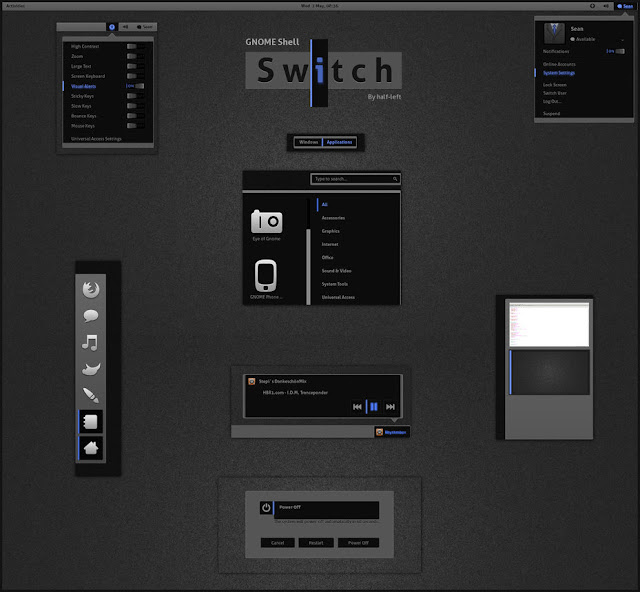
1. Switch (Gnome Shell 3.4)


sudo apt-get install switch-theme

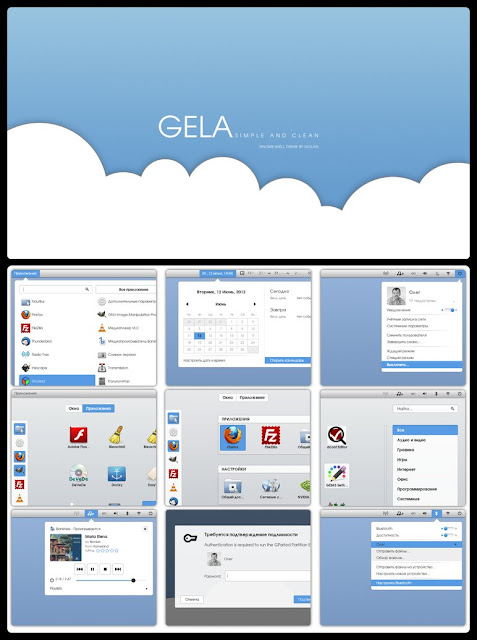
2. Gela (Gnome Shell 3.4)


sudo apt-get install gela-theme

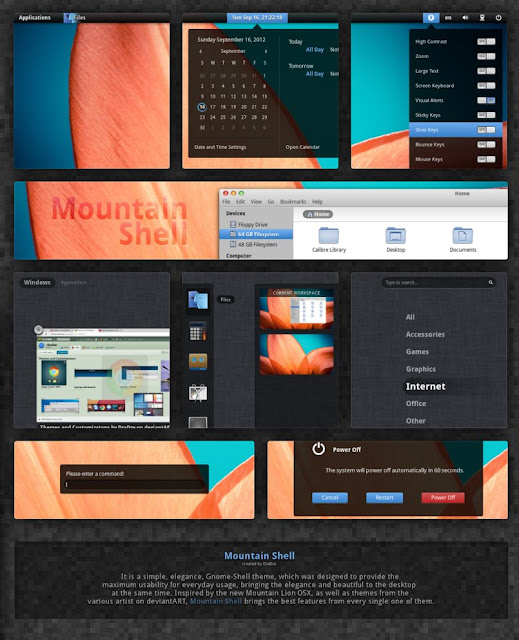
3. Mountain Shell (3.4)


sudo apt-get install mountain-shell

4. LM-Club (Gnome Shell 3.4 & GTK3)


sudo apt-get install lm-club-theme

5. Elegance Colors (Gnome Shell 3.6)


sudo add-apt-repository ppa:satyajit-happy/themes
sudo apt-get update
sudo apt-get install gnome-shell-theme-elegance-colors

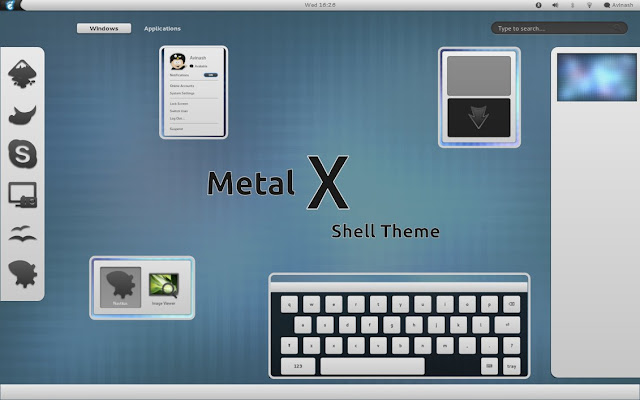
6. Metal X (Gnome 3.4)


sudo apt-get install gs-metalx

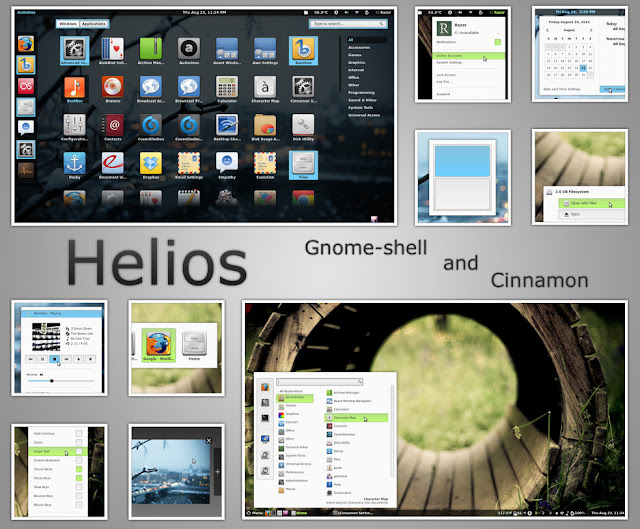
7. Helios (Gnome shell 3.4.2  and Cinnamon 1.4)

sudo apt-get install gs-helios

8. Energreen (Gnome 3.4 & GTK3)


sudo apt-get install energreen-theme

9. ACID ( GNOME-Shell 3.4)

sudo apt-get install gs-acid

10. Contrail


sudo apt-get install gs-contrail

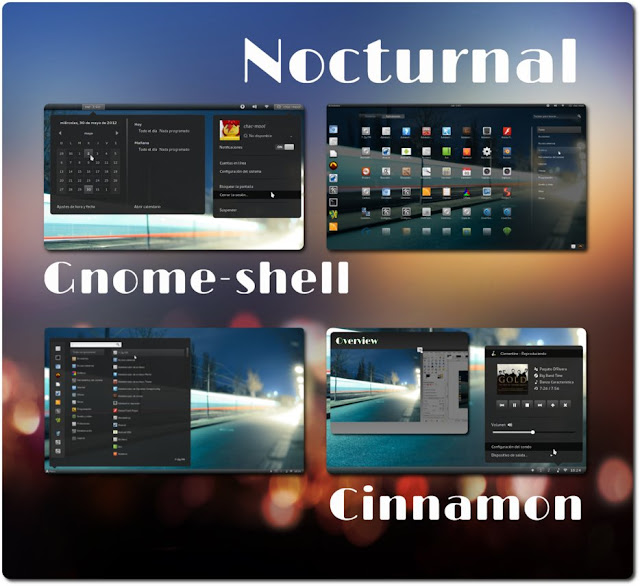
11. Nocturnal (Gnome 3.4 & Cinnamon 1.4)


sudo apt-get install gs-nocturnal

12. GrayRevenge


sudo apt-get install gs-grayrevenge

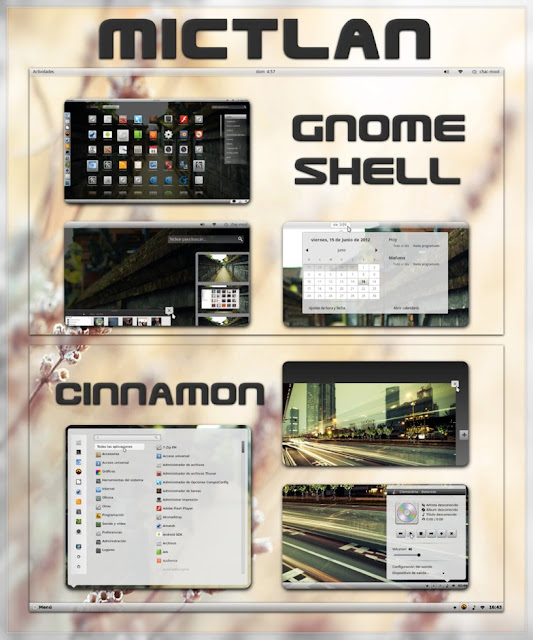
13. Mictlan (Gnome 3.4 & Cinnamon 1.4)


sudo apt-get install gs-mictlan

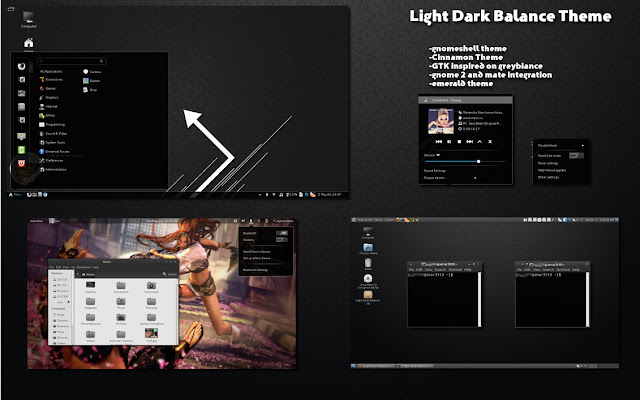
14. Light Dark Balance (gnome shell - Cinnamon - GTK2/3)
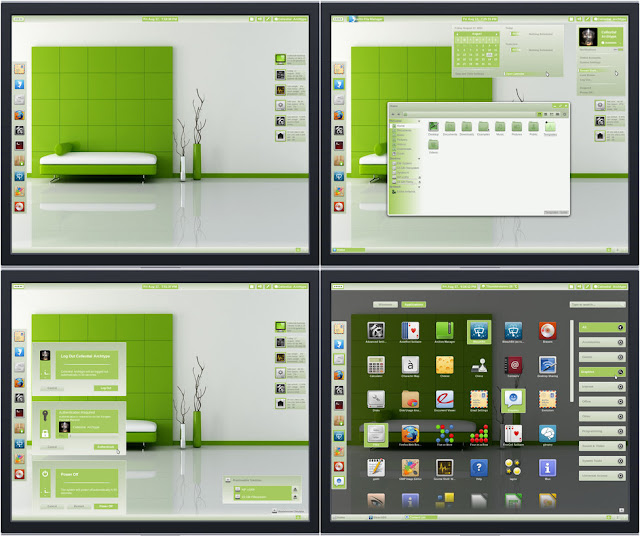

sudo apt-get install light-dark-balance-theme
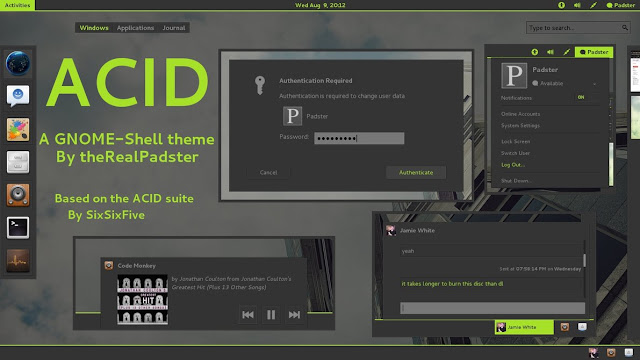
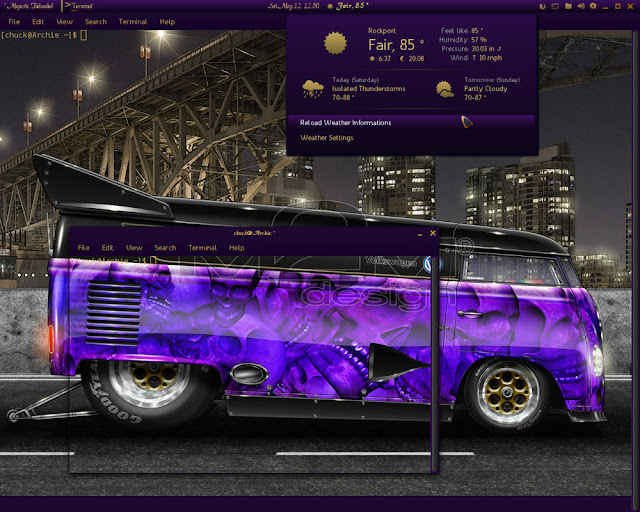
15. Majestic Reloaded (Gnome Shell - Cinnamon - GTK2/3)
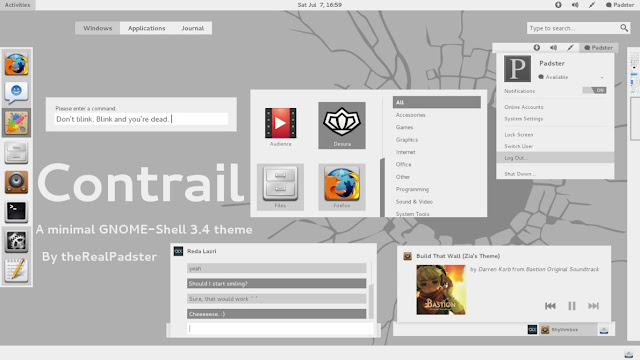

sudo apt-get install majestic-reloaded-theme

Sunday, September 16, 2012

ClearNIX: An Amazing GTK3 Theme For Unity And Gnome Shell - Ubuntu 12.10/12.04/Linux Mint 13 (Maya)


ClearNIX is another amazing GTK3 theme compatible with Unity and Gnome Shell. The theme can be installed from PPA under the following distributions:


  • Ubuntu 12.10/12.04/11.10
  • Linux Mint 13/12
Here is a screenshot of ClearNIX under Ubuntu 12.04 (Precise Pangolin):


The icon theme used in the screenshot is Nitrux OS Icon Theme.

ClearNIX Installation

Open the terminal and issue these commands:

sudo add-apt-repository ppa:upubuntu-com/themes
sudo apt-get update
sudo apt-get install clearnix

You can now enable ClearNIX with these commands:

gsettings set org.gnome.desktop.interface gtk-theme 'ClearNIX'

gconftool-2 --set --type string /apps/metacity/general/theme 'ClearNIX'

Theme Source: deviantart

Friday, September 14, 2012

Upcoming Features of GNOME 3.8


Even if GNOME 3.6 has not yet been released, the GNOME developers published some of the features that will be implemented in the next major release of the desktop environment, GNOME 3.8.

Therefore, it looks like GNOME 3.8 will fix or even drop the Fallback Mode, because it has become less and less useful and it mostly works as it should, according to the GNOME developers.

Moreover, focus-caret tracking mechanism will be implemented in GNOME Shell, meaning that the current methods, which rely on Orca, will be dropped. A prototype has already been implemented on September 5th.

In GNOME 3.8, the GNOME Shell extensions will update automatically, which might be integrated with system updated. Last but not least, the Videos app (previously known as Totem) will see a major redesign to its user interface.

We have no idea when the first development release will be out, or when the final version of the GNOME 3.8 desktop environment will see the light of day, but it should be sometime next spring.

Friday, August 31, 2012

More Nice GTK3 Themes For Unity And Gnome Shell - Ubuntu 12.04/11.04/Linux Mint 13 (Maya)


Today we will introduce three GTK3 themes for Ubuntu/Linux Mint that can be used with Unity or Gnome Shell. These themes will help you beautify your desktop and give your system a good impression for those who may see it. We have already covered many GTK+ themes for Ubuntu, you can find them here.

To be able to install these themes, you need first to add our PPA with these two commands:

sudo add-apt-repository ppa:upubuntu-com/gtk3
sudo apt-get update

Note: You can either use MyUnity or GNOME Tweak Tool to enable these themes or use simply the terminal commands given with each theme below.

1. MIUIv4+


To install MIUIv4+ on Ubuntu 12.10/12.04/11.10 and Linux Mint 13 (Maya), open the terminal and issue this command:

sudo apt-get install miui-gtk3

gsettings set org.gnome.desktop.interface gtk-theme 'MIUI+'

gconftool-2 --set --type string /apps/metacity/general/theme 'MIUI+'

2. Autumn GTK3 Theme


sudo apt-get install autumn-gtk3

gsettings set org.gnome.desktop.interface gtk-theme 'Autumn'

gconftool-2 --set --type string /apps/metacity/general/theme 'Autumn'

3. Violet GTK3 Theme


sudo apt-get install violet-gtk

gsettings set org.gnome.desktop.interface gtk-theme 'Violet'

gconftool-2 --set --type string /apps/metacity/general/theme 'Violet'

Theme sources:

- MIUIv4+
- Autumn GTK3 Theme
- Violet GTK3 Theme