Showing posts with label Password. Show all posts

Saturday, January 5, 2013

Easily Password Protect Your Files/Folders in Ubuntu/Linux Mint


In this tutorial, we will explain for newbies how to easily password protect files or folders in Ubuntu/Linux Mint systems. You don't have to use any third-party software, we will just use the archive manager to compress the file or folder and lock it with a password so that you disallow unauthorized users from copying your contents.

Getting Started

Right click on the file(s) or folder(s) and select Compress:


In the window that will appear, select a compression format (7z, zip, tar, etc.), then click Other Options:


Enter any password of your choice, check on "Encrypt the file list too", then click Create:


You have now compressed and password-protected your file/folder. No user can now extract the archive file unless he/she provides the correct password:


More Advanced Options

If you want to prevent other users from deleting or moving the password-protected archive file you have just created, open the terminal and cd to where it is stored, then run this command:

sudo  chattr +i file-name.ext
To undo this, enter this command:

sudo  chattr -i file-name.ext

Saturday, September 29, 2012

[FIX] Ubuntu Keeps Forgetting My Wireless (WiFi) Connection Password / Key - Ubuntu 12.10/12.04


Whenever I restart my computer, Ubuntu asks again for my wireless connection password / key. This also happens even when I set the password to be remembered. If you want to solve this problem under Ubuntu 12.10/12.04, then follow these simple instructions:

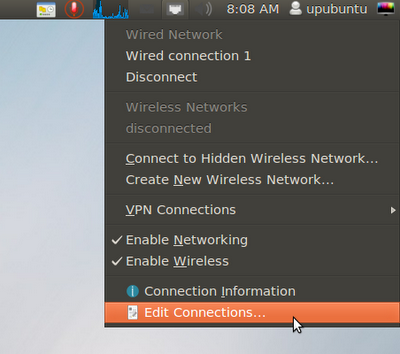
- Click the network icon displayed on the upper panel of Ubuntu and select "Edit Connection":


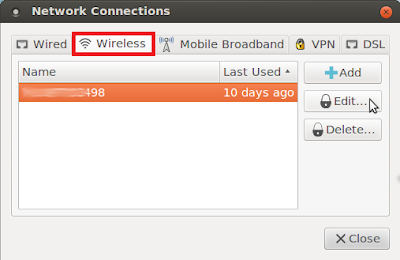
- Open the "Wireless" tab, select your wifi connection and click Edit:


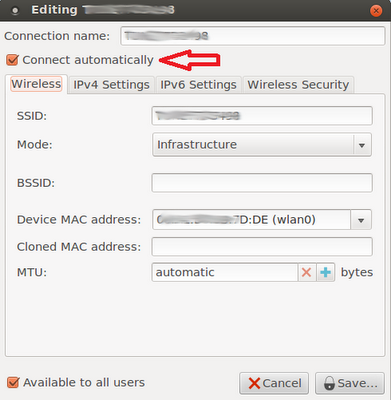
- Make sure now that "Connect automatically" is checked on:


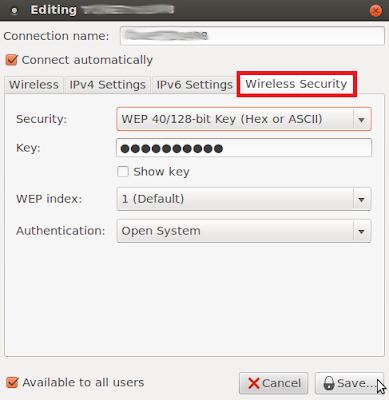
- Next, open the "Wireless Security" tab and enter these details, then click Save:

Security:   WEP 40/128-bit Key (Hex or ASCII)

Key:   Enter your wifi password


From now on, your wifi password will be remembered whenever you reboot your system.

Wednesday, September 12, 2012

How to Reset a Lost User Password on a PC Running Ubuntu 12.10/12.04/Linux Mint 13


Have you forgotten your user account password and you are unable to login to Ubuntu/Linux Mint? In this tutorial we will see how to use the Recovery Mode to reset a lost password so that you can log in again to your desktop. We will also help you set your computer to login automatically without entering the user password. You can use this tutorial on Ubuntu 12.10/12.04/11.10/Linux Mint 13 or older.

Getting Started

Let's firstly start the Recovery Mode. Reboot your computer and hold down the SHIFT key, the GRUB boot menu will show up, select the line having the "recovery mode" option and press Enter:


For Linux Mint 13:


Another menu will appear after a few seconds, select the line saying "root Drop to root shell prompt" and press Enter to enable the CLI mode:


The file system in this case is set to read-only which will prevent us from resetting the user password. To set read/write permissions, you need to run this command:

mount -rw -o remount /

If you have also forgotten your username, you can use this command to get the list of all system user accounts:

cat /etc/passwd

Once you decide which user to reset password for, run this command:

passwd username

Note: Replace username with your own user name.

Submit a new password two times for this username. If the operation is successful, you may get something like this:


Run now this command to exit:

exit

Then select the "resume normal boot" option to load your OS in normat mode.

   Enabling Automatic Login (Optional)

To make Ubuntu/Linux Mint start automatically without stopping at the login screen, follow these instructions:

- Open the terminal and run this command:

sudo gedit /etc/lightdm/lightdm.conf

For Linux Mint 13:

sudo pluma /etc/lightdm/lightdm.conf

- In this file, add your username as follows:

 autologin-user=USERNAME


- Save the file and close. The user password will not be asked again each time your system is starting-up.

Saturday, June 23, 2012

Reset Password In Linux


With today’s technology, you can store your whole life on your hard drive! Without password protection, nothing is safe (not even this article!). ! To modify a user’s password or your own password in Linux or UNIX use the passwd command.

To change any users password as a root, Login as the root user and type the command:

# passwd User_Name
# passwd dhaval
# passwd soni

Sample outputs:
Enter new UNIX password:
Retype new UNIX password:
passwd: password updated successfully

To Change Your Own Password or as a normal user, Simply type the passwd command:

$ passwd

Sample outputs:
(current) UNIX password:
Enter new UNIX password:
Retype new UNIX password:
passwd: password updated successfully