Showing posts with label Wine. Show all posts

Friday, February 8, 2013

Wine 1.5.23


A new development release of Wine 1.5.23 has been announced. Changes in this release include:
  • HTTPS support no longer dependent on OpenSSL.
  • Support for event handling in the Mac driver.
  • A functional Netstat built-in application.
  • A bunch of C++ runtime math functions.
  • Various bug fixes.
Download: [ Wine 1.5.23 ]

Monday, January 21, 2013

Wine 1.5.22


A new development release of Wine has been announced bringing us to version 1.5.22. The new items in this release include:
  • New version of the Gecko engine.
  • Beginnings of the Mac graphics driver.
  • Support for ARM64 platforms.
  • Fixes for RTL text in Uniscribe.
  • Various bug fixes.
Download: [ Wine 1.5.22 ]

Wednesday, October 24, 2012

DEFT Linux 7.2


Stefano Fratepietro has announced the release of DEFT Linux 7.2, an Ubuntu-based live distribution with a large collection of free and open-source tools for incident response, cyber intelligence and computer forensics tasks: "Today we are happy to announce the latest DEFT Linux release, version 7.2. This is the last 32-bit release but it will have bug-fix support until 2020. Please note that the next release will be for 64-bit systems only. What's new in this release? Virtual appliance based on VMware 5 with USB 3 support; Linux kernel 3.0; Autopsy 3 beta 5 (using WINE, please note that you will need a minimum of 1 GB of RAM); Log2tmeline 0.65; guymager 0.6.12; VMFS support; some minor fixes. Thank you for choosing DEFT Linux and enjoy the project!" Here is the brief release announcement. Finally, a quick link to download the live DVD image: deft7.2.iso (2,570MB, MD5).

Tuesday, September 18, 2012

Can't Install Skype 4 Or Wine From Terminal/Ubuntu Software Center Under Ubuntu 12.04 [SOLVED]


If you are having troubles installing Wine (including Wine 1.5) or Skype 4 from the official repository of Ubuntu whether from the terminal or Ubuntu Software Center, you can try the solution described below to fix this problem. This issue is very common after a new install of Ubuntu in which the installation of these software are interrupted due to missing dependencies.

To solve dependencies problems, you need to switch the server your system downloads packages from to the main server by following these simple instructions:

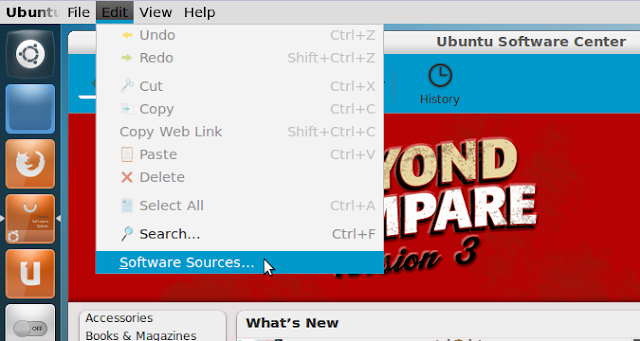
- Open Ubuntu Software Center and head to Edit > Software Sources:


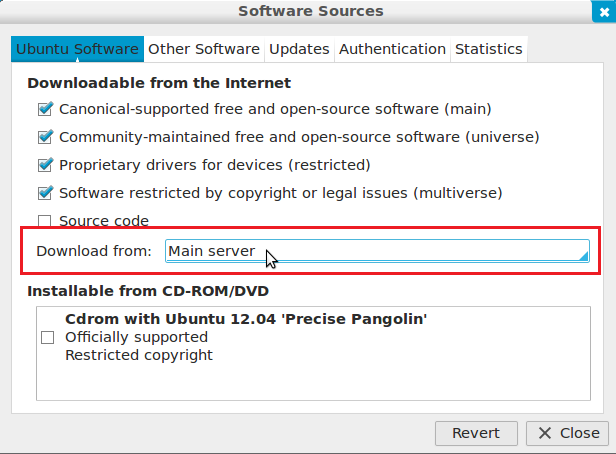
- In the option that says "Download from:", select "Main server" from the dropdown menu (user password required):


- Close now the Software Sources window and open the terminal and run this command:

sudo apt-get update

You can now install Skype 4 or Wine from the terminal or Ubuntu Software Center without errors.

Sunday, August 19, 2012

Install Wine 1.5.11 On Ubuntu 12.04/11.10/Linux Mint 13


Wine 1.5.11 has been released recently which comes with more features, bugfixes and improvements. Here are some of the key features and changes in this latest development release:


  • Adding multi-channel support for the ALSA driver
  • Big X11 lock removal
  • Adding support for pair positioning adjustments in Uniscribe
  • More I/O stream implementations in the C++ runtime
  • Various bug fixes
You can find the release notes of Wine 1.5.11 here. You have to bear in mind that this is a development release which is not recommended for production machines. To install Wine 1.5.11 from PPA on Ubuntu 12.04/11.10 or Linux Mint 13 or older, run the following commands from the terminal:

sudo add-apt-repository ppa:ubuntu-wine/ppa
sudo apt-get update
sudo apt-get install wine1.5 winetricks

If you want to install the stable version of Wine (currently 1.4.1), run the following commands:

sudo add-apt-repository ppa:ubuntu-wine/ppa
sudo apt-get update
sudo apt-get install wine1.4 winetricks

Monday, July 9, 2012

How to Install Mass Effect 3 on Linux


The following tutorial will teach Linux users how to install the Mass Effect 3 game on their open source operating system.

The third installment in the Mass Effect franchise, Mass Effect 3, is an action role-playing game (RPG) developed by BioWare and published by Electronic Arts.

For more details about Mass Effect 3, you can check out the official home page or the Wikipedia article.

Editor's note: For this guide, we have used the latest version of the PlayOnLinux application. We've tested the tutorial on the current 32-bit release of the Ubuntu OS, 12.04 LTS (Precise Pangolin) with Wine 1.5.8.

Before anything else, please make sure you meet the minimum system requirements (especially the graphics card and CPU/RAM) for playing Mass Effect 3.

To install the Mass Effect 3 game on your Linux system, follow the next step-by-step (with screenshots) tutorial.

Step 1 – Install PlayOnLinux

The PlayOnLinux developers provide binary packages and repositories for many Linux operating systems, including Fedora, Debian, ArchLinux, Frugalware and Ubuntu, as well as a universal binary package.

We can't write instructions for all these Linux distributions here; therefore, if you use one of the aforementioned OSes, go HERE for detailed installation instructions.

Step 3 – Install the latest version of Wine

The PlayOnLinux developers provide an easy installation process of any Wine version, stable or development. So, all you need to do now is to go to the "Tools" menu, select "Manage Wine version" and you'll see a new dialog showing you available Wine versions on the left side, and installed Wine versions on the right side.

Select version 1.5.8 of Wine from the left side and click the middle arrow button to install it...


Review image

Wait for the installation to finish and close the window.

Review image

Step 3 – Install Mass Effect 3

Assuming you have the PC DVD of Mass Effect 3, open the PlayOnLinux app and follow the first time instructions to setup the application. Once these are finished, you'll see the PlayOnLinux interface. Click the "Install" button...

Review image

Now click the "Install a non-listed program" link at the bottom of the window...

Review image

An installation wizard will appear, click the "Next" button...

Review image

Click the "Next" button again when asked what would you like to do, leaving the "Install a program in a new virtual drive" option selected...

Review image

On the next step type the game's name in the field and click the "Next" button...

Review image

Now make sure you check the "Use another version of Wine" box and click the "Next" button...

Review image

Select version 1.5.8 of Wine from the list and click the "Next" button...

Review image

Now Wine will be configured and necessary packages will be installed, such as Mono and Gecko...

Review image

Review image

Review image

When the Wine version is fully configured, you'll need to select the Mass Effect 3 installer from the DVD, or from your computer if you copied the installer from the disc on your computer (but you will still need the DVD to play the game)...

Review image

Wait for the installation to finish! Choose the "Browse" option and choose the Mass Effect 3 installer from the Binaries/Win32 folder. Close the wizard.

Review image

Now, you will see a Mass Effect 3 entry in the main PlayOnLinux window. We're not finished yet, as we have to install DirectX 11 by clicking the "Configure" button while the Mass Effect 3 entry is selected, and going to the "Install packages" tab, select the "d3dx11" entry and click the "Install" button. Let it install it and close the PlayOnLinux.

Editor's note: If the game asks you about the PhysX Engine, install it manually by clicking the "Configure" button while the Mass Effect 3 entry is selected, and going to the "Miscellaneous" tab, and clicking the "Run a .exe file in this virtual drive." Then search for the PhysX Engine installer in the /path_to_masseffect3_installation/_Installer/physx/redist directory.

Review image

That's it! Open PlayOnLinux again, select Mass Effect 3 and click the "Run" button to play the game. Enjoy!

Review image

Review image

Review image

If you encounter any issues with the tutorial, do not hesitate to use our commenting system below.