Showing posts with label Player. Show all posts

Sunday, September 22, 2013

Install VMware Player 6.0.0 in Ubuntu /Linux Mint


In this tutorial, we will see how to install the latest version of VMware Player which has reached version .
6.0.0

VMware Player 6.0.0 Installation

to install VMware Player 6.0.0 in Ubuntu/Linux Mint, install first some dependencies with the following command:


    sudo apt-get install build-essential linux-headers-`uname -r`

Users of 32-bit systems can install VMware Player with the following commands:

mkdir ~/VMware && cd ~/VMware 
wget -c http://goo.gl/QTHVtv -O VMware-Player-6.0.0-1295980.i386.bundle.tar 
tar -xvf VMware-Player-6.0.0-1295980.i386.bundle.tar 
chmod +x VMware-Player-6.0.0-1295980.i386.bundle 
sudo sh VMware-Player-6.0.0-1295980.i386.bundle

 For 64-bit systems, enter these commands:

mkdir ~/VMware && cd ~/VMware 
wget -c http://goo.gl/JpvULv -O VMware-Player-6.0.0-1295980.x86_64.bundle.tar 
tar -xvf VMware-Player-6.0.0-1295980.x86_64.bundle.tar 
chmod +x VMware-Player-6.0.0-1295980.x86_64.bundle 
sudo sh VMware-Player-6.0.0-1295980.x86_64.bundle

Thursday, December 27, 2012

SMPlayer 0.8.3 Fixes Youtube Video Playback Problems - Ubuntu/Linux Mint


SMPlayer has been updated to version 0.8.3 recently which fixes YouTube playback problems. As a reminder, SMPlayer is a front-end for MPlayer capable of playing almost any media formats without the need to install any external codecs because it comes with built-in codecs. You can also use SMPlayer to search, play and download YouTube videos.


The PPA below is available for the following Ubuntu/Linux Mint distros:

  • Ubuntu 12.10/12.04/11.10
  • Linux Mint 14/13/12
SMPlayer 0.8.3 Installation

To install SMPlayer 0.8.3 in Ubuntu/Linux Mint, open the terminal and enter these commands:

sudo add-apt-repository ppa:rvm/smplayer 
sudo apt-get update 
sudo apt-get install smplayer smplayer-themes smtube

SMPlayer Removal

To uninstall SMPlayer from your computer, enter these commands:

sudo apt-get remove smplayer* 
sudo add-apt-repository --remove ppa:rvm/smplayer 
sudo apt-get update

SMPlayer Home Page

Monday, November 19, 2012

Xnoise 0.2.13 Media Player Relased – Install in Ubuntu 12.10, Xubuntu 12.10 and Linux Mint 14/13


Xnoise is an open source media player for GTK+ with an excellent user interface, great speed and lots of other new features that allows users to listen music and play videos.
Xnoise can able to play every kind of video/audio format data. The Xnoise interface provides a easy search function where you can easily search the library and drag each artist, album or title to the track-list by in any order position.
 
Install Xnoise Media Player in Ubuntu
The queued tracks (audio or video) in track-list are played one-by-one without being removed and can be removed, inserted, re-ordered any track the way you want.
Recently, Xnoise 0.2.13 has been released and integrated a large number of new exciting features.

Xnoise 0.2.13 Features

  1. Added search feature to new Album Art view.
  2. The ‘Now Playing’ image rendering has been re-designed with reflections.
  3. A weblink to keyboard shortcuts integrated in the help menu.
  4. Ctr-B key-binding for toggling album art view has been added.
  5. Volume slider with symbolic icon.
  6. Mingw compatibility fixes.
To know the complete list of other changes and features, visit at xnoise-media-player.
Please watch the attached video by the Xnoise developer, where he demonstrating some of the features available in the Xnoise 0.2.13 version.

Installation of Xnoise 0.2.13 Media Player

From the Desktop, open the terminal by pressing CTRL + ALT + T and run the following commands to install Xnoise Media Player in Ubuntu 12.10/12.04/11.10, Xubuntu 12.10, Linux Mint 14/13.
$ sudo add-apt-repository ppa:shkn/xnoise
$ sudo apt-get update
$ sudo apt-get install xnoise

Starting Xnoise 0.2.13 Media Player

Run the following command from the Desktop to start the Xnoise Media Player.
$ sudo xnoise
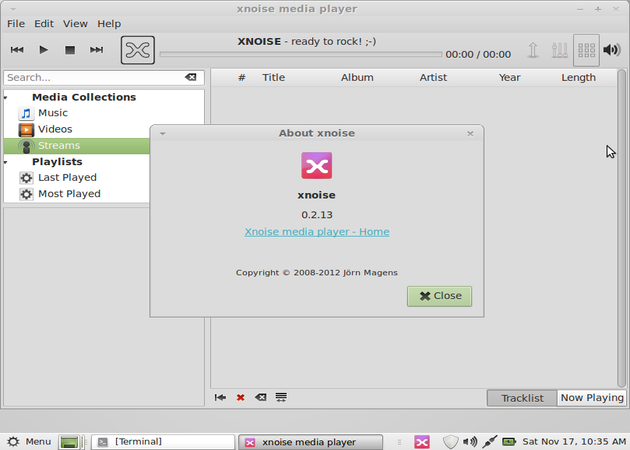
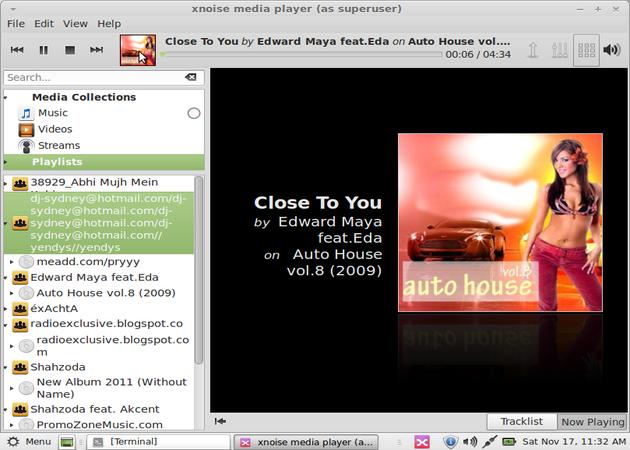
Xnoise Media Player Screenshots

 
Xnoise Media Player under Ubuntu
Xnoise Media Player in Ubuntu
Xnoise sources are available for download for other Linux distributions via GitHub.

How To Install VMware Player 5.0.1 Under Ubuntu 12.10/12.04/Linux Mint 13


In this tutorial, we will help you install the latest version of VMware Player (5.0.1) under a system running Ubuntu/Linux Mint.


You can isntall VMware Player in the following distributions:

  • Ubuntu 12.10/12.04/11.10 or older
  • Linux Mint 13/12 or older
Installing Dependencies

Before installing VMware Player, you need to run this command to install some dependencies:

sudo apt-get install build-essential linux-headers-`uname -r`

VMware Player 5.0.1 Installation

   1. 32-bit Platforms:

To install VMware Player 5.0.1 under a 32-bit system, open the terminal and run these commands:

mkdir ~/VMware && cd ~/VMware 
wget -c http://goo.gl/qGcHF -O VMware-Player-5.0.1-894247.i386.bundle.tar 
tar -xvf VMware-Player-5.0.1-894247.i386.bundle.tar 
chmod +x VMware-Player-5.0.1-894247.i386.bundle 
sudo sh VMware-Player-5.0.1-894247.i386.bundle

Then follow setup instructions.

   2. 64-bit Platforms:

For 64-bit systems, you can install VMware Player 5.0.1 with these commands:

mkdir ~/VMware && cd ~/VMware 
wget -c http://goo.gl/aoveM -O VMware-Player-5.0.1-894247.x86_64.bundle.tar 
tar -xvf VMware-Player-5.0.1-894247.x86_64.bundle.tar 
chmod +x VMware-Player-5.0.1-894247.x86_64.bundle 
sudo sh VMware-Player-5.0.1-894247.x86_64.bundle
Then follow setup instructions.

Thursday, November 8, 2012

GNOME MPlayer 1.0.7 Run and Install it on Linux Mint/Ubuntu


The new version of GNOME MPlayer , the 1.0.7 release is available from October 30, but today only a PPA – among other things dedicated to Lubuntu – has been updated and it will allow us to easily install GNOME MPlayer 1.0.7 also on Ubuntu . Among the new features are support for the MPRIS v2 and integration into tone menu of Ubuntu , along with many other improvements. For the uninitiated, MPlayer is a multimedia player for GNOME GTK2/GTK3 that, besides playing audio and video files, supports DVD chapters and MKV , recovery of covers from Amazon.com for audio files and many other useful functions.
Here are the changes in version 1.0.7 GNOME MPlayer:

  • Implemented MPRIS2
  • Support for the anamorphic aspect ratio (2.39:1)
  • Screensaver inhibit rework (inhibits screensaver When a video is playing)
  • Use the GTK3 symbolic icons when running in GTK3 mode
Added
  • y, g, and J hotkeys hotkeys to match mplayer
  • Many bug fixes, including: scroll wheel fix, preferences & dconf issue fixes, fixes and more keyboard shortcuts.

The official changelog is available at this address .

Install GNOME MPlayer 1.0.7 on Linux Mint/Ubuntu

To install on L / Ubuntu 12.10 GNOME MPlayer 1.0.7, just open the terminal and type:
Into sudo add-apt-repository ppa: gilir / Lubuntu
sudo apt-get update sudo apt-get install
gnome-mplayer
Into That’s all, see you soon!

Sunday, October 28, 2012

Install New BeatBox 0.7 Music Player in Ubuntu 12.10


The new BeatBox music player released in version 0.7, come with new user interface enhancements and new features. The preferences window has been revamped to include preferences for plugins as well as a more robust UI for general settings. in addition, beatbox 0.7 also introduces plugin support with dedicated category. So, enabling or disabling a specific plugin is to be easily.
BeatBox media player is a comfortable, easy to use media player to player, stable, but especially fast, written in  Vala . With  Beatbox  have the chance to play music in shuffle mode and cyclic edit the metadata of the tracks, perform quick searches within the library, edit playlists, view album art,  playlists, podcasts, Internet radio,   and synchronize your player with our account  Last.FM.

Here’s New Change of Beatbox 0.7:

  • Plugin support
  • DB upgrading, which means no longer having to delete your db for new versions.
  • Better last.fm authentication
  • Smart auto scroll to current song
  • Fixed issue where list view became horizontally scrolled unnecessarily
  • Gapless playback
  • Much faster startup
  • Multi-library management. Podcasts now are a truly separate library with a separate folder associated it.
  • More detail, found it @BeatBox Release Announcement

Install BeatBox 0.7 in Ubuntu Based Distro

BeatBox 0.7 Install New BeatBox 0.7 Music Player in Ubuntu 12.10
To install BeatBox 0.7 in Ubuntu 12.04,ubuntu 12.10 and Linux Mint 13, you can add the following PPA:
sudo add-apt-repository ppa:sgringwe/beatbox
sudo apt-get update
sudo apt-get install beatbox
If you want to make BeatBox available in sound menu do the following tips, open terminal then install dconf-tool
sudo apt-get install dconf-tool
Open dconf-tool from unity dash, in dconf-tool navigate to com -> canonical -> indicator -> sound, double-click “Value” of interested-media-players then add ‘beatbox’ after ‘rhythmbox’.

Saturday, September 22, 2012

SMPlayer 0.8.1 Released, Installation Via PPA Available For Ubuntu 12.10/12.04/Linux Mint 13


SMPlayer is a media player (front-end for MPlayer) capable of playing almost any audio/video formats such as avi, mp4, mp3, mpeg, etc. The player has many interesting features like the ability to remember settings done to played media files. When closing, for example, a video and re-open it, it will be resumed from the point you ended your viewing of the video with the same settings set (volume, subtitles, etc.).


You can review all features for SMPlayer here. The latest version of SMPlayer is 0.8.1 which brings a fix for Youtube playback problems. To install SMPlayer 0.8.1 on Ubuntu 12.10/12.04/Linux Mint 13 or older, open the terminal and run the following commands:

sudo add-apt-repository ppa:rvm/smplayer
sudo apt-get update
sudo apt-get install smplayer smplayer-themes smtube

Friday, September 14, 2012

Listen To Your Favorite Radio Stations From The Terminal - Ubuntu/Linux Mint


In this tip we will see how to use the terminal to listen to online  radio stations. This will be possible with the help of "mplayer" and the IP address of the online radio station desired. If you haven't already installed mplayer on Ubuntu/Linux Mint, then do with this command:

sudo apt-get install mplayer

You can search and find here many IP addresses of radio stations. The IP address will be followed by the port number. Here is an example of an online radio station IP address:

http://stream.doarprieteni.ro:8000/

So, the command to use in the terminal to listen to this online radio will be as follows:

mplayer http://stream.doarprieteni.ro:8000/ 

You can now minimize the terminal window and enjoy listening to your favorite radio station. To stop it, you can simply press CTRL+C or just exit the terminal. 

Tuesday, June 26, 2012

16 Best Rhythmbox Media Player Alternatives For Ubuntu 12.04 Precise Pangolin


Many users prefer to use third-party media players on Ubuntu rather than using the default pre-installed Rhythmbox. This tendency is due to the fact that there are many media players in the web that suit the various needs of users such as the supporting of different audio and video formats, offering numerous customization options, good-looking user interface, and so on.

The good thing in the Linux world is that users are always offered alternatives to choose from rather than sticking to one type of software. This applies on media players which are available numerously either in CLI or GUI mode for Linux-based systems. So, if you are one of those users who are getting bored with the current Rhythmbox media player, you can find below a list of 16 best media players that you can install on Ubuntu 12.04 or older, and any other Ubuntu-based system like Linux Mint 13 or older.


1. VLC Media Player


sudo add-apt-repository ppa:videolan/stable-daily
sudo apt-get update
sudo apt-get install vlc

2. Clementine


 sudo apt-get install clementine

3. Kaffeine


sudo apt-get install kaffeine

4. SMPlayer


sudo apt-get install smplayer

5. Audacious (Winamp-Like Interface)


sudo apt-get install audacious

6. KMPlayer


sudo apt-get install kmplayer

7. Banshee Media Player


sudo apt-get install banshee

8. Amarok


sudo apt-get install amarok


9. MPlayer


sudo apt-get install mplayer

10. Guayadeque


sudo apt-get install guayadeque

11. Songbird


(32-bit):

cd /tmp && wget -O songbird_2.0.0-1_i386.deb http://goo.gl/H4edF


sudo dpkg -i songbird_2.0.0-1_i386.deb

(64-bit):

cd /tmp && wget -O songbird_2.0.0-1_amd64.deb http://goo.gl/N3CG5


sudo dpkg -i songbird_2.0.0-1_amd64.deb

12. Exaile


sudo apt-get install exaile

13. Umplayer


(32-bit):

sudo apt-get install mplayer


cd /tmp && wget -O umplayer_0.95-1_i386.deb http://goo.gl/Ly15D


sudo dpkg -i umplayer_0.95-1_i386.deb

(64-bit):

sudo apt-get install mplayer


cd /tmp && wget -O umplayer_0.95-1_amd64.deb http://goo.gl/yd8Pa


sudo dpkg -i umplayer_0.95-1_amd64.deb

14. Miro


sudo apt-get install miro

15. Bangarang


sudo apt-get install bangarang

16. Listen Music Player


sudo apt-get install listen