Saturday, September 8, 2012
Network Security Toolkit 2.16.0-4104
Ronald W. Henderson has announced the release of an updated build of Network Security Toolkit (NST), a Fedora based live DVD with a good collection of open-source network security applications: "We are pleased to announce the latest NST release: version 2.16.0-4104. This release is based on Fedora 16 using Linux kernel 3.4.9. This is a interim release which includes all of the NST and Fedora 16 package updates since 2012-02-27 rolled into a fresh ISO image. If you are building your own NST yum repository or have a subscription to the NST PRO yum repository, you may not need this ISO image as you should be able to simply 'yum update' you NST system(s). The NST project team has worked with the CloudShark folks to facilitate uploading and viewing network packet captures generated by an NST system to either CloudShark.org or a CloudShark Appliance. A new CloudShark Upload Manager tool was created and embedded within the NST WUI to accomplish this. Visit the project's home page to read the full announcement. Download: nst-2.16.0-4104.i686.iso (1,441MB).
Mageia 3 Alpha 1
Anne Nicolas has announced that, after a brief delay, the first development build of Mageia 3 is ready for download and testing: "Mageia 3 is on the way and here is the first alpha release. We are now waiting for your tests. As usual, you will find installation DVD images and dual-architecture CD images. However, live CDs are not available. They rely on a specific file system, Unionfs, but Unionfs is not included in the upstream kernel and has to be rebuilt for every new kernel version. It seems that it does not work properly on the 3.5 kernel series. We are investigating the issue, but since Unionfs seems to be unmaintained upstream at the moment, we need to either fix it and maintain it ourselves or we need to switch to another file system like Aufs or OverlayFS." The first alpha release of Mageia 3 comes with Linux kernel 3.5.3, KDE 4.9.0, and GNOME 3.5.91. Read the release announcement and release notes for a brief feature list. Download: Mageia-3-alpha1-i586-DVD.iso (3,542MB, MD5, torrent), Mageia-3-alpha1-x86_64-DVD.iso (3,607MB, MD5, torrent).
Zentyal 3.0 RC2
Heidi Vilppola has announced the availability of the second and final release candidate for Zentyal 3.0, an Ubuntu-based server distribution: "The Zentyal development team is glad to announce that the second release candidate of Zentyal 3.0 is now available for download and testing. This version is based on the new Ubuntu 12.04.1 installer and besides all the bug fixing done since the first release candidate, it features a new Samba 4.0 beta8 and lots of additional improvements and polishing. The release of the Zentyal 3.0 is almost here, so your help in finding bugs now is more important than ever to make Zentyal 3.0 the best release in history. So, don't forget to report any bugs you come up with, either through the bug tracker or the official Zentyal forum." See the release announcement to find out how to get a free Zentyal T-shirt. Download: zentyal-3.0-rc2-i386.iso (545MB, MD5), zentyal-3.0-rc2-amd64.iso (559MB, MD5).
Install BRL-CAD 7.22.0 From PPA On Ubuntu 12.10/12.04/Linux Mint 13
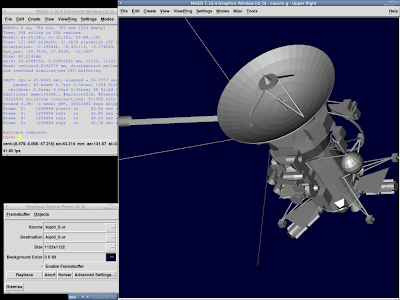
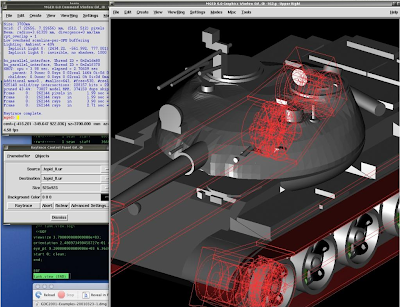
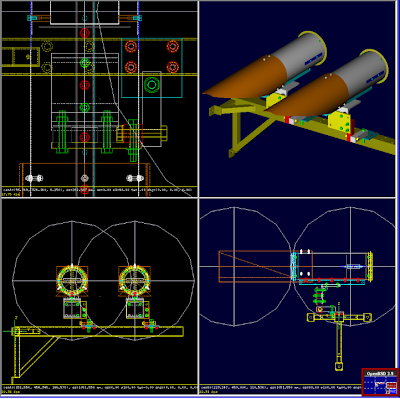
BRL-CAD is a CSG (constructive solid geometry) solid modeling CAD system with powerful features that has similarities with AutoCad. With BRL-CAD, developers can design amazing 2D/3D objects (drawings) that can be close to reality in terms of model accuracy and precision. Here are some of the features of BRL-CAD:
Interactive geometry editor
Ray-tracing for rendering & geometric analyses
Network distributed framebuffer support
Image & signal-processing tools, etc.


Version 7.22.0 of BRL-CAD is the fruit of more than six months of development which includes many changes and improvements compared to previous versions. You can get further information about what has changed in this latest release here. In this tutorial, we will help you install BRL-CAD from PPA under Ubuntu 12.10/12.04/11.10 and Linux Mint 13.
BRL-CAD Installation
Open the terminal and run the following commands to install BRL-CAD on i386 systems:
sudo add-apt-repository ppa:upubuntu-com/brlcad
sudo apt-get update
sudo apt-get install brlcad
For amd64 systems, install BRL-CAD with these commands:
sudo add-apt-repository ppa:upubuntu-com/brlcad64
sudo apt-get update
sudo apt-get install brlcad
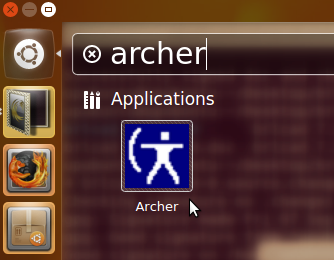
You can then start the application from the Unity dash by searching "archer":

BRL-CAD Home Page
Friday, September 7, 2012
Pentoo 2012.0 Beta 2
Michael Zanetta has announced the availability of the second beta release of Pentoo 2012.0, a Gentoo-based distribution with a collection of utilities for penetration testing: "It's my favorite time of year again, the really short lul between Defcon and Derbycon. I've used my free time to polish up all the bug reports from our Defcon beta release and kick out a shiny new release. Many surprises await you, but I'm not building up a bug-fix beta more than I already have. New things: default hardened setup, torrent download. Live to hack, hack to live. If my dedication isn't obvious, today is my anniversary but here I am uploading betas, etc. You will not find a team of volunteers more dedicated than ours, so test the release and submit bugs so we can make it even better for you." Here is the brief release announcement with a link to the project's bug reporting page. Interested beta testers can download the live DVD image via BitTorrent: pentoo-x86_64-2012.0_beta2.iso (1,484MB).
Use head and tail to read text files
There are many commands to view text files. The most used one is "cat" which is the most suitable to read small text files, "more" and "less" can be good options for large files. But if you are just interested in the beginning or the end of a large file, "head" and "tail" may be very handy for you.

As you can already guess from the name of the commands, "head" will show the beginning and "tail" will show the end of the file. By default, each command will show the first (or last) 10 lines of a file. The most common use of "head" is:
head text-file
In case you want to read more or fewer lines, you can use the "-n" option followed with a certain number. For example, if you want to read the first 30 lines of a file, the command will be:
head -n 30 text-file
And like "head" that shows the first lines of a file, "tail" will show the last lines of a file. The use of "tail" is very similar to that of "head", for example:
tail text-file
And the "-n" option is used to change the number of the output lines:
tail -n 7 text-file
Etichete:
Linux
Subscribe to:
Posts (Atom)