Thursday, November 29, 2012

The DeLorean-Dark Theme Adds Support For Gnome 3.6 - PPA Installation Available For Ubuntu 12.10/Linux Mint 14


DeLorean-Dark is an amazing GTK3 dark theme for Ubuntu/Linux Mint systems. The theme has been updated for Gnome Shell 3.6, that means you can now install it in Ubuntu 12.10 or Linux Mint 14 (Nadia).


Ubuntu 12.10

Linux Mint 14

DeLorean-Dark Installation

To install DeLorean-Dark in Ubuntu 12.10/Linux Mint 14, open the terminal and run these commands:

sudo add-apt-repository ppa:killhellokitty/themes.ppa 
sudo apt-get update 
sudo apt-get install delorean-dark-theme-3.6

To enable it, use any of your favorite programs (MyUnity, Gnome Tweak Tool, etc.). The icons used in the Ubuntu screenshot are from NITRUX OS Icons. Credits for this theme go here.

Wednesday, November 28, 2012

Fedora 18 Beta


The much-delayed beta release of Fedora 18 is finally ready for testing: "The Fedora project team is excited to announce the beta release of its free, fully-functional Linux operating system, Fedora 18, code-named 'Spherical Cow.' Explore what's new in the Fedora 18 beta, including these highlighted release features: Fedora 18 offers a brand-new version of the GNOME desktop, version 3.6, straight from the upstream development process; updates have also been made to the KDE, Xfce and Sugar desktop environments; additionally, the MATE desktop is available for the first time in Fedora; Fedora's new installer user interface enhances the anaconda installer with improvements in ease of use and installation." Read the full press release for more details. Download (torrents): Fedora-18-Beta-i686-Live-Desktop.iso (757MB, SHA256, torrent), Fedora-18-Beta-x86_64-Live-Desktop.iso (786MB, SHA256, torrent). Live images featuring KDE, LXDE, Xfce and SoaS (Sugar on a Stick), as well as installation DVDs, are also available.

Nitrux OS Icons Updated to Version 2.2A, PPA Installation Available For Ubuntu 12.10/12.04 and Linux Mint 14/13


The Nitrux OS icon theme has just been updated to version 2.2A. This latest release includes only two variants:

1. NITRUX (Squared Icons)

2. NITRUX-Buttons (Buttonized Version)


These variants are removed from the Nitrux OS Icon theme:

  • NITRUX-Dark
  • NITRUX-Clear-All
  •  NITRUX-Azure 
  • NITRUX-Mint
The PPA is available for the following distributions:

  • Ubuntu 12.10/12.04/11.10
  • Linux Mint 14/13

Nitrux OS Installation

Open the terminal and issue these commands:


sudo add-apt-repository ppa:upubuntu-com/themes 
sudo apt-get update 
sudo apt-get install nitruxos

To enable NITRUX, run this command:

gsettings set org.gnome.desktop.interface icon-theme 'NITRUX'


For NITRUX-Buttons, run this command:

gsettings set org.gnome.desktop.interface icon-theme 'NITRUX-Buttons'

Top 10 Useful Cinnamon Applets For Linux Mint 14 Nadia


In this article, I have collected 10 best applets that you can use under the new release of Linux Mint 14 (Nadia) with the Cinnamon desktop environment. The applets are also compatible with  Linux Mint 13 Cinnamon.

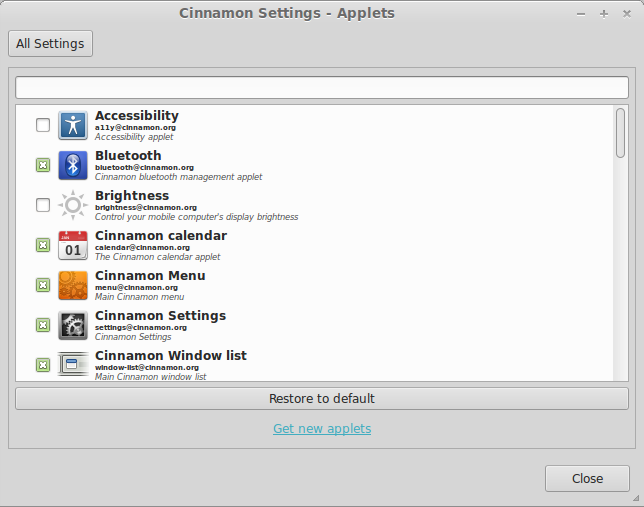
Manging Cinnamon Applets

First of all, you need to know how to manage applets under Linux Mint 14. In the bottom panel, click the caret icon and open Settings > Applets:


In the window that will appear, you will find currently installed applets:


1. Brightness

Our first applet will be Brightness which will be useful for users having difficulties adjusting screen brightness of their laptops.


This applet is installed by default in Linux Mint 14, just enable it from the Applets window:


2. Caps/Num Lock

The Caps/Num Lock applet is useful when working with a wireless keyboard that has no indication about the status of Num Lock or Caps Lock (activated/deactivated). So, we need this applet to notify us when caps/num lock is on:


To install it in Linux Mint 14, open the terminal and run these commands:

wget http://goo.gl/44rlN -O Caps-Num-Lock.zip 
unzip -q Caps-Num-Lock.zip -d ~/.local/share/cinnamon/applets

Use the Applets window to enable it.

3. Shutdown

A simple applet that will allow you to turn off/restart your computer, suspend, log out, hibernate, and lock your screen from the taskbar:


You can install it with these commands:

wget http://goo.gl/9m3Yd -O Shutdown.zip 
unzip -q Shutdown.zip -d ~/.local/share/cinnamon/applets

4. ScreenShot

A very useful screenshot applet that will allow us to take screenshots of the whole screen, current window, or only some parts on your screen:


You can install it with the following commands:

wget http://goo.gl/zA5zx -O Screenshot.zip 
unzip -q Screenshot.zip -d ~/.local/share/cinnamon/applets

5. Virtualbox Launcher

This applet will allow you to quickly launch VirtualBox VMs (virtual machines) from the bottom panel:


To install it, run these commands:

wget http://goo.gl/b3xZB -O Virtualbox-Launcher.zip 
unzip -q Virtualbox-Launcher.zip 
mv cinna*vbox*/vboxla* ~/.local/share/cinnamon/applets

6. Touchpad Indicator

This applet allows users to switch on/off their touchpad / trackpoint directly from the bottom panel:


Install it with these commands:

wget http://goo.gl/R7BqP -O Touchpad-Indicator.zip 
unzip -q Touchpad-Indicator.zip -d ~/.local/share/cinnamon/applets

7. Restart Cinnamon

Instead of pressing - Alt+F2 + r + Enter - to restart Cinnamon, you can use this applet that will add an icon to your panel for restarting Cinnamon:


Install it with these commands:

wget http://goo.gl/L5vGj -O Restart-Cinnamon.zip 
unzip -q Restart-Cinnamon.zip -d ~/.local/share/cinnamon/applets

8. Gmail Notifier

This applet will notify you about new emails coming to your Gmail inbox:


To install Gmail Notifier in Mint 14, run these commands:

wget http://goo.gl/skW6E -O Gmail-Notifier.zip 
unzip -q Gmail-Notifier.zip -d ~/.local/share/cinnamon/applets

Before enabling the applet, edit this file and enter your Gmail account username and password:

gedit ~/.local/share/cinnamon/applets/gmailnotifier@denisigo/settings.js

9. Network Usage Monitor

This applet will display your network usage:


Install it with these commands:

sudo apt-get install vnstat vnstati 
wget http://goo.gl/T16P7 -O Network-Usage-Monitor.zip 
unzip -q Network-Usage-Monitor.zip -d ~/.local/share/cinnamon/applets

10. User Menu

Add a user menu to the bottom panel:


Install it with the following commands:

wget http://goo.gl/TYbJA -O User-Menu.zip 
unzip -q User-Menu.zip -d ~/.local/share/cinnamon/applets

For more applets, click here.

Tuesday, November 27, 2012

Linux Fedora 18 Beta Ready for Release Review


Fedora is an operating system known particularly for its stability and its extreme scalability , and It is no coincidence if it is used on many servers more or less “big”, but this never become known for punctuality, indeed: three or four lags development cycle have become accustomed over the years, but the development cycle of Fedora 18 really put to the test nerves of the team of developers and patienceusers.

In total six postponements , exactly with the release Alpha 1 , mainly due to ‘ incomplete some features more - first – and at was tragic besetting the ‘ Anaconda installer - then. According to what he says Phoronixhowever, the development team seems to be ready to spread the Beta in line with the ‘ utlima release schedule , which would see the set to release on November 27 in practice in a week. For the final version of the operating system, however, there will be wait until 8 January 2013.
And it must be said: able – finally – our heroes to release the long-awaited spherical cow?

Salix OS 14.0 "Xfce"


George Vlahavas has announced the release of Salix OS 14.0 "Xfce" edition, a Slackware-based distribution featuring the Xfce 4.10 desktop environment: "Salix Xfce 14.0 is ready. With Xfce 4.10 being the centerpiece of this release, CD images for the i686 and x86_64 architectures are available for immediate download. Apart from Xfce 4.10, software that comes installed includes Linux kernel 3.2.29, Midori 0.4.7 as the default web browser, Claws-Mail 3.8.1 as the application to use for accessing your e-mail accounts, LibreOffice 3.6.3 for all your office needs, GIMP 2.8.2 for everything that has to do with image editing and manipulation, Viewnior 1.3 as the default image viewer, Parole 0.3.0.3 as the default movie player, Exaile 3.3.0 as the application to use for managing your music collection and more." Read the rest of the release announcement for additional details and MD5 checksums. Download the installation CD images from here: salix-xfce-14.0.iso (664MB, torrent), salix64-xfce-14.0.iso (680MB, torrent).