Ubuntu-nsClock Conky make by Laabiyad Abderrahim, It looks awesome on desktop. This conky was only available with Ubuntu logo but NoobsLab made available logo Mint, Linux, Fedora, Red-hat Gentoo, open-SUSE Debian, and Arch. It is available for all desktop environments like Gnome Shell, Unity, Cinnamon, and others. It shows Distribution logo and current PC time as Analogue clock. Also checkout conky collection.

Install Conky in Ubuntu/Linux Mint open terminal (Press Ctrl+Alt+T) and copy the following commands in the Terminal:
- sudo apt-get install conky conky-all
First of all Download Startup script with following commands:
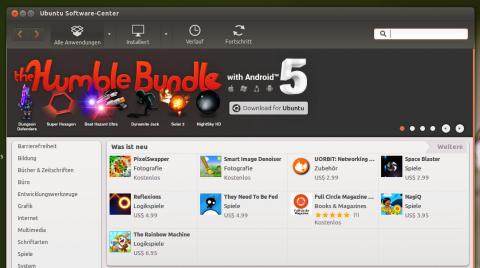
Now open Startup Applications > click Add > New Dialog box will open click on Browse > Now (Press Ctrl+H) see following screenshot.
- cd && wget -O .start-conky http://goo.gl/6RrEw
- chmod +x .start-conky

Note: This Conky Widget won't work in Ubuntu 12.10/13.04/Linux Mint 14
1: Ubuntu Clock Conky

To install Ubuntu-clock-conky in Ubuntu/Mint open Terminal (Press Ctrl+Alt+T) and copy the following commands in the Terminal:
>> For (Gnome Shell, Cinnamon)
>> For (Unity, Gnome Classic, Mate, and Others)
- cd && wget -O ubuntu-noobslab-gs.zip http://goo.gl/625cJ
- unzip ubuntu-noobslab-gs.zip && rm ubuntu-noobslab-gs.zip
- cd && wget -O ubuntu-noobslab-u.zip http://goo.gl/60oSk
- unzip ubuntu-noobslab-u.zip && rm ubuntu-noobslab-u.zip
2: Linux Clock Conky

To install Linux-clock-conky in Ubuntu/Mint open Terminal (Press Ctrl+Alt+T) and copy the following commands in the Terminal:
>> For (Gnome Shell, Cinnamon)
>> For (Unity, Gnome Classic, Mate, and Others)
- cd && wget -O linux-noobslab-gs.zip http://goo.gl/1Io6z
- unzip linux-noobslab-gs && rm linux-noobslab-gs
- cd && wget -O linux-noobslab-u.zip http://goo.gl/5coFn
- unzip linux-noobslab-u.zip && rm linux-noobslab-u.zip
3: Debian Clock Conky
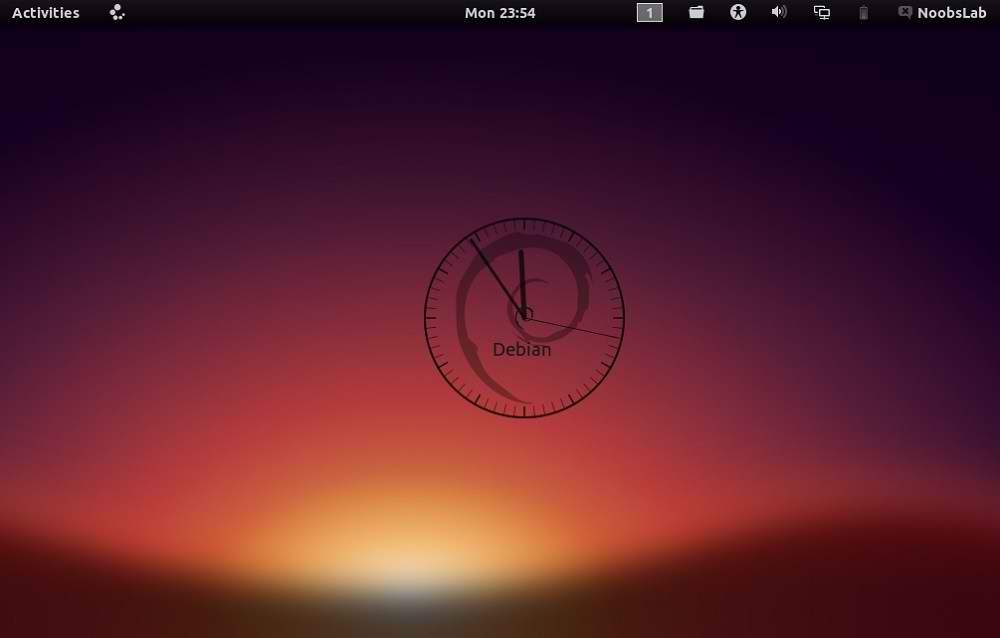
To install Debian-clock-conky in Ubuntu/Mint open Terminal (Press Ctrl+Alt+T) and copy the following commands in the Terminal:
>> For (Gnome Shell, Cinnamon)
>> For (Unity, Gnome Classic, Mate, and Others)
- cd && wget -O debian-noobslab-gs.zip http://goo.gl/St6y2
- unzip debian-noobslab-gs.zip && rm debian-noobslab-gs.zip
- cd && wget -O debian-noobslab-u.zip http://goo.gl/X3ro2
- unzip debian-noobslab-u.zip && rm debian-noobslab-u.zip
4: Linux Mint Clock Conky

To install Linux-Mint-clock-conky in Ubuntu/Mint open Terminal (Press Ctrl+Alt+T) and copy the following commands in the Terminal:
>> For (Gnome Shell, Cinnamon)
>> For (Unity, Gnome Classic, Mate, and Others)
- cd && wget -O mint-noobslab-gs.zip http://goo.gl/fHhTv
- unzip mint-noobslab-gs.zip && rm mint-noobslab-gs.zip
- cd && wget -O mint-noobslab-u.zip http://goo.gl/G1rBO
- unzip mint-noobslab-u.zip && rm mint-noobslab-u.zip
5: Fedora Clock Conky

To install Fedora-clock-conky in Ubuntu/Mint open Terminal (Press Ctrl+Alt+T) and copy the following commands in the Terminal:
>> For (Gnome Shell, Cinnamon)
>> For (Unity, Gnome Classic, Mate, and Others)
- cd && wget -O fedora-noobslab-gs.zip http://goo.gl/Sskvl
- unzip fedora-noobslab-gs.zip && rm fedora-noobslab-gs.zip
- cd && wget -O fedora-noobslab-u.zip http://goo.gl/C3ZHl
- unzip fedora-noobslab-u.zip && rm fedora-noobslab-u.zip
6: Arch Clock Conky

To install Arch-clock-conky in Ubuntu/Mint open Terminal (Press Ctrl+Alt+T) and copy the following commands in the Terminal:
>> For (Gnome Shell, Cinnamon)
>> For (Unity, Gnome Classic, Mate, and Others)
- cd && wget -O arch-noobslab-gs.zip http://goo.gl/Zx6Bj
- unzip arch-noobslab-gs.zip && rm arch-noobslab-gs.zip
- cd && wget -O arch-noobslab-u.zip http://goo.gl/xmD9T
- unzip arch-noobslab-u.zip && rm arch-noobslab-u.zip
7: Gentoo Clock Conky

To install Gentoo-clock-conky in Ubuntu/Mint open Terminal (Press Ctrl+Alt+T) and copy the following commands in the Terminal:
>> For (Gnome Shell, Cinnamon)
>> For (Unity, Gnome Classic, Mate, and Others)
- cd && wget -O gentoo-noobslab-gs.zip http://goo.gl/GluyG
- unzip gentoo-noobslab-gs.zip && rm gentoo-noobslab-gs.zip
- cd && wget -O gentoo-noobslab-u.zip http://goo.gl/3S2wu
- unzip gentoo-noobslab-u.zip && rm gentoo-noobslab-u.zip
8: openSUSE Clock Conky

To install openSUSE-clock-conky in Ubuntu/Mint open Terminal (Press Ctrl+Alt+T) and copy the following commands in the Terminal:
>> For (Gnome Shell, Cinnamon)
>> For (Unity, Gnome Classic, Mate, and Others)
- cd && wget -O opensuse-noobslab-gs.zip http://goo.gl/HwdQn
- unzip opensuse-noobslab-gs.zip && rm opensuse-noobslab-gs.zip
- cd && wget -O opensuse-noobslab-u.zip http://goo.gl/C2jmr
- unzip opensuse-noobslab-u.zip && rm opensuse-noobslab-u.zip
9: RedHat Clock Conky
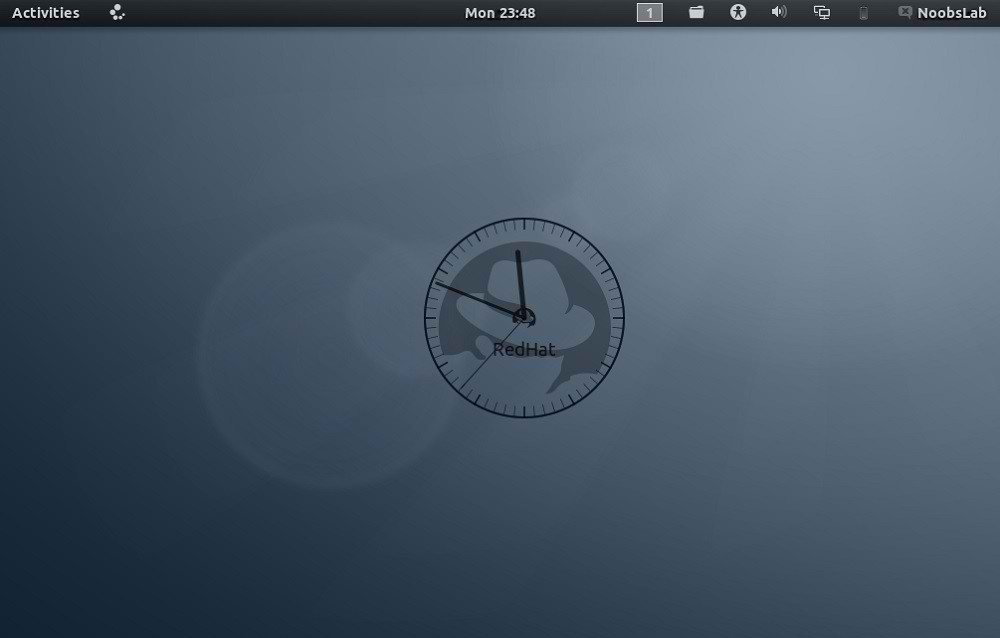
To install RedHat-clock-conky in Ubuntu/Mint open Terminal (Press Ctrl+Alt+T) and copy the following commands in the Terminal:
>> For (Gnome Shell, Cinnamon)
>> For (Unity, Gnome Classic, Mate, and Others)
- cd && wget -O redhat-noobslab-gs.zip http://goo.gl/5blN8
- unzip redhat-noobslab-gs.zip && rm redhat-noobslab-gs.zip
That's it, Enjoy
- cd && wget -O redhat-noobslab-u.zip http://goo.gl/ETQ77
- unzip redhat-noobslab-u.zip && rm redhat-noobslab-u.zip
Source: noobslab