Showing posts with label Clock. Show all posts

Wednesday, March 20, 2013

Install Distro-Clock-Conky in Ubuntu/Linux Mint/Debian


Ubuntu-nsClock Conky make by Laabiyad Abderrahim, It looks awesome on desktop. This conky was only available with Ubuntu logo but NoobsLab made available logo Mint, Linux, Fedora, Red-hat  Gentoo, open-SUSE  Debian, and Arch. It is available for all desktop environments like Gnome Shell, Unity, Cinnamon, and others. It shows Distribution logo and current PC time as Analogue clock. Also checkout conky collection.

conky clock

Install Conky in Ubuntu/Linux Mint open terminal (Press Ctrl+Alt+T) and copy the following commands in the Terminal:
  • sudo apt-get install conky conky-all

First of all Download Startup script with following commands:
  • cd && wget -O .start-conky http://goo.gl/6RrEw
  • chmod +x .start-conky
Now open Startup Applications > click Add  > New Dialog box will open click on Browse > Now (Press Ctrl+H) see following screenshot.
conky startup

Note: This Conky Widget won't work in Ubuntu 12.10/13.04/Linux Mint 14

1: Ubuntu Clock Conky
ubuntu conky

To install Ubuntu-clock-conky in Ubuntu/Mint open Terminal (Press Ctrl+Alt+T) and copy the following commands in the Terminal:
>> For (Gnome Shell, Cinnamon)
  • cd && wget -O ubuntu-noobslab-gs.zip http://goo.gl/625cJ
  • unzip ubuntu-noobslab-gs.zip && rm ubuntu-noobslab-gs.zip
>> For (Unity, Gnome Classic, Mate, and Others)
  • cd && wget -O ubuntu-noobslab-u.zip http://goo.gl/60oSk
  • unzip ubuntu-noobslab-u.zip && rm ubuntu-noobslab-u.zip

2: Linux Clock Conky
linux conky

To install Linux-clock-conky in Ubuntu/Mint open Terminal (Press Ctrl+Alt+T) and copy the following commands in the Terminal:
>> For (Gnome Shell, Cinnamon)
  • cd && wget -O linux-noobslab-gs.zip http://goo.gl/1Io6z
  • unzip linux-noobslab-gs && rm linux-noobslab-gs
>> For (Unity, Gnome Classic, Mate, and Others)
  • cd && wget -O linux-noobslab-u.zip http://goo.gl/5coFn
  • unzip linux-noobslab-u.zip && rm linux-noobslab-u.zip

3: Debian Clock Conky
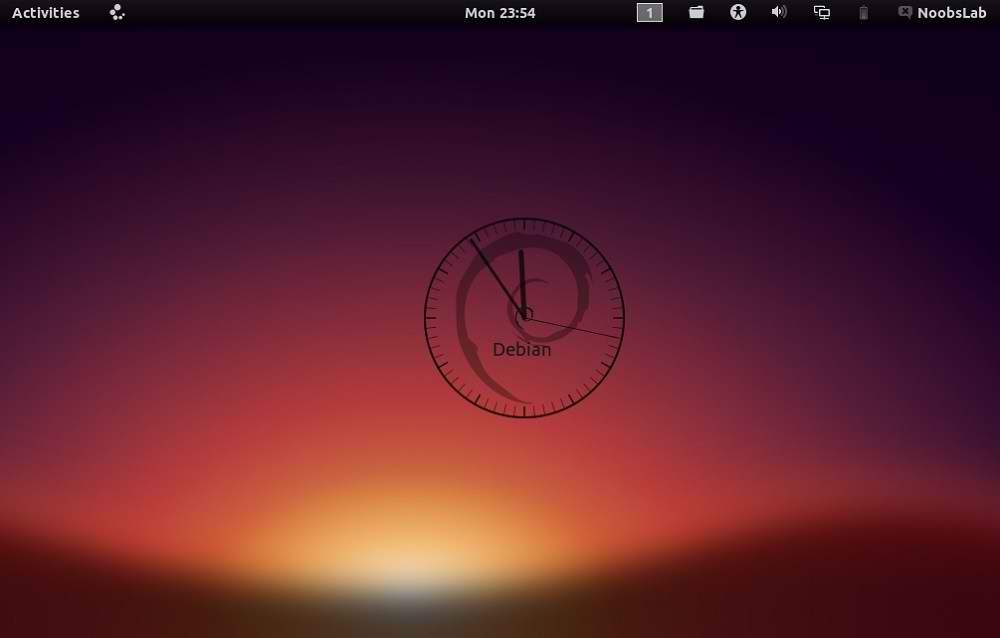
conky debian

To install Debian-clock-conky in Ubuntu/Mint open Terminal (Press Ctrl+Alt+T) and copy the following commands in the Terminal:
>> For (Gnome Shell, Cinnamon)
  • cd && wget -O debian-noobslab-gs.zip http://goo.gl/St6y2
  • unzip debian-noobslab-gs.zip && rm debian-noobslab-gs.zip
>> For (Unity, Gnome Classic, Mate, and Others)
  • cd && wget -O debian-noobslab-u.zip http://goo.gl/X3ro2
  • unzip debian-noobslab-u.zip && rm debian-noobslab-u.zip

4: Linux Mint Clock Conky
conky mint

To install Linux-Mint-clock-conky in Ubuntu/Mint open Terminal (Press Ctrl+Alt+T) and copy the following commands in the Terminal:
>> For (Gnome Shell, Cinnamon)
  • cd && wget -O mint-noobslab-gs.zip http://goo.gl/fHhTv
  • unzip mint-noobslab-gs.zip && rm mint-noobslab-gs.zip
>> For (Unity, Gnome Classic, Mate, and Others)
  • cd && wget -O mint-noobslab-u.zip http://goo.gl/G1rBO
  • unzip mint-noobslab-u.zip && rm mint-noobslab-u.zip

5: Fedora Clock Conky
fedora conky

To install Fedora-clock-conky in Ubuntu/Mint open Terminal (Press Ctrl+Alt+T) and copy the following commands in the Terminal:
>> For (Gnome Shell, Cinnamon)
  • cd && wget -O fedora-noobslab-gs.zip http://goo.gl/Sskvl
  • unzip fedora-noobslab-gs.zip && rm fedora-noobslab-gs.zip
>> For (Unity, Gnome Classic, Mate, and Others)
  • cd && wget -O fedora-noobslab-u.zip http://goo.gl/C3ZHl
  • unzip fedora-noobslab-u.zip && rm fedora-noobslab-u.zip

6: Arch Clock Conky
arch conky clock

To install Arch-clock-conky in Ubuntu/Mint open Terminal (Press Ctrl+Alt+T) and copy the following commands in the Terminal:
>> For (Gnome Shell, Cinnamon)
  • cd && wget -O arch-noobslab-gs.zip http://goo.gl/Zx6Bj
  • unzip arch-noobslab-gs.zip && rm arch-noobslab-gs.zip
>> For (Unity, Gnome Classic, Mate, and Others)
  • cd && wget -O arch-noobslab-u.zip http://goo.gl/xmD9T
  • unzip arch-noobslab-u.zip && rm arch-noobslab-u.zip

7: Gentoo Clock Conky
conky gentoo

To install Gentoo-clock-conky in Ubuntu/Mint open Terminal (Press Ctrl+Alt+T) and copy the following commands in the Terminal:
>> For (Gnome Shell, Cinnamon)
  • cd && wget -O gentoo-noobslab-gs.zip http://goo.gl/GluyG
  • unzip gentoo-noobslab-gs.zip && rm gentoo-noobslab-gs.zip
>> For (Unity, Gnome Classic, Mate, and Others)
  • cd && wget -O gentoo-noobslab-u.zip http://goo.gl/3S2wu
  • unzip gentoo-noobslab-u.zip && rm gentoo-noobslab-u.zip

8: openSUSE Clock Conky
opensuse conky

To install openSUSE-clock-conky in Ubuntu/Mint open Terminal (Press Ctrl+Alt+T) and copy the following commands in the Terminal:
>> For (Gnome Shell, Cinnamon)
  • cd && wget -O opensuse-noobslab-gs.zip http://goo.gl/HwdQn
  • unzip opensuse-noobslab-gs.zip && rm opensuse-noobslab-gs.zip
>> For (Unity, Gnome Classic, Mate, and Others)
  • cd && wget -O opensuse-noobslab-u.zip http://goo.gl/C2jmr
  • unzip opensuse-noobslab-u.zip && rm opensuse-noobslab-u.zip

9: RedHat Clock Conky
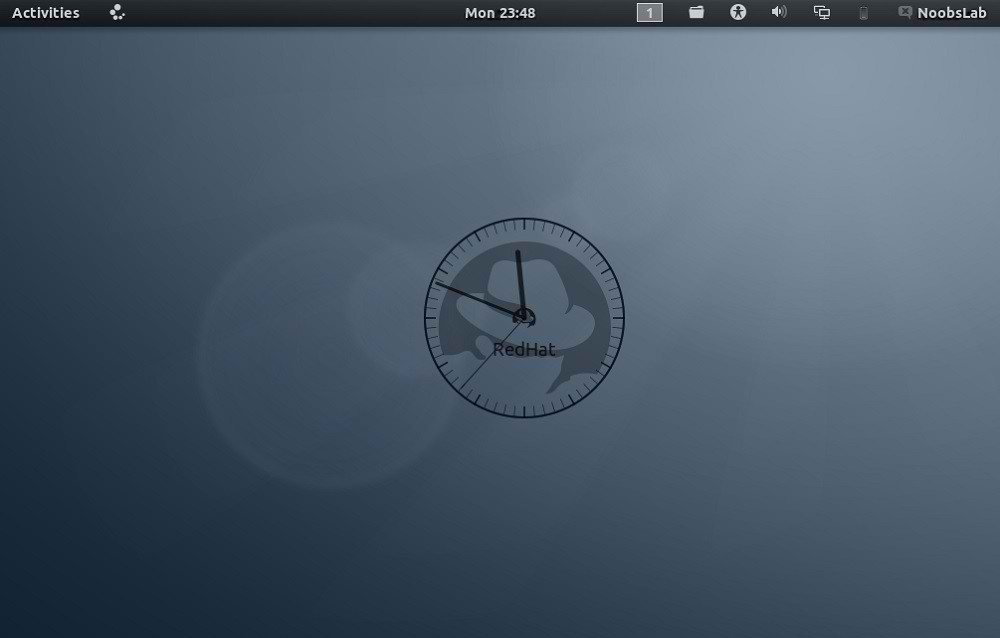
conky redhat

To install RedHat-clock-conky in Ubuntu/Mint open Terminal (Press Ctrl+Alt+T) and copy the following commands in the Terminal:
>> For (Gnome Shell, Cinnamon)
  • cd && wget -O redhat-noobslab-gs.zip http://goo.gl/5blN8
  • unzip redhat-noobslab-gs.zip && rm redhat-noobslab-gs.zip
>> For (Unity, Gnome Classic, Mate, and Others)
  • cd && wget -O redhat-noobslab-u.zip http://goo.gl/ETQ77
  • unzip redhat-noobslab-u.zip && rm redhat-noobslab-u.zip
That's it, Enjoy

Source: noobslab

Monday, February 25, 2013

Install Net-Conky in Ubuntu/Linux Mint/Debian


Previously NoobsLab shared other Conky widgets for linux desktop to make desktop nice. So today brings Net conky for you, Basically this conky was only available for Ethernet but NoobsLab provide after modification also for WiFi. Net conky shows Network Upload and Download speed via graph, text and circles.


Install Conky in Ubuntu/Linux Mint open terminal (Press Ctrl+Alt+T) and copy the following commands in the Terminal:
  • sudo apt-get install conky conky-all

First of all Download Startup script with following commands:
  • wget -O .start-conky http://goo.gl/6RrEw
  • chmod +x .start-conky
Now open Startup Applications > click Add  > New Dialog box will open click on Browse > Now (Press Ctrl+H) see following screenshot.
conky startup

First install relevant conky then change your net speed in this file (Line 3 & 5):
  • sudo nano ~/.conky/NET_0.5.lua

1:  Net Conky for Ehternet
net conky

To install Net-Conky in Ubuntu/Mint open Terminal (Press Ctrl+Alt+T) and copy the following commands in the Terminal:
  • wget -O net-conky-eth.zip http://goo.gl/OpxW7
  • unzip net-conky-eth.zip
  • sudo rm net-conky-eth.zip

2: Net Conky for WiFi
net conky

To install Net-Conky in Ubuntu/Mint open Terminal (Press Ctrl+Alt+T) and copy the following commands in the Terminal:
  • wget -O net-conky-wlan.zip http://goo.gl/uLU1r
  • unzip net-conky-wlan.zip
  • sudo rm net-conky-wlan.zip
That's it, Enjoy

Source: noobslab

Thursday, January 24, 2013

Install Ubuntu Phone Clock in 0.5 Ubuntu 12.10/12.04/Linux Mint 14/13


Ubuntu OS is getting popular day by day and almost all Linux users(Power-User) is waiting for Ubuntu OS to run on their phones. Ubuntu Phone OS has really nice clock on screen which changes color and animation on phone OS. So now Gabriel Barbosa Nascimento made this clock for Ubuntu desktop OS. It looks really fancy & cool and it has classic feature to animate clock and change color after sometime automatically. Also there are clock colors available to choose which is relevant to your wallpaper/theme. It is possible to drag this widget anywhere on your desktop. This has been tested in Ubuntu 12.10/12.04, If you want to try on other Ubuntu or Ubuntu based versions then Go ahead.

ubuntu phone clock

ubuntu os clock

ubuntu clock

To install in Ubuntu 12.10/Linux Mint 14 open Terminal (Press Ctrl+Alt+T) and copy the following commands in the Terminal:
  • sudo add-apt-repository ppa:barbosanascimentogabriel/ubuntu-phone-clock
  • sudo apt-get update
  • sudo apt-get install ubuntu-phone-clock
To install in Ubuntu 12.04/Linux Mint 13/Other Ubuntu versions open Terminal (Press Ctrl+Alt+T) and copy the following commands in the Terminal:
  • wget -O ubuntu-phone-clock.deb http://goo.gl/6b5Cs
  • sudo dpkg -i ubuntu-phone-clock.deb && rm ubuntu-phone-clock.deb
That's it

Monday, November 12, 2012

Install The Conky HTC Home Widget In Ubuntu 12.10/12.04/Linux Mint 13

 
In this tutorial, we will help you install Conky HTC Home in Ubuntu/Linux Mint systems. This conky desklet will display on your desktop weather, clock, high/low temperature, humidity, wind speed, etc. This conky script is simply a clone of the original HTC Home for smartphones.


Conky HTC Home Installation

Under Ubuntu 12.10/12.04/Linux Mint 13, install Conky with this command:

sudo apt-get install conky-all unrar rar

Now set up the widget with this sequence of commands:

mkdir -p ~/.Conky 
mkdir -p ~/.fonts 
cd /tmp 
wget -c http://goo.gl/qyjyH -O conky-htc-home.rar 
unrar x conky-htc-home.rar 
cd Conky*HTC*Home 
cp -r fonts/* ~/.fonts 
cp -r .Conky ~/

Before starting the widget, let's now add the code of your city to the accuw_script file. To do this, click here and search for your city, then copy the URL from the address bar. Next, run this command from the terminal:

gedit ~/.Conky/htc_home/accuweather/accuw_script

In this file, replace the default url with your own as found in the AccuWeather website:


Save your file and exit. You can test now the widget with this command:

sh ~/.Conky/htc_home/start_conky.sh

By default, this widget will be displayed in the top right corner of your screen:


If you want, for example, to display it in the center of your screen, edit the conkyrc file with this command:

gedit ~/.Conky/htc_home/conkyrc

Replace in this file:

alignment top_right

to

alignment middle_middle


Here is a screenshot of HTC Home displayed in the middle of your screen:


For other positions, you can use the following options:

  • alignment top_left 
  • alignment top_middle 
  • alignment middle_right 
  • alignment middle_left 
  • alignment bottom_right 
  • alignment bottom_left 
  • alignment bottom_middle
To start the widget automatically after you login, open "Startup Applications" and add these details:

Name: Conky HTC Home 
Command: /home/username/.Conky/htc_home/start_conky.sh

Replace username with your own account username.

Conky HTC Home Homepage

Wednesday, September 26, 2012

How To Install Conky Box On Ubuntu 12.10/12.04/Linux Mint 13


In this tutorial we will see how to install Conky Box under Ubuntu/Linux Mint. This amazing conky script will display on your desktop the clock, date and some system information. You can find its author here.


Conky Box Installation

Install Conky under Ubuntu 12.10/12.04 or Linux Mint 13 with this command:

sudo apt-get install conky-all

Install now Conky Box with these commands:

cd /tmp

wget -c http://goo.gl/MSqme -O conky_box.zip

unzip conky*.zip && cd Conk*

cp Box.png ~/

cp *.lua ~/

mkdir -p ~/Conky_Box

cp conkyrc ~/Conky_Box

To start now Conky Box, run this command:

conky -c ~/Conky_Box/conkyrc

Here is a screenshot of it under Ubuntu:


You can start it automatically by adding it to Startup Applications.

Thursday, September 13, 2012

Beautify Your Desktop With 'Conky Clock and Date' Desklet - Ubuntu/Linux Mint


In this tutorial we will help you install the Conky_Clock_and_Date conky gadget on Ubuntu and Linux Mint. This amazing conky script will display on your desktop a clock and current date. The widget will stick to top right corner of your screen. Here is a screenshot of it under Ubuntu 12.04:


Installation

Open the terminal and run the following commands:

sudo apt-get install -y unzip conky conky-all

cd /tmp

wget -O conky-clock-date.zip http://goo.gl/v4XDi

unzip -q conky-clock-date.zip -d  ~/ && cd conky-clock-date

mkdir -p ~/.fonts

cp *.ttf ~/.fonts

cp -r scripts ~/

cp *.lua ~/

Start now the clock with this command:

conky -c ~/conky-clock-date/conkyrc &

To close it, run this command:

killall conky

Script Source: deviantart

Wednesday, August 15, 2012

How to create a continuous digital clock in the terminal


A digital clock is actually nothing special, most distros include one by default. However, in this article, I will show you how to get a continuous digital clock in the terminal.

The basic command you can use to display date and time in the terminal is "date". When you open the terminal and run "date", you will have an output of the current date and time. To abbreviate the output to display the time only, you can add a tag (like "+%r" or "+%T") to the "date" command.

With "date", you can display the current time. To create a continuous digital clock, we just need a continuous output. One method is to combine the "watch" command with "date". Thus, to get a continuous digital clock in the terminal, you can just open the terminal and run the following command:

watch -n 1 date +%r

You will have this result:


In case you want a clean output in the terminal, you can use the "echo" command to display the output of the date command and placing that command in an infinite loop. By this method, you can also have a continuous digital clock in the terminal that updates every 1 second.

The command you can use is:
 clear; while true; do echo -e \\b\\b\\b\\b\\b\\b\\b\\b`date +%T`\\c ; sleep 1; done  

And the result is:

 In this command, "echo" is to display the output of "date +%T", the "\\b" string is to delete the former output (How many "\\b" will depend on the output, ie: the output of "date +%T" is 8 characters long so you will need at least 8 times of "\\b", if you use "date +%r" whose output is 11 characters long, you will need at least 11 "\\b".) The "\\c" part is to tell "echo" not to create a new line.

Anyway, it's just a geeky way to play with the terminal and some basic commands. If you seriously need to check the time, I recommend you to use other applications than the terminal :D.

Friday, July 20, 2012

PlasticClock: A Nice Desktop Clock For Ubuntu/Linux Mint


In this tutorial, we will see how to install PlasticClock on Ubuntu or Linux Mint. PlasticClock is a conky desklet that will show on your desktop the time and date (weekday & week number).


To make it easy installing this widget, I have uploaded it to our custom PPA, but if you want to make a manual installation, you can download it here.

PlasticClock Installation

To install PlasticClock on Ubuntu 12.10/12.04/11.10 or Linux Mint 13 or older, open the terminal and run the following commands:

sudo add-apt-repository ppa:upubuntu-com/conky
sudo apt-get update
sudo apt-get install plasticclock

You can now start the screenlet via the unity dash:


On Linux Mint, you can start it with this command from the terminal:

plasticclock &

To change the position of the clock on your screen, edit the conkyrc file with this command:

gedit ~/plasticclock/conkyrc

Change now this line to any of the option given below:

alignment top_right

top screen left ---> alignment top_left
top screen middle ---> alignment top_middle  
bottom screen middle ---> alignment top_middle
bottom screen right ---> alignment bottom_right
bottom screen left ---> alignment bottom_left

If you want to stop PlasticClock, run this command:

killall conky

Enjoy!