Showing posts with label Vlc. Show all posts

Thursday, December 20, 2012

Stream Video and Music from PC/Laptop to Android - Ubuntu/Linux Mint


In this tutorial, we will explain how to make it easy streaming music and video from a PC or laptop to an Android device (smartphones, tablets, etc.) over a wireless network. We have previously done a tutorial for streaming videos from PC to iOS devices, you can check it here.

We will use under Ubuntu or Linux Mint (13.04/12.10/12.04, Mint 14/13 or older) the VLC Media Player, and in the Android device we will use VLC Direct Pro which allows to stream media contents from your computer to Android, it can be also used to control your VLC media player remotely.

Getting Started

   
1. Installing VLC Media Player & Configuration (Ubuntu/Linux Mint)

Let's first install the non-free-codecs package under Ubuntu/Linux Mint to be able to play media files on your Android device. To do this, open the terminal and issue these commands:


sudo -E wget --output-document=/etc/apt/sources.list.d/medibuntu.list http://www.medibuntu.org/sources.list.d/$(lsb_release -cs).list 
sudo apt-get update 
sudo apt-get -y  --allow-unauthenticated install medibuntu-keyring 
sudo apt-get update 
sudo apt-get install non-free-codecs

Install now VLC Media Player with these commands:

sudo add-apt-repository ppa:videolan/stable-daily 
sudo apt-get update 
sudo apt-get install vlc

Start VLC and enable the web interface by opening View >> Add interface >> Web:


Minimize the VLC window, then check your IP address of your wireless (wifi) internet connection in the network manager, or run simply this command from the terminal:

ifconfig wlan | grep inet

Your wireless IP address will be listed after "inet addr":


This IP address will be used later with VLC Direct Pro on your Android-based device.

   2. Installing VLC Direct Pro Free & Configuration (Android)

Search 'VLC Direct Pro Free' in Play Store and install it:


Launch the app now and in the setup wizard, don't tap "Next", just tap the "menu" button on your Android device and select Settings:


Tap now "Manual Configuration":


Tap "VLC Host":


Enter now the IP address of the wireless internet connection of your computer/laptop as explained above:


Leave VLC web interface port as is (8080).

Move back to the 'Preferences' menu and tap "Automatic Connection Wizard":


Tap "Start":


The app will now scan your computer or laptop to see if VLC Media Player is running. Once detected, tap the Target icon (top left corner) and change it to Android, then tap the Computer icon and browse your computer/laptop hard drive to locate the folder containing your media files to play them:


Your audio/video file will be now streamed to your Android device:


Enjoy!

Thursday, August 16, 2012

How To Get Encrypted Blu-Rays Working In VLC

 
With a small tweak, the latest VLC 2.0.x should be able to play most Blu-rays released before 2012 (it doesn't work for Blu-rays that use BD+).

So here's what you must do to get encrypted Blu-ray discs working with VLC 2.0.x in Ubuntu 12.04 Precise Pangolin.


Get encrypted Blu-ray discs to work with VLC in Ubuntu 12.04


1. Install the required packages

The N-muench VLC PPA provides some packages backported from Ubuntu 12.10 to Ubuntu 12.04, such as libbluray 0.2.2; you may get encrypted Blu-ray playback working with VLC under Ubuntu 12.04 without this PPA, but this has been tested using the N-muench VLC PPA (by Pinguy - I can't test this myself as I don't have any Blu-rays).

To add the PPA and install the required packages in Ubuntu 12.04, use the following commands:
 
sudo add-apt-repository ppa:n-muench/vlc
sudo apt-get update
sudo apt-get install vlc libaacs0 libbluray-bdj libbluray1
 
2. Now you must create an "aacs" folder in the hidden ".config" 
folder from your home directory and download the aacs keys there. To do 
this, run the following commands in a terminal:
 
mkdir -p ~/.config/aacs/ cd ~/.config/aacs/ && wget http://vlc-bluray.whoknowsmy.name/files/KEYDB.cfg
 
3. Now to play Blu-rays using VLC, open VLC, select Media > Open Disc, make sure "no disc menus" is selected (without this, VLC will crash for most Blu-ray discs) and browse for the Blu-ray disc.

The instructions above should work for other Linux distributions too, not just Ubuntu, as long as you have VLC 2.0.x installed along with libaacs0 and libbluray1.


Friday, July 27, 2012

Some small tips to use VLC


I have written an article about 4 tricks you can do with MPlayer. Today I will show you some tricks to do with another popular open source media player - VLC. VLC is a very versatile and rich in features media player, and these tricks will help you utilize VLC to its fullest potential.


Take screenshots of a video

When you watch videos, you may at times want to take screenshots of the favorite scenes. You can do it by using the Snapshot feature of VLC. Just right click on the VLC screen then hover the mouse on the "Video" menu and you will see the "Take Snapshot" option.

However, the most efficient way is to use the keyboard shortcut. Whenever you want to take a screenshot, just hit Shift + S. A thumbnail image will appear on the top left corner of the VLC screen with the link to the recently saved screenshot.

VLC take screenshot

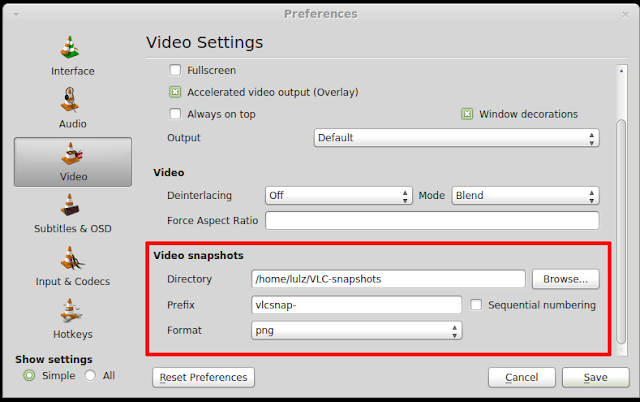
By default, the screenshot will be saved in your Pictures folder as png format. If you want to edit the format and the saving folder, you go to Tools > Preferences then select the Video category on the Preferences window and you will see the customizing options for the snapshots:

take screenshot vlc


Open a media in a specific time

You can just use the time bar to scroll to your favorite scene. However, if you want to open a media in a specific time, there is a more precise method than using the time bar. Just click on Media >  Open (advanced) and you will be presented to the Open Media window. On that window, check the "show more options" box and you will see the options to start a media in a specific time:

VLC jump to specific time

Convert files to other formats

Just like MPlayer, VLC has the converting feature as well. To start converting a file to another format, go to Media > Convert/ Save and the Open Media window will appear. On that window, select the file you want to convert by using the Add button. After you are done adding the file, hit the Convert/Save button and a new window will pop up to let you select the output filename, destination and format.After that, hit the Start button to start the converting process.


VLC convert

Play videos in ASII mode

As you have known from the other article, you can use MPlayer to play videos in the terminal in ASII mode. You can use VLC to play videos in ASII mode too. To watch video in ASII mode with VLC, go to Tools > Preferences ( or you can hit Ctrl + P) then select the Video category in the Preferences window.


Then click on the output tab to get the drop down menu. On that menu, you will see the options to watch videos in ASII with VLC.

Wednesday, July 25, 2012

Videolan Releases VLC Beta Version For Android Devices


Earlier this month, VideoLAN affirmed the news on twitter that VLC beta version for android devices has been launched. Now, you can play almost any audio or video files on your android devices because VLC beta version is enriched with following intriguing features;


  • Plays all files, in all formats, like the classic VLC
  • Audio and video media library, with full search
  • Support for network streams, including HLS
  • Subtitles support, embedded and external, including ASS and DVD subtitle
  • Multi audio or subtitles tracks selection
  • Multi-core decoding, for Cortex-A7 A9 and A15 chips
  • Experimental hardware decoding
  • Gestures, headphones control
However, this beta version supports android devices from 2.1 version (platform-7) that means all the devices based upon the ARMv6, ARMv7 and the ARMv7+NEON Engine. In other words, the devices it supports encompass of Galaxy Nexus (OMAP 4460), HTC One X (Tegra 3), Samsung Galaxy S3 (Exynos 4 Quad), Motorola Defy (OMAP 3610), HTC Desire (QSD8250 Snapdragon) and Nexus one (QSD8250 Snapdragon). Moreover, the beta version is available to download on Google Playstore for the android users. So if you are the one then hurry up and get your hands on one of the finest media players, now, available on one of the finest mobile devices. Bare in mind, this is a beta version which meant it may prone to discrepancies as it’s not the finalized version.


To get the beta version on your android device, follow the link;
https://play.google.com/store/search?q=VLC+Mobile+Team