Showing posts with label Installation. Show all posts

Friday, December 14, 2012

Install MultiBoot USB from PPA under Ubuntu 12.10/12.04 and Linux Mint 14/13


MultiBootUSB (aka Multi Boot USB) is a tool with GUI (user interface) written in Gambas that allows users to install and boot various Linux distributions from a single USB flash drive (USB key). Supporting 145 Linux distros including Ubuntu and its derivatives, Multi Boot USB can detect iso Images automatically with the possibility to delete any Linux distro whenever you want. You can visit the tool's home page here for more information.

MultiBootUSB screenshots:


The PPA below is available for these Ubuntu/Linux Mint distributions:

  • Ubuntu 13.04/12.10/12.04/11.10
  • Linux Mint 14/13/12
MultiBootUSB Installation

To install the latest version of MultiBootUSB from PPA (v6.0-1), open the terminal and issue these commands:

sudo add-apt-repository ppa:upubuntu-com/ppa 
sudo apt-get update 
sudo apt-get install multibootusb
For any bug encountered, report it here.

MultiBootUSB Removal

To uninstall MultiBoot USB from your system, run these commands:

sudo add-apt-repository --remove ppa:upubuntu-com/ppa 
sudo apt-get remove multibootusb 
sudo apt-get update

Wednesday, December 5, 2012

Tor Browser Bundle (2.3.25-1) Released - PPA Installation Available For Ubuntu/Linux Mint


Tor Browser Bundle for Linux has been updated recently to version 2.3.25-1 which brings more improvements and security updates. Here are the packages updated in this latest release:


  • Tor 0.2.3.25 (with openssl-1.0.1c, zlib-1.2.7 and libevent-2.0.20-stable)
  • Firefox 10.0.11esr
  • Vidalia 0.2.21
  • NoScript 2.6.2
  • HTTPS-Everywhere 3.0.4

The PPA is available for the following Ubuntu/Linux Mint distributions:

  • Ubuntu 12.10/12.04/11.10
  • Linux Mint 14/13/12
Tor Browser Bundle Installation

Open the terminal and install Tor Browser Bundle 2.3.25-1 with these commands under a 32-bit system:

sudo add-apt-repository ppa:upubuntu-com/tor 
sudo apt-get update 
sudo apt-get install tor-browser 
sudo chown $USER -R ~/.tor-browser/

Under a 64-bit system, run these commands:

sudo add-apt-repository ppa:upubuntu-com/tor64 
sudo apt-get update 
sudo apt-get install tor-browser 
sudo chown $USER -R ~/.tor-browser/

You can start the application from the Unity dash:


Or start it from the terminal with this command:

tor-browser

Uninstalling Tor Browser Bundle

To remove Tor Browser Bundle from your system, run the following commands:

sudo add-apt-repository --remove ppa:upubuntu-com/tor
or

sudo add-apt-repository --remove ppa:upubuntu-com/tor64

sudo apt-get remove tor-browser 
sudo apt-get update

For manual installation, you can download the appropriate package from here.

Friday, November 30, 2012

Install The Flowblade Multitrack Non-Linear Video Editor From PPA Under Ubuntu 12.10/12.04 and Linux Mint 14/13


Flowblade is a free open source multitrack non-linear video editor that is very simple to use, there is nothing complicated about it. This video editor allows to insert, trim, merge, delete, or cut parts from your video clips, mix audio and video, drag and drop video clips on the timeline, etc.


Additionally, Flowblade supports almost any audio/video formats as well as JPG, PNG, and SVG image file types. For full features, click here.

Flowblade Installation

To install Flowblade from PPA under Ubuntu 12.10/12.04 or Linux Mint 14/13, open the terminal and issue these commands:

sudo add-apt-repository ppa:upubuntu-com/multimedia 
sudo apt-get update 
sudo apt-get install flowblade

Uninstalling Flowblade

To remove Flowblade from your system, run these commands:


sudo add-apt-repository --remove ppa:upubuntu-com/multimedia 
sudo apt-get remove flowblade 
sudo apt-get update

Sunday, November 18, 2012

Install Filezilla 3.6.0 on Ubuntu 12.10


Filezilla 3.6.0 has been released. When you need to rely on a an excellent FTP client the choice can only fall back on Filezilla, especially in Linux. Each user owner of a blog, or manages a web portal should always be installed on your system Filezilla: personally I find it very comprehensive, it is essential for my work and my passion. As for the news, we can say that FileZilla 3.6.0 only makes small changes, such as fixes a crash found in version 3.5.3 and a bug that occurred with IPv6. This means that the network configuration wizard will no longer crash if you are using an IPv6 address.


Install Filezilla 3.6.0 on Ubuntu

Into To install FileZilla 3.6.0 on Ubuntu 12.10 we will rely on the following PPA:
sudo add-apt-repository ppa: n-muench/programs-ppa
sudo apt-get update sudo apt-get install
filezilla
Being a PPA also contains updated versions of other programs that you may not want, my advice is to remove the PPA once the installation of Filezilla 3.6.0:
sudo add-apt-repository-r ppa: yofel / ppa
Well, it’s really all

Saturday, November 17, 2012

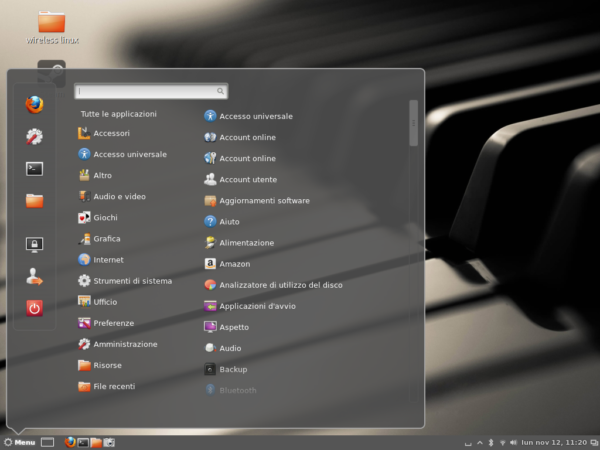
Cinnamon 1.6.7 and Nemo 1.1.2 Released! Install it on Ubuntu/Linux Mint


Cinnamon, a few days after the last update, advances to version 1.6.7! ‘imminent arrival of Linux Mint 14, which seeks to improve and update the desktop environment as quickly as possible: this is the reason why the updates one another so almost frantic!
  Cinnamon , for those who does not know, is a desktop manager introduced in Linux Mint 12, which combines the functionality of Gnome 3.x and the ease of use of its Linux Mint, extending the Gnome 3 shell with some of the strengths of the now superseded shell Gnome 2.x ( a prime example are the panels and its applets). As I said earlier Clement Lefebvre , as well as active developer ringleader of the Mint team has announced release a minor update that give the manager version 1.6.7.
 Cinnamon 1.6.7 and Nemo 1.1.2 Released! Install it on Ubuntu/Linux Mint
The minor update, this time, it touches mainly the ‘ look and feel of the desktop, by means of buttons and icons. Here’s the changelog:
  • Resize existing icons in window list applet panel icon When scaling mode is changed
  • Fixed pixelation icon in Alt-tab
  • Fixed menu buttons being cropped application
Fixed
  • advanced options box in cinnamon-settings-> backgrounds not being shown properly in Mint 14
  • Updated translations
With Cinnamon has also been updated also Nemo (the file manager) to version 1.1.2 , which fixes a bug “invisible but important” related to the mechanisms of copy / paste files. You can find the official announcement of Clem in here .

Cinnamon 1.6.7 – Installation on Linux Mint

The update is available within the repository system and will be carried out automatically, or alternatively can still update the system from a terminal, typing
sudo apt-get
update sudo apt-get dist-upgrade


Cinnamon 1.6.7 – Installation on Ubuntu 12:04 to 12:10

In this case we will use the convenient repository (which, to date, are the official ones of the project): then open a terminal and type
sudo add-apt-repository ppa: gwendal-lebihan-dev/cinnamon-stable
sudo apt-get update
sudo apt-get install cinnamon

We may use Cinnamon selecting it in the login screen.

Cinnamon 1.6.7 – Installation on other distributions

In download page Cinnamon provides the installation instructions for Fedora, OpenSUSE, ArchLinux, Gentoo, and Frugalware , as well as the link to the source tarball.

Friday, November 16, 2012

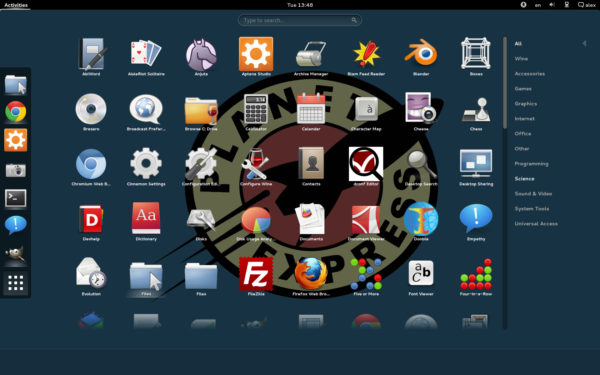
GNOME Shell 3.6.2 Released! Install It on Ubuntu/Linux Mint


 GNOME Shell 3.6.2 Released! Install It on Ubuntu/Linux Mint 
Second update of maintenance for the family 3.6 of GNOME Shell, on which way the famous desktop environment version 3.6.2 . And, as happens in every update less of respect, even this time we are going to attend or drastic changes immediately visible to the eye, but in this maintenance release have been resolved a little ‘extremely annoying bugs that, in a few seconds, we analyze together.
First, here is the full changelog :
    • Implement org.gnome.ScreenSaver.GetActiveTime
    • Explicitly load gnome-screensaver When not running GDM
    • September Empathy as preferred handler When delegating channels
    • Tweak ScreenShield animations
    • Restore Fittsability summary of items in message tray
    • App search: Match GenericName too
Add
  • setting to force log out menuitem
  • Fix auto-scroll to bottom in chat notifications
  • Update man page
  • Hide button is clicked notifications When closed
  • Fix screenshots on Big Endian
  • Implement ‘disable-user-list’ in the login screen
  • Error message in ‘Run’ should use a symbolic icon
  • usermenu: Hide menu immediately before suspending
  • workspacesView: Fix some errors in code paths for non-default settings
  • “has been added to your favorites.” message Appears as left-to-right in Hebrew locale
  • messageTray: Fix lightbox
  • close-window.svg is overscaled in GNOME shell
  • messageTray: Fix close button position in RTL locales (gnome-3-6)
  • Extensions Should be disabled in lock screen
  • screen locks with modals still up
  • libedataserverui Drop unnecessary dependency
  • not log out Offered When logged in as root
  • Regression: Dash item labels fail to report accessible names
  • Misc fixes for the login dialogs
  • power: “0 minutes remaining” when exactly 60 minutes are remaining
  • Screen shield is not lowered on automatic suspend, session can never be unlocked on resume
  • precaution prevent lock-in initial setup mode
  • messageTray: Hide summary notification immediately When closing the tray
  • Dash resize is delayed until you enter the overview
  • Text fields in password dialogs expand inconsistent behavior
  • loginDialog Minor fixes
Basically a nice full-bodied changelog many small bugs here and there finally go away! The best, however, is yet to come: were finally resolved incompatibility issues – on the Ubuntu operating system – including GNOME Shell, LightDM, GDM and Unity: the GNOME desktop It’s now able to coexist peacefully with the LightDM manager, without encountering any sudden crashes and missing functionality (in GNOME 3.6.0 and 3.6.1, for example, screensaver GNOME refused to leave if you were using the desktop manager LightDM ).
Another interesting bug fixed regards the compatibility with the graphics acceleration drivers Intel: has been released a patch for the architecture MESA 9 was eliminated of obsolete code and – attention – has been eliminated close dependence, at compile time, by libGL (and consequently to GLX and xlib, this core library of X.org) : translated into terms human, this means that GNOME Shell has begun to take into account the replacement of X.Org with Wayland / Weston.

GNOME Shell 3.6.2 – Installation on Ubuntu 12.10 Quantal

Regarding Ubuntu 12.10 (this is the family GNOME 3.4.x within the repository) will need to update the shell using a PPA external everything is opening a terminal, and type
sudo add-apt-repository ppa: gnome3-team/gnome3
sudo apt-get sudo update
apt-get install gnome-shell

GNOME Shell – Installation on other Linux distributions

GNOME Shell 3.6.2 will soon be available as an upgrade system on all distributions that use GNOME as the default desktop environment. For deployments that not provide a packaging system will be directly can compile from source, using git and these instructions .