Friday, June 29, 2012

How To Install Redmine On Ubuntu 12.04/Linux Mint 13


Redmine is a cross-platform project management web application and bug-tracking tool written in Ruby on Rails that can handle multiple projects. You can find here full features for Redmine as well as the documentation that will give you an overview of how Redmine work.

In this tutorial, we will explain the installation of Redmine on Ubuntu 12.04 Precise Pangolin and Linux Mint 13. Redmine is a web application, that's why we need firstly to install a web server that includes Apache and MySQL on your system to be able to run it. If you have already installed a LAMP server, you can skip the installation of Apache and MySQL packages below.

Start the terminal and install Apache and MySQL with this command:

sudo apt-get install apache2 mysql-client mysql-common mysql-server

Next, we need to install Ruby/Rails with these commands:

sudo apt-get install ruby1.8 ruby1.8-dev ruby-i18n ruby-rails-2.3 ruby-tmail


sudo apt-get install rubygems ruby-builder ruby-coderay  ruby-text-format 


sudo apt-get install ruby-blankslate ruby-mysql ruby-net-ldap ruby-rack ruby-rchardet

Start now the installation of Redmine with this command:

sudo apt-get install redmine redmine-mysql

Note : choose MySQL when prompted for database type to be used with Redmine.

Create now a symbolic link for the /var/www/redmine directory with this command:

sudo ln -s /usr/share/redmine/public /var/www/redmine

Grant this folder permission as follows:

sudo chmod a+x /usr/share/redmine/public

Create now a file called redmine.conf in the /etc/init/ directory with this command:

sudo gedit /etc/init/redmine.conf 

For Linux Mint 13, create the file as follows:

sudo pluma /etc/init/redmine.conf 

Then add these lines:

# Redmine
description "Redmine"
start on runlevel [2345]
stop on runlevel [!2345]
expect daemon
exec ruby /usr/share/redmine/script/server webrick -e production -b 0.0.0.0 -d 
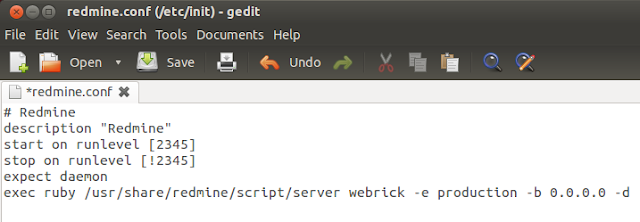


Save the file and exit. Start now Apache and Redmine with these commands:

sudo service apache2 start


sudo service redmine start 

You can now access Redmine at this link:

http://localhost:3000/

Replace localhost with your own server IP address if needed. To login to your admin area, the default login credentials are the following:

username: admin
password: admin
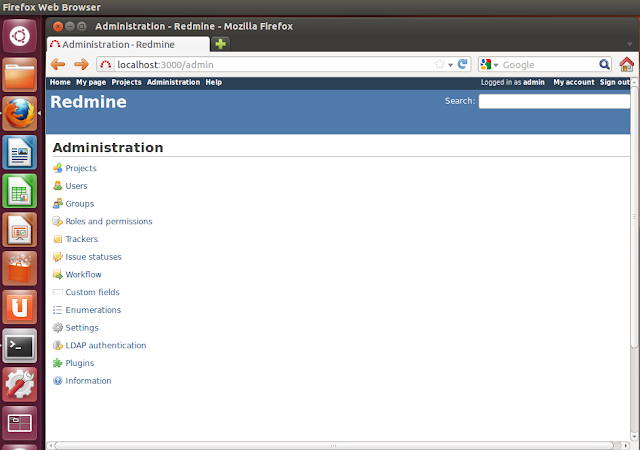

That's it!

Android 4.1 arrives


At its Mountain View headquarters, Google put up an Android statue filled with jelly beans yesterday, making it a certainty that a new version of Android would be presented at the Google I/O developer conference. And later that day it did announce "Jelly Bean", Android 4.1 which differs from its predecessors mainly in small details, but Google has also added complete new applications such as the Google Now assistant.
The greatest amount of innovation in Android 4.1 is incorporates in what Google has termed "Project Butter" – designed to ensure that the user interface has a "fast, fluid and smooth" feel, and that there are fewer delays when users input information. To this end, Google uses technologies such as Vertical Synchronisation (VSync) and Triple Buffering: VSync makes sure that the graphics chip doesn't output more frames per second than the screen can display, while Triple Buffering pre-calculates images and buffers them in memory.
The Google Now application is intended as a personal assistant that can plan routes to scheduled appointments, suggest event tickets, or automatically help users orient themselves in unfamiliar places. To tailor the results to the needs of users, Google Now analyses their search queries, frequent locations and travelled routes. Google gave the example of a user who regularly searches for a specific sports team and will, therefore, be informed of the team's next fixture by Google Now. If an appointment is scheduled in Google Calendar, the app checks public transport timings and suggests when the user should leave home.


The voice recognition can now be used without an internet connection and corrects words even if they don't appear to make sense within a sentence. Without an internet connection, the software currently only understands English. The synthesised voice sounded quite natural during the presentation.
When a widget is resized on the home screen, any application shortcuts that are in the way will automatically shift to make room. When a widget is dragged to a crowded home screen, it will automatically resize itself to fit in. Widgets and shortcuts can now be deleted from the home screen by pushing them off the screen.
With various apps, the notifications bar will now show additional information. For example, users can now "like" social network postings or control their music application directly from the notifications bar. Various news applications display news items with images and links. Photos can now be displayed by swiping across the camera's viewfinder and they can also be deleted using a swipe gesture.
Introduced at the same event, the Nexus 7 tablet will be the first device to offer Google's new operating system. The Samsung Galaxy Nexus, Nexus S and Motorola Xoom devices will be updated with the software at some unspecified time in the future. Google's presenters didn't mention updates for any other Android devices. Most current smartphones and tablets were only recently updated to Android 4.0 or still use the older Android 2.x or 3.x.

How to enable hibernation in Linux Mint 13


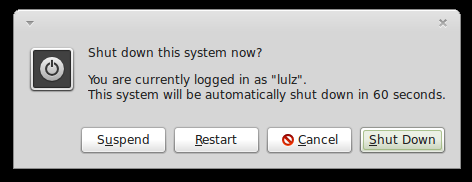
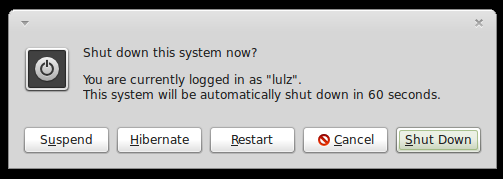
In Linux Mint 13, when you click on the shutdown button in the menu ( in both MATE and Cinnamon), you will see options for suspend, restart and shutdown respectively on the log out window but there is none for hibernation.


enable hibernation linux mint 13

To manually hibernate your computer, you can open the terminal and run the following command:
 sudo pm-hibernate  

The more convenient way is to get the hibernation option on the log out menu. To do so, you just need to create the file /etc/polkit-1/localauthority/50-local.d/com.ubuntu.enable-hibernate.pkla. For example, in MATE, you can run the following command to create this file (replace pluma with gedit if you are using the Cinnamon edition):
 sudo pluma /etc/polkit-1/localauthority/50-local.d/com.ubuntu.enable-hibernate.pkla  

After the file was created, copy paste the following lines into it:
 [Re-enable hibernate by default]  
 Identity=unix-user:*  
 Action=org.freedesktop.upower.hibernate  
 ResultActive=yes  

Save the file and reboot your computer. From now, there will be a "hibernate" button on the logout window and you can click on that button to put your computer into hibernation:

linux mint 13 enable hibernate

ownCloud 2012 Business Edition Adds LDAP Integration


ownCloud has announced on June 28th that the latest ownCloud 2012 Business and Enterprise editions feature enhanced LDAP (Lightweight Directory Access Protocol) integration, as well as themeing and system logging.

Based on ownCloud 4, the latest commercial update of ownCloud adds the following new features:

· Synchronization between files and folder;
· Sharing of file and folders;
· Rollback and versioning of files in a folder;
· Support for plug-ins;
· ownCloud app store integration;
· Drag and drop file upload;
· ODF and PDF Viewer;
· Contact and Calendar sharing and syncing;
· Enhanced themeing and logging.

"With more and more workers bringing their own devices to work – and then using made-for-consumer offerings to enhance their productivity – businesses need to maintain the security of their data."

"The updates launched today enable IT to seamlessly integrate ownCloud into their current infrastructure while giving end users a tool they will want to use," said Markus Rex, CEO, ownCloud in the press release.


Download ownCloud 4

Kororaa 17 Delayed


Chris Smart today blogged that the next release of his Fedora-based Linux distribution would be delayed due to various developmental issues. Kororaa 17 Beta 1 was released June 3, but recent problems have thrown a wrench into the works.
Smart listed several developmental issues in his post today. He's been having a hard time with "getting SELinux to play nicely with Jockey, after upstream added a jockey module to default selinux-policy." He says he thinks he has it fixed, but it needs lots of testing.
An install DVD was planned for this release, but Smart has "run into issues there also, blockers with filesystem related I think to the removal of /bin and /sbin, etc. Not sure what to do on that one yet, so it might not happen." There are also some issues with GNOME extensions and a few little customizations he'd like to do.
Unfortunately, Smart didn't estimate when Kororaa 17 would be ready. He did say, however, that beta testers could go ahead and apply the available changes through system updates.

Ubuntu 12.10 Alpha 2 Screenshot Tour


Canonical released earlier today, June 28th, the second Alpha version of the upcoming Ubuntu 12.10 (Quantal Quetzal) operating system.

Ubuntu 12.10 Alpha 2 is powered by Linux kernel 3.5 and features the Beta versions of the upcoming Mozilla Firefox 14.0 web browser and Mozilla Thunderbird 14.0 email client.

Ubuntu 12.10 Alpha 2 is distributed as Live DVD/USB ISO images for both 32-bit and 64-bit architectures.

For the full release notes of Ubuntu 12.10 Alpha 2, with all the highlights, please check out our in-depth announcement. Enjoy the screenshot tour of Ubuntu 12.10 Alpha 2, and also take a look at the Kubuntu 12.10 Alpha 2 screenshot tour.