Drupal 7.15 has
been released recently which comprises some bug fixes and no
significant features have been added to this latest release. You can go
here
to view the changelog for Drupal 7.15. As a reminder, Drupal is a
popular cms (content management system) written in PHP that allows to
facilitate content creation for small or middle sized business.
In this tutorial, we will show you how to install Drupal 7.15 on Ubuntu
12.10/12.04/11.10 or older, and any Ubuntu-based system like Linux Mint
13 or older.
LAMP Web Server Installation
To be able to run Drupal on Ubuntu or Linux Mint, we need firstly to
install a web server comprising Apache, PHP, and MySQL. The simplest one
is
LAMP which can be installed with this command from the terminal:
sudo apt-get install lamp-server^
During the installation, you will be asked to submit a new MySQL root
password. This password will be used to login to your MySQL server later
on. For more information about installing the LAMP web server on
Ubuntu, click
here.
Drupal 7.15 Installation
Let's now install Drupal with these commands from the terminal:
sudo apt-get install php5-gd
cd /tmp && wget -O drupal-7.15.tar.gz http://goo.gl/FrgSZ
sudo tar -xzvf drupal-7.15.tar.gz -C /var/www/
sudo mv /var/www/drupal-7.15 /var/www/drupal
sudo chown -R www-data.www-data /var/www/drupal/
sudo su
cd /etc/apache2/sites-available
sed 's/www/www\/drupal/g' default > drupal
a2ensite drupal
sudo /etc/init.d/apache2 restart
Creating A MySQL Database For Drupal
You can do this with phpMyAdmin or via the terminal as follows (use your MySQL root password to login to your MySQL server):
mysql -p
create database drupal;
CREATE USER 'drupal'@'localhost' IDENTIFIED BY '12345';
grant all privileges on drupal.* to drupal@localhost;
exit
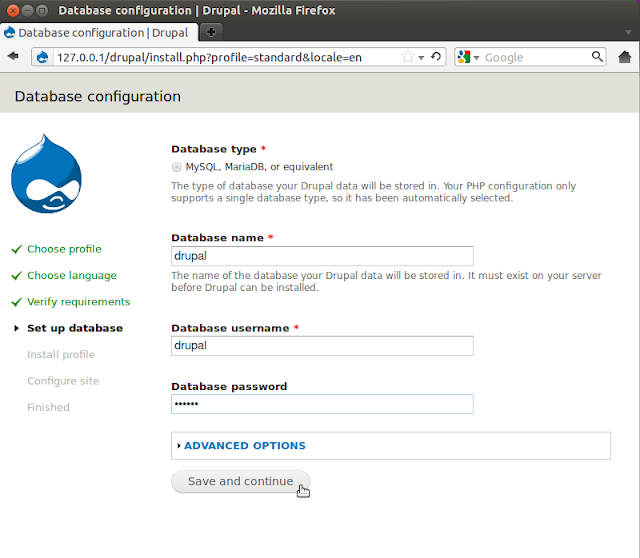
The commands given above will create the following MySQL details:
Database name:
drupal
Database user:
drupal
database password:
12345 (can be changed to any password of your choice)
The last step is to start the installation of Drupal via your web browser. To do this, open one of these two links (replace
127.0.01 or
localhost with your own server IP address if needed):
http://127.0.0.1/drupal
or
http://localhost/drupal
Then follow setup instructions. At the "
Database configuration" page, enter the MySQL details given above:
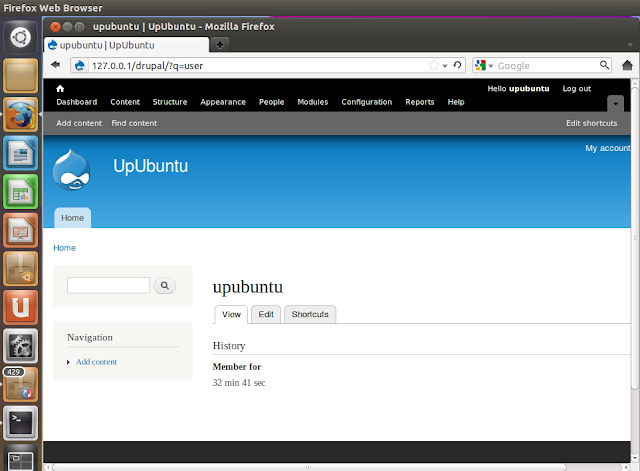
If the installation is successful, you may see this home page: