Friday, October 5, 2012

How To Install MAME (Multiple Arcade Machine Emulator) On Ubuntu 12.10/12.04/Linux Mint 13


MAME (Multiple Arcade Machine Emulator) is an emulation software that allows users to play classic arcade games in modern computers and platforms. The emulator supports more than 7000+ arcade video games from the 1970's era until now.


In this tutorial we will help you install MAME in the following Linux distributions:

  • Ubuntu 12.10 (Quantal Quetzal)
  • Ubuntu 12.04 (Precise Pangolin)
  • Linux Mint 13
1. MAME Installation

Open the terminal under Ubuntu/Linux Mint and run this command to install MAME:

sudo apt-get install mame mame-tools gnome-video-arcade sdlmame sdlmame-tools

2. MAME Configuration

Start now MAME with this command so that a hidden folder (.mame) is created in your home directory which will contain all emulator settings:

mame

You can now close the emulator. Run this command to create the configuration file for MAME:

cd ~/.mame && mame -cc

The "mame.ini" file will be created in the ~/.mame folder. Edit now this file with this command:

gedit ~/.mame/mame.ini

For Linux Mint:

pluma ~/.mame/mame.ini

In "rompath", you can set your own ROM directory path or leave default paths:


Next, create the following directories in the ~/.mame folder:

  • nvram
  • sta
  • roms
  • memcard
  • inp
  • comments
  • snap
  • diff
You can create them all with this command:

mkdir  ~/.mame/nvram memcard roms inp comments sta snap diff

You can access the rom folder with this command to place your downloaded roms in:

nautilus ~/.mame/roms

As for player controls, you can easily configure them from the main interface of MAME (Configure General Inputs):


Note: While playing a game with MAME, you can exit fullscreen mode by pressing ALT+Enter.

Cinnarch 2012.10.01


Alex Filgueira announced the release of Cinnarch 2012.10.01 earlier this week. As the name suggests, Cinnarch is an Arch-based Linux distribution featuring the user-friendly Cinnamon (a fork of GNOME Shell) as the graphical desktop; it is also a live CD image with a simple text-mode installation program. From the release announcement: "Cinnarch 2012.10.01 released. Changelog: systemd as a system and service manager, no initscripts, the boot process is now faster with the parallelization capabilities; Welcn, the new welcome screen for Cinnarch is present, but the graphical installer button is de-activated; quiet boot; CLI installer - other operating systems added to GRUB, fixed Intel drivers in Lenovo laptops; cinnarch-wallpapers now contains some wallpapers from deviantART; changed the default wallpaper; packages - Linux kernel 3.5.4, Cinnamon 1.6.1, LightDM 1.3.3, Xnoise 0.2.11, Pantheon-files 0.1, Hotot 0.9.8.8, Chromium 22." Download (MD5) links: cinnarch-2012.10.01-netinstall-i686.iso (624MB), cinnarch-2012.10.01-netinstall-x86_64.iso (653MB).

CAINE 3.0


Nanni Bassetti has announced the release of CAINE 3.0, an Ubuntu-based live DVD offering a complete digital forensic environment in a friendly graphical interface: "CAINE 3.0 is out! CAINE (Computer Aided INvestigative Environment) is an Italian GNU/Linux live distribution created as a project of digital forensics. Changelog: Linux kernel 3.2; MATE desktop 1.4; rbfstab - a utility that writes read-only entries to /etc/fstab so devices are safely mounted for forensic imaging/examination; mounter - a GUI mounting tool that sits in the system tray, left clicking the system tray drive icon activates a window where the user can select devices to mount or un-mount; scripts that are activated within the Caja web browser designed to make examination of allocated files simple; root file system spoofing patch...." Visit the project's home page to read the release announcement and to see a few screenshots of the new release. Download: caine3.0.iso (1,252MB, MD5).

Sunday, September 30, 2012

How To Install Joomla 3.0 CMS On Ubuntu 12.10/12.04/Linux Mint 13


Joomla 3.0, a popular content management system (CMS), has been released recently bringing more new features, improvements, and is optimized now for mobile devices thanks to the Twitter Bootstrap framework.

This new mobile capability allows websites and blogs using the Joomla CMS to display content on mobile devices like you do on PCs. Also, Twitter Bootstrap is a toolkit that allows to create web applications and websites.

 Here are the new features in this latest release:


    Incorporation of Twitter Bootstrap into a jui media package.
    A new responsive, mobile device friendly administrator template--Isis-- and interface.
    A new front end template--Protostar-- built using Twitter Bootstrap.
    Updated accessible template called Beez3.
    A simplified 3-step installation process.
    PostgreSQL Driver. You will be able to run Joomla 3.0 sites using the PostgreSQL database.
    PHP Memcached Driver
    Use of JFeed for feed management rather than SimplePie
    Installation of language packages directly from the extension manager
    Guest user group present by default
    Saving blank articles allowed
    New administrator statistics module
    Update TinyMCE to version 3.5.6
    Continued clean up of older unused code, files and database fields and tables and improved standardization of tables.
    Improvements to Smart Search
    Extensive work on code style standardisation and consistency
    Unit testing in the CMS
    Updated system tests in the CMS
    Custom active menu item for menu module
    Let the SEF plug-in add the canonical url to the head
    Version 12.2 of the Joomla Platform

In this tutorial, we will help you install Joomla 3.0 on the following Linux distributions:

  • Ubuntu 12.10 / Ubuntu 12.04 / Ubuntu 11.10
  • Linux Mint 13 / Linux Mint 12
Getting Started

   1. Installing A Web Server

There are many options for installing a web server on Ubuntu/Linux Mint. You can use either LAMP, XAMPP, or just install the Apache, MySQL and PHP packages manually. In this tutorial we will use the LAMP server which can be installed with this single command:

sudo apt-get install lamp-server^

You can also install phpMyAdmin with this command for managing MySQL users & databases:

sudo apt-get install libapache2-mod-auth-mysql phpmyadmin

Finally restart Apache with this command:

sudo /etc/init.d/apache2 restart
You can find more information about installing the LAMP web server and phpMyAdmin here.

   2. Configuring Joomla and Apache

Run now these commands to add a Joomla config file to Apache:

cd /etc/apache2/

sudo cp sites-available/default sites-available/joomla

Next, enable the Joomla website with these commands:

sudo a2ensite joomla

sudo /etc/init.d/apache2 restart

   3. Creating A MYSQL User and Database

You can do it with two options. Either with phpMyAdmin by opening this URL (replace localhost with your server IP address if needed):

http://localhost/phpmyadmin/

Or you can simply create all MYSQL details in CLI mode by running these sequence of commands:

mysql -u root -p

create database joomla;

CREATE USER 'joomla'@'localhost' IDENTIFIED BY '1234';

GRANT ALL PRIVILEGES ON joomla.* TO 'joomla' IDENTIFIED BY '1234';

exit

Replace 1234 with any password of your choice. The MySQL details that we have generated are as follows:

  • Database name: joomla
  • Database user: joomla
  • Database password: 1234
We will need this information later when installing Joomla 3.0 via the web browser.

   4. Installing Joomla 3.0

Via the terminal download and install Joomla 3.0 with the following commands:

sudo mkdir /var/www/joomla

cd /tmp

wget -c http://goo.gl/G6tQ5 -O Joomla_3.0.0-Stable-Full_Package.zip

sudo unzip -q Joomla_3*.zip -d /var/www/joomla

sudo chown -R www-data.www-data /var/www/joomla/

Note: Joomla recommends that Output Buffering is turned off, you can find here how to this under Ubuntu/Linux Mint.

You can now start the installation of Joomla 3.0 via your web browser by opening this link (replace localhost with your IP address if you are installing on a server):

http://localhost/joomla

If you find access permission problems to the Joomla website, you can run this command:

sudo chmod 777 -R /var/www/joomla/

In the first page "Main Configuration", enter information related to your website and admin details:


In the second page "Database Configuration", enter your MySQL settings as follows:

  • Database Type:   MySQL
  • Hostname:   localhost
  • Username:   joomla
  • Password:   The password selected for your database
  • Database Name:   joomla

In the last page "Finalisation", make sure your details entered are correct, then hit the "Install" button:


If the installation is successful, you will see this page:


Click "Remove installation folder" to be able to browse your Joomla site. Here is the default page of the main Joomla site:


The admin area will look like this:


I hope you find this article useful.

Hanthana Linux 17 "LXDE"


Danishka Navin announced the release of Hanthana Linux 17 "LXDE" edition, a lightweight live CD built from Fedora 17 and featuring the LXDE desktop environment: "Hanthana Linux live CD, the newest member of the Hanthana Linux family comes out today. While our regular DVD release is a complete software repository with the latest 3D-accelerated desktop, the live CD will cater the the needs of low-resource requirements, personalized software selection and simplicity. It comes with all the goodness of Hanthana and Fedora version 17, including Mozilla Firefox, LibreOffice Writer, Calc and Impress, and loads of more lightweight applications. LXDE is a lightweight and customizable desktop environment, which is designed to work with older hardware, although it also works perfectly well with modern 3D-accelerated graphics hardware." Here is the full release announcement which includes a screenshot of the default desktop. Download the installable live CD image from SourceForge: Hanthana-17-i386-livecd.iso (683MB, SHA256).

Saturday, September 29, 2012

[FIX] Ubuntu Keeps Forgetting My Wireless (WiFi) Connection Password / Key - Ubuntu 12.10/12.04


Whenever I restart my computer, Ubuntu asks again for my wireless connection password / key. This also happens even when I set the password to be remembered. If you want to solve this problem under Ubuntu 12.10/12.04, then follow these simple instructions:

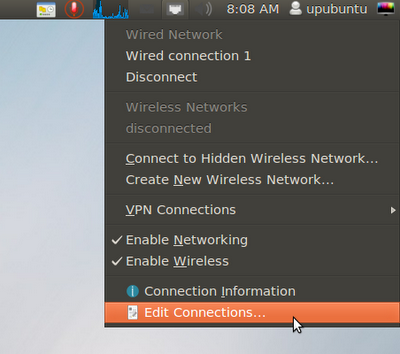
- Click the network icon displayed on the upper panel of Ubuntu and select "Edit Connection":


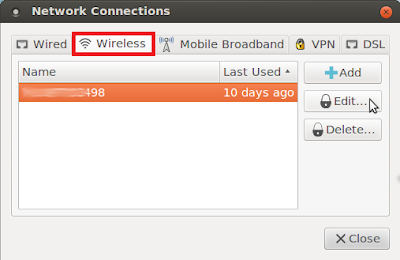
- Open the "Wireless" tab, select your wifi connection and click Edit:


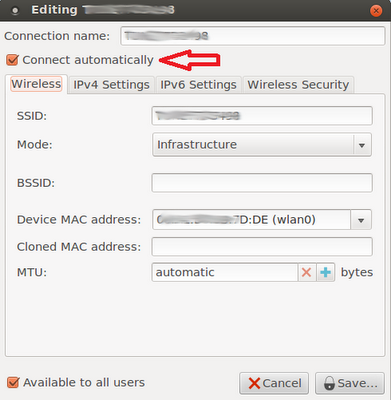
- Make sure now that "Connect automatically" is checked on:


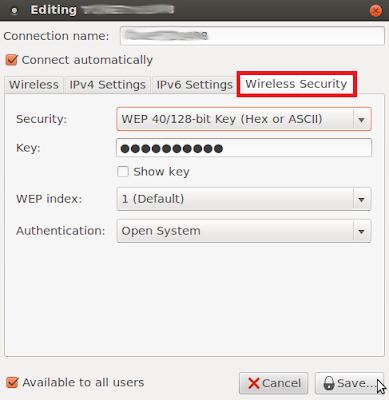
- Next, open the "Wireless Security" tab and enter these details, then click Save:

Security:   WEP 40/128-bit Key (Hex or ASCII)

Key:   Enter your wifi password


From now on, your wifi password will be remembered whenever you reboot your system.