Showing posts with label Chromium. Show all posts

Monday, November 26, 2012

[How To] Install and Run Chromium OS onto a USB Flash Drive - Ubuntu/Linux Mint


In this tutorial, we will see how to install and run ChromiumOS onto a USB storage device using the OS image created by Hexxeh. The ChromiumOS image will be installed in a 4GB USB stick or higher in persistent mode. You can use the commands given below under Ubuntu/Linux Mint (12.10/12.04/Mint 14/13, etc.) and any other Linux-based system.

Getting Started

Open the terminal and download the ChromiumOS image to your home folder (precisely in the ChromiumOS folder) with these commands:


mkdir ~/ChromiumOS; cd ~/ChromiumOS 
wget -c http://goo.gl/ICSpt -O ChromeOS-Vanilla-3274.0.zip 
unzip ChromeOS*.zip 
mv ChromeOS*.img ChromeOS.img

Let's now identify the USB device by running this command:

fdisk -l

For my system, the USB flash drive is mounted as /dev/sdb1. Unmount the USB device with this command:

sudo umount /dev/sdb1

Note: Replace /dev/sdb1 with your own USB device name.

To create a bootable USB device using the Chrome OS image, run this command (all data in your usb device will be deleted):

sudo dd if=ChromeOS.img of=/dev/sdb1 bs=4M

or

sudo dd if=ChromeOS.img of=/dev/sdb1 oflag=direct

After you finish, boot from the Chromium OS USB flash drive. You can also use the Plop boot loader which allows to boot from USB storage devices. If you fail to create a bootable USB stick, you can download and use the ChromiumOS VM for VirtualBox from here.

Here are some screenshots of ChromiumOS:


Tuesday, September 4, 2012

New Chromium Stable And Development PPAs For Ubuntu 12.04

A quick tip for Chromium users who are using Ubuntu 12.04: the Chromium PPAs (Stable, Beta, Dev and Daily) haven't been updated since Chromium 18 but if you want to use the latest Chromium browser in Ubuntu, there are two new PPAs you can use, thanks to Alex Shkop.


The two Chromium PPAs are for Ubuntu 12.04 LTS Precise Pangolin only for now, one for the latest stable Chromium (version 21) and one for the development builds (version 23 at the time I'm writing this post).

Add the stable PPA and install Chromium in Ubuntu 12.04 using the following commands:
sudo add-apt-repository ppa:a-v-shkop/chromium
sudo apt-get update
sudo apt-get install chromium-browser
Or, if you want the latest dev builds in Ubuntu 12.04 Precise Pangolin, use the following commands:

sudo add-apt-repository ppa:a-v-shkop/chromium-dev
sudo apt-get update
sudo apt-get install chromium-browser
 

Wednesday, August 1, 2012

Install Google Chrome 21 Stable On Ubuntu 12.04/Linux Mint 13


Google has recently made available the stable version of Chrome 21 which comes with more new features and improvements especially for developers and gamers. Here are some of the features that you will find in this latest release:


  • getUserMedia JavaScript API Support (allows applications to access your webcam/microphone without using additional plugins)
  • HTML 5 getUserMedia API Support
  • Better Integration with Google Cloud Print 
  • Better support for Gamepad Javascript API 
You can have more information in this video:
 
 If you want to install Google Chrome 21 in Ubuntu 12.10/12.04/11.10 or Linux Mint 13 or older, you can either download the appropriate Debian package from here and install it with Ubuntu Software Center, or install the web browser via your terminal as follows:


32-bit/i386 systems:

cd /tmp && wget -O google-chrome_i386.deb http://goo.gl/itppy


sudo dpkg -i google-chrome*.deb

64-bit/amd64 systems:

cd /tmp && wget -O google-chrome_amd64.deb http://goo.gl/iXDWk


sudo dpkg -i google-chrome*.deb

Tuesday, July 10, 2012

Remove Linux Mint custom search in Chromium


The web browsers in the software repository of Linux Mint are usually set to use some custom search engines. For example,  Yahoo search and DuckDuckGo are used as the default search engines in Firefox, the preinstalled web browser of Linux Mint 13. ( learn how to change the default search engines of Firefox in Linux Mint 13)

If you install the Chromium browser in Linux Mint, you will find it uses the Linux Mint custom search for Google. If you dont like this custom search in Chromium, here is how to change it:

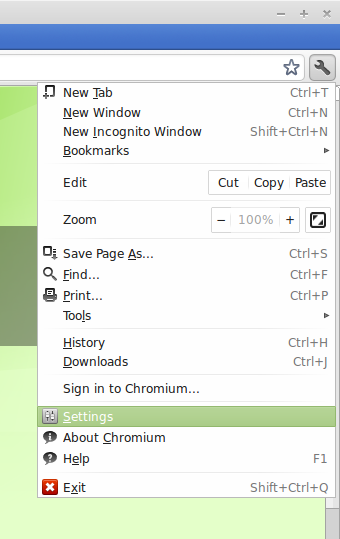
Open Chromium and click on the wrench icon on the top right corner, on the drop down menu, click on "Settings":


Remove Linux Mint custom search in Chromium

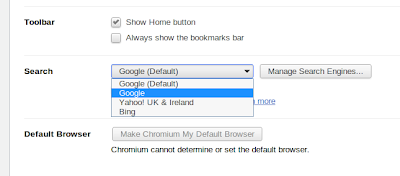
In the settings page, scroll to the Search category and click on the drop down box to select the default search engine. The first (default) one is the Linux Mint custom search of Google. To use the normal google search engine, you should pick the second option:

Change Linux Mint custom search in Chromium

You can also select Yahoo or Bing in the drop down menu if you want.

In case you want to use another search engine, like DuckDuckGo, click on the "Manage Search Engines" button on the right and you will be presented to the Search Engines Settings page. In this page, go to the Other Search Engine part and add DuckDuckGo to it. It should look like this:

Edit Linux Mint custom search in Chromium

The url to paste into the url box is:
http://duckduckgo.com/?t=lm&q=%s

After that, hit enter and you will have a new line for DuckDuckGo in the other search engines section. Hover the mouse over that line and you will see the "make default" button, click on it and Chromium will use DuckDuckGo as the search engine.

To install Chromium in Linux Mint, you can search for it in the Software Center or run the following command in the terminal:
sudo apt-get install chromium-browser

Friday, July 6, 2012

Pros & Cons Of Google Chrome Version For iOS


A few days back at the I/O conference in San Francisco, Google introduced its web browser Google Chrome version for iOS (An operating system that runs on Apple devices) which is now available for free at the app stores. The launch was so jubilant for the apple users that the newly launched iOS version of Chrome instantly sky rocketed straight to the top at the free apps chart in US.

When it comes on web browsing on APPLE’s iOS based devices, the mainly used browsers are very few consisting of Safari by Apple & Opera Mini by Opera but the launch of Google Chrome version of iOS has inflicted new life into this skewed browsing competition.  The alternative browser by Chrome has come up with many features but to name best of all,
  1. It lets you synchronize your Google Chrome Bookmarks, Open Tabs, Passwords and Browsing history between your Apple device and other devices. This synchronization would take place automatically. I.e. if you are signed in to your Google account than you would be able to see and easily access all the other tabs opened in Chrome browser on other devices, at your Apple device.
  2. Instead of opting for standard version of Chrome browser, a separate more protected version can also be used to overcome your privacy concerns. While in Safari you have to enable the privacy browsing option manually
  3.  You can open up unlimited tabs on Chrome browser compared to Safari where the number is limited to 9 only
  4. You can also request for a full desktop version of a website being opened up through your Chrome version of Apple devices
  5. You can also search through Google Chrome browser by using your VOICE. All you need to do just tap on the little micro phone logo in the URL bar
Apart from these astounding features, Google Chrome version of iOS is not without few demerits,
  1. Chrome version for iOS is not as quick as the native Safari browser. When you will try to open up sites that contain Ajax, Ads, Web 2.0 style content or
    even try to load Java Script then you can feel the performance difference
  2. You can not change your default browser from Safari to Chrome in Apple devices unless you feel like jail-breaking it
These were the pros and cons of Google Chrome version of iOS based Apple devices. Though Google version has promising features along with few glitches but despite that we have to say, Google attempt to creep into Apple territory has succeeded at the moment.

Tuesday, July 3, 2012

Download Chrome Browser for iPhone and iPad


At Google I/O 2012, Chrome for iPhone and iPad is released and that’s available free for download via App Store. Chrome for iOS allows users to sync personalized Chrome from their computer to their iDevices to bring it on the go

Chrome for iPhone and iPad features fast search, sign in option, simple and intuitive experience with privacy constraints.


Download Chrome for iPhone
Download Chrome for iPad

Wednesday, June 27, 2012

Chromebooks Are Gaining Traction in Schools


This week, Google officials were in San Diego meeting with thousands of educators and administrators at the International Society for Technology in Education (ISTE) conference. are more than 500 school districts in the U.S. and Europe actively using Chrome OS-based Chromebooks, and more are signing on at a fast clip.
In addition to the 500 school districts in the U.S. and Europe using Chromebooks, Google announced this week that more are signing on, including Rockingham Country Schools, N.C., Transylvania County Schools, N.C., and Fond du Lac School District, Wis. 
Leyden High School District from Illinois is rolling out Chromebooks to its 3,500 students, and here some of the apps the students will use:  WeVideo, EasyBib, Vernier Labquest2, SlideRocket, Geogebra and Pearson’s OpenClass. Who knew about these?
At this week's conference, Google is also rolling out some new features for schools using Chromebooks that purportedly make it easy to find, use, install and manage web apps for an entire school. These include the following, according to Google's report:
  • Grade-level application packs are groups of Chrome Web Store apps that integrate tightly with Google’s suite of Apps for Education, divided by grade levels to meet different classroom needs. These packs are installable from the Chromebook management console. Many of them are free and we’ve worked with the app makers to offer discounts for bulk purchases.
  • Organization-specific web app collections in the Chrome Web Store give administrators the ability to recommend apps to students, teachers and staff. The collection is visible only to the school, and admins can curate apps from the Chrome Web Store, application packs and web apps purchased elsewhere or private apps developed by the school. (This feature is also available to Chromebooks for Business customers from the control panel.)
 Apple, of course, still has overwhelming market share in schools. However, if Google can offer compelling free applications, bundles, incentives and low costs for Chromebooks, they could gain further traction in schools.

Wednesday, June 13, 2012

Running Chrome with less memory: disable extensions

In my last article on Chromium I explained how to add a command switch to the desktop icon's launcher tab to add a Purge Memory button to the task Manager. Browsers need memory, like memory and in fact love it. They don't give it up without a fight. I'm not belligerent by nature but it's my memory, I paid for it and I want it back. So, here's another trick in a similar vein to force Chromium to relinquish some more.
Now, it's unlikely you're using Chromium without having accumulated a shedload of extensions. Prudent housekeping dictates that you will have purged those installed on a whim and subsequently languishing, unused and unloved. Disable, or better still, remove them. The ones left behind are the ones we want to control. As before, right click on Chromium's desktop icon, select the Launcher tab add the --disable-extensions switch and close.

Now, when you start Chromium, click on the wrench (top right), select Tools from the drop-down menu and you'll see that the Extension menu entry has been disabled.

Open a new tab and type chrome:extensions in the location bar and you can confirm that there are none, or rather they have been disabled in this profile.

Well. The proof of the pudding is in the eating, so let's do a "before and after" shot of memory consumption with Task Manager.

Finally, you now have the option to run two Chromium profiles: one with extensions disabled (desktop icon) and one with extensions (main menu). Just not at the same time. Oh, and with extensions disabled Chromium will start much faster too.