Showing posts with label Nautilus. Show all posts

Monday, November 19, 2012

Nautilus 3.6.3 Install it on Ubuntu 13:04 Raring Ringtail


Remember the story of Nautilus on Ubuntu 12.10: was initially decided to use the version 3.6 of Nautilus, The GNOME file manager (and Ubuntu), the release of which would take place in time for inclusion in Quantal. The development release of the Ubuntu 12.10 was even included Nautilus 3.5.x making everyone believe that the transition from Nautilus Nautilus 3.4 to 3.6 would come soon … but, due to the removal of some features considered essential by a circle of users and due to the lack of integration of Nautilus 3.6 with some of the mechanisms of the Unity desktop (first of all the lack of integration with HUD ), surprisingly it was decided to take a step back and return to Nautilus 3.4: to date Ubuntu 12.10 Quantal Quetzal <strong > is distributed with Nautilus 3.4.

During the last UDS-R has broached the subject Nautilus: would have chosen to integrate within Ubuntu 13.04 Raring Ringtail a review of Nautilus 3.6 as there would be time – during the development cycle – to make the filemanager compatible with the mechanisms of the Unity desktop and also integrate some of functionalities of the future desktop manager Nautilus 3.8 (booming). In practice, the version of Nautilus included in Ubuntu 4.13 should be a “mix” between Nautilus Nautilus 3.6 and 3.8.
Who will prevail? In all likelihood, the “carrier” of the “mix up” Nautilus belong to version 3.6 , as within the repository of Ubuntu 13.04 Raring Ringtail arrived a few days ago, Nautilus 3.6.3: if the base had been, however, Nautilus 3.8 … in all probability in the repository Raring would present the current development version of the file manager (the 3.7).
Ultimately in Ubuntu 13.04 Raring is likely to be present Nautilus 3.6 with some features specific to Nautilus 3.8. What are these? We’ll let you know as soon as we have more news.

Wednesday, November 14, 2012

How to Create Empty File (Add Contextual Menu) with Terminal on Nautilus 3.6


To create an empty file there are at least two ways: use the terminal – and the touch command – or open a text file and save it, without content, in the position we want. Up to 3.4 Nautilus was also possible to create a new file via the context menu: enough to give a right click on an empty spot in the current directory / the desktop and select Create New > Blank Document . Too bad this feature has been eliminated in Nautilus 3.6.
So how to regain – in Nautilus 3.6 – the same functionality without using tricks complicated? The methods are two, both valid, and expose them there below.

Method 1 – Create an extension for Nautilus 3.6

This is a very simple method , is to add a ‘ extension in Python for Nautilus 3.6 which is really to change the context menu : via terminal we first create the folder that will contain script , and immediately after, we will create the script itself. Translated into commands that corresponds to
mkdir-p ~ / .local / share / nautilus-python / extensions
gedit ~ / .local / share / nautilus-python / extensions / nautilus-acme.py

Clearly we can replace gedit with our favorite text editor. Inside the new file open, now, let’s write the following:
from os.path import join from
gi.repository import GObject, Nautilus

 class Acme (GObject.GObject, Nautilus.MenuProvider):
def __ init__ (self): pass

final new_empty_file (self, menu, folder):
with open (join (folder.get_uri (). replace ("file :/ /", ""), "new_file"), 'w') as f: f.write
('')
return
final get_background_items (self, window, CURRENT_FOLDER):
AcmeMenuItem = Nautilus.MenuItem (
name = "Acme :: NewEmptyFile"
label = "Create empty file "
tip =" Create a new empty file "
)

AcmeMenuItem.connect ('activate', self.new_empty_file, CURRENT_FOLDER)
return [AcmeMenuItem]

Save the file and restart Nautilus, with the command
nautilus-q
Done! Now, clicking the right mouse button on a blank part of our desk / a Nautilus window, we will directly support the “Create empty file.”

Method 2 – Use templates

This method is even easier: simply create an empty file in the folder ~ / Templates for always have it available. Then open a terminal and type
touch ~ Templates / File_Vuoto
after that restart Nautilus 3.6, with the command
nautilus-q
Done! We can now create a new empty file with the context menu of Nautilus, through Right click> Create Document> File_Vuoto.
thanks to webupd8 & askubuntu4c940  p 89EKCgBk8MZdE How to Create Empty File (Add Contextual Menu) with Terminal on Nautilus 3.6

Nautilus 3.6.3 (GNOME Files) Run and Install it on Ubuntu


Nautilus (also known as GNOME Files) – the default file manager for GNOME Shell – reaches the third maintenance update , thus arriving at version 3.6.3. No distortion of vision or functional (for those we have to wait Nautilus 3.8, a mockup can be found here), but a good changelog that carries a lot ‘of problems solved. Here they are:
    • Removed a problem that caused the mismanagement of symbolic links on remote volumes
    • removed columns “search filter”, which appeared duplicated when changing the search path
    • the search toolbar now accepts long file name directory
    • within the bookmark “Recent Files” also appears in the trash
    • adding the frame around the thumbnails, where this missing
    • disassemble the remote volumes no longer causes crashes Nautilus.

was also partially improved restaurant search, by introducing a hint of recursive search.

Files (Nautilus) 3.6.3 – Installation on Ubuntu 12.10 (or Ubuntu-based distributions)

Install the new manager files on Ubuntu is easy! Just add the PPA of GNOME 3 (which the drafting of the article has not yet been updated, and it will probably be tomorrow before ), update the package list and install … Nautilus! All this is to open a terminal and type
sudo add-apt-repository ppa: gnome3-team/gnome3
sudo apt-get sudo update
apt-get install nautilus

Files (Nautilus) 3.6.3 – Installation of all other distributions

All GNOME-based distributions will have the new Nautilus 3.6.3 between system updates offered by your package manager.

Monday, August 6, 2012

Use location entry in Nautilus in Linux Mint 13 Cinnamon


By default, Nautilus file manager in Linux Mint Cinnamon uses the button pathbar instead of the location entry. If you want to temporarily switch to the location entry display in Nautilus, you can hit Ctrl + L.


location entry nautilus
Nautilus using button pathbar

enable location entry nautilus file manager
Nautilus using location entry

To enable location entry by default in Nautilus in Linux Mint Cinnamon, you can use dconf-tools. Just open the terminal and run the following command to install this package:
sudo apt-get install dconf-tools

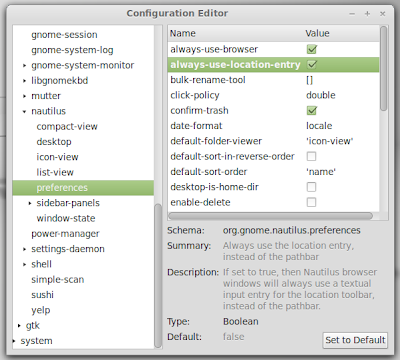
After that, run dconf-tools ( hit Alt + F2 and type "dconf-tools") and go to org > gnomes > nautilus > preferences  then check the option "always-use-location-entry":


Another method you can use to enable the location entry in Nautilus without installing any package is to open the terminal and run the following command:
gsettings set org.gnome.nautilus.preferences always-use-location-entry true