
Thursday, September 20, 2012
[Fix] WinFF Not Working On Ubuntu 12.04 (Precise Pangolin)
If WinFF crashes under Ubuntu 12.04 Precise Pangolin, you can try the solutions given below which may solve your problem. This problem is common after upgrading to Ubuntu 12.04.
Make a backup of the original presets.xml file with this command:
cp ~/.winff/presets.xml presets.xml.back
Let's now replace the old presets.xml file with a new one downloaded from the publisher's website as follows:
cd /tmp
wget -c http://goo.gl/l9cTl -O presets-libavcodec53-v4.xml.gz
gzip -d presets-libavcodec53-v4.xml.gz
mv presets-libavcodec53-v4.xml ~/.winff/
mv ~/.winff/presets-libavcodec53-v4.xml presets.xml
WinFF should work fine now. If this hasn't solved your problem, you can simply reinstall WinFF with these commands:
rm -rf ~/.winff/
sudo apt-get install --reinstall winff

Slackware Linux 14.0 RC5

Slackware Linux 14.0 is getting very close to being released, but Patrick Volkerding has decided to play it safe and offer one more release candidate for testing: "Here we go one more time with Slackware 14.0 release candidate 5. Really, this time it is not a drill! Everything is in place and ready to release at this point, and unless there's some kind of showstopper found, the release can be expected soon. After careful consideration and a considerable amount of internal testing I did relent to give the kernel one more bump to 3.2.29, so of course 3.2.30 was released a couple of hours ago. But that's not a showstopper, and it seems to be time to get off the never-ending kernel upgrade treadmill until the next cycle begins. Speaking of kernels, I added sample .configs for all the 3.x kernel branches in /testing." See the distribution's changelog for a full list of recent changes. If you'd like to give it one last round of testing then download Eric Hameleers' unofficial DVD images from here: slackware-current-install-dvd.iso (2,320MB, MD5), slackware64-current-install-dvd.iso (2,275MB, MD5).
GeeXboX 3.0

GeeXboX 3.0, a free and open-source Linux media centre distribution for embedded devices and desktop computers, has been released: "A shiny new GeeXboX release has arrived. GeeXboX 3.0 is a major upgrade that integrates XBMC 11 'Eden' and adds the long-requested PVR functionality. This means that you can finally use GeeXboX to watch and record live TV. In addition to our usual x86 ISO images, this release is also available for several embedded platforms, with working Full HD video and graphics acceleration for most of them. New features: XBMC Media Center 11 'Eden' frontend; PVR support for DVB Digital TV to watch and record live TV; improved remote control support; support for Full HD videos on PandaBoard and Cubox; improved hard disk installation; installation support for (U)EFI systems; installation support for SSDs." Read the complete release announcement for information on supported platforms and other details. Download: geexbox-3.0-i386.iso (136MB), geexbox-3.0-x86_64.iso (138MB).
Wednesday, September 19, 2012
Google Earth 6.2.2.6613 Review
Building a software that can catalog an entire planet is not a feat for everyone, and if there is someone out there who is up for the task, then Google is surely the only company capable to do it.
Sure, many have tried to encompass the entire Earth in a single application in the past, but the sheer size of the software would have made this task almost impossible. More importantly, whatever software someone would use, such as an Encyclopedia, it would never cover places that had no special significance.
We have to give credit where it's due. Google did not built this from scratch, but bought a company in 2004, called Keyhole Inc., which at that time was developing a software called EarthViewer 3D. The company was funded by non-others than the CIA.
How they managed to buy it with the approval of the government is beyond me; maybe CIA needed to expand the software and Google had enough money and man power to do this.
Installation
Depending on your operating system, you might have the Google Earth package in your repository. If not, Google provides packages for everyone, including Debian-based operating systems and Red Hat based ones. Both 32-bit and 64-bit architectures are supported.
We've installed it in Ubuntu 12.04 LTS (Precise Pangolin) by downloading the Debian package from the official website. You will need a lot of dependencies so just run the following commands in a terminal, one by one, and everything should be just fine:
sudo dpkg -i google-earth-stable_current_i386.deb
sudo apt-get -f install
You should now have Google Earth installed and available from Unity or from your Application menu.
Usage
The number of features crammed in this software is amazing. It would take dozens of pages to go through all of them and in the end no one would understand much of it.
Let's start with the basics. Google Earth is a software that renders the surface of the planet (and more) with the help of satellite imagery, from a myriad of sources.
The software can be used as a simple map, searching for locations, plotting routes, and even zooming in at street level. I actually used it a couple of times to find remote interesting ski resorts and even found accommodation with it. It's very versatile and it estimates arrival time with great accuracy.
On top of this fundamental function, there are a lot of implemented layers. You can activate all of them or one at a time. Some are quite basic such as country borders, roads, gallery, photos (including the Panoramio service and 360Cities), 3D buildings (an amazing feature that is beautifully integrated with StreetView), Global Awareness, and many more.
Besides the obvious use, there are a lot of functions that are almost never used, and the average user has no idea that they exist. First off, there's the flight simulator, where users define a starting point and start flying over the landscape in a simple, but relatively correct, flight simulator. A joystick is required for precise flying, of course.
Another important function is the Sky Mode, where users can switch from viewing the Earth in the exactly opposite position, and start looking at the stars. The star charts are amazing and actual images are used to render the sky, including nebulae, galaxies and even star systems.
The planet Mars and the Moon are also available in great detail. All the high-res images NASA has taken over the years have been implemented in Google Earth so everyone can enjoy the landscape of other heavenly bodies in the way they truly look.
The Good
The obvious teaching capabilities of the software cannot be expressed in words. There are so many things that can be done with Google Earth, that it's almost impossible not to find use for it.
The streaming of images has improved greatly over the years and the application has managed to keep low hardware requirements.
Google has dedicated a lot of time and effort to this project and it shows. 3D buildings are added all the time, new sources for images are implemented on a regular basis, and they even managed to help government authorities to control a crisis like the one in Haiti by refreshing their images just a few days after the calamity.
The Bad
I have only one reproach and I'm pretty sure that it's a problem only present on the Linux platform, most probably on Ubuntu. I can't say that other distributions have this particular problem as I did not test it. Google Earth uses proprietary Microsoft fonts, but even with the appropriate package installed, the fonts are hard to read and they look terrible.
Conclusion
Google Earth is one the first apps I install on a fresh system, even if I don't have an immediate use for it.
The development of Google Earth has slowed down in the last couple of years and I sincerely hope that Google will continue to pour money into it for further development. It's an amazing project that should continue to exist for many years to come.


15 Best Gnome Shell Themes For Ubuntu 12.04 Precise Pangolin
In this page we will introduce 15 amazing Gnome Shell themes that can be installed under a system running Ubuntu 12.04 (Precise Pangolin). If you haven't enabled the user theme extension, you can find here a good tutorial explaining this.
You should know that most of these themes work only with Gnome Shell (3.4, 3.6 etc.), so don't confuse them with GTK2/3 themes because they are totally different.
To enable these themes under Ubuntu, you need to install GNOME Tweak Tool with this command:
sudo apt-get install -y gnome-tweak-tool
Next, add the PPA to install themes from:
sudo add-apt-repository ppa:upubuntu-com/shell
sudo apt-get update
1. Switch (Gnome Shell 3.4)
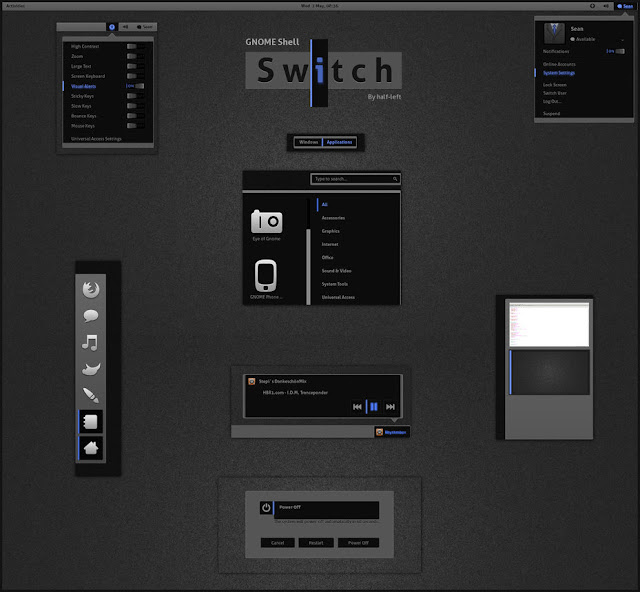
sudo apt-get install switch-theme
2. Gela (Gnome Shell 3.4)
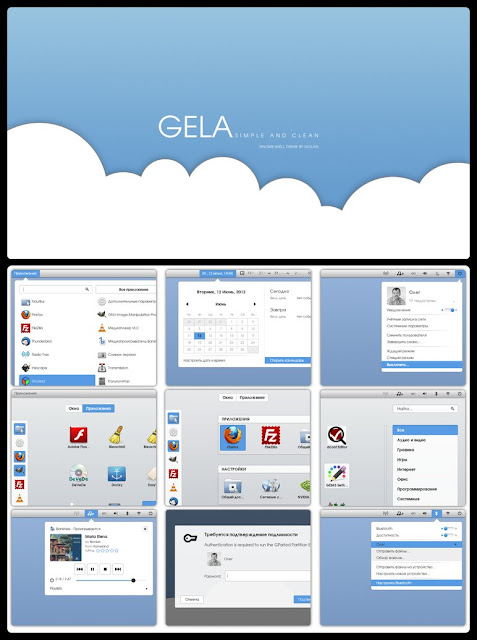
sudo apt-get install gela-theme
3. Mountain Shell (3.4)
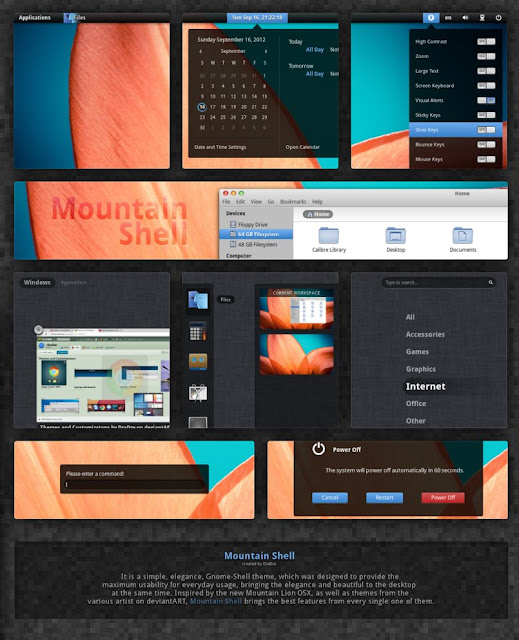
sudo apt-get install mountain-shell
4. LM-Club (Gnome Shell 3.4 & GTK3)

sudo apt-get install lm-club-theme
5. Elegance Colors (Gnome Shell 3.6)

sudo add-apt-repository ppa:satyajit-happy/themes
sudo apt-get update
sudo apt-get install gnome-shell-theme-elegance-colors
6. Metal X (Gnome 3.4)
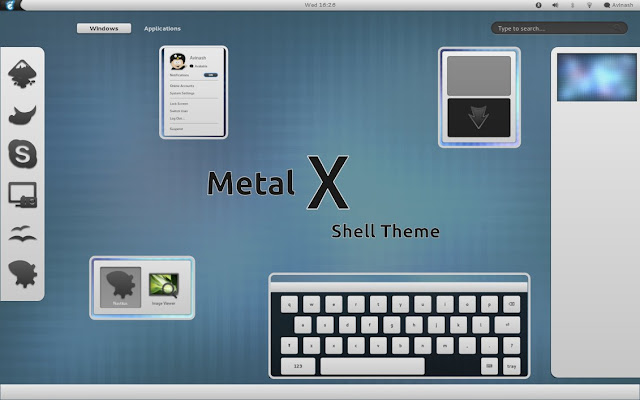
sudo apt-get install gs-metalx
7. Helios (Gnome shell 3.4.2 and Cinnamon 1.4)
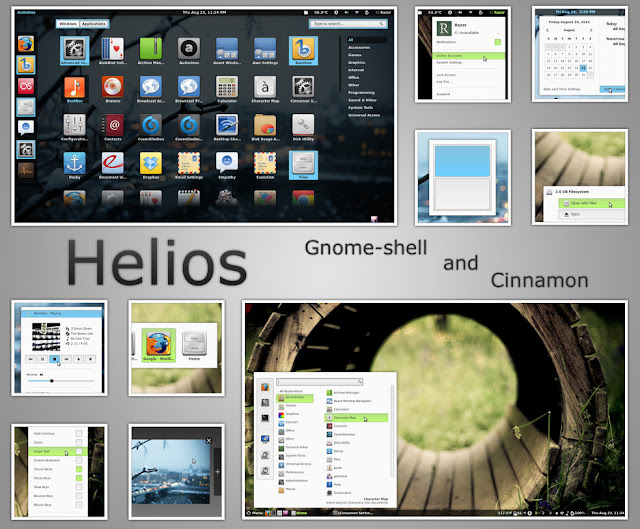
sudo apt-get install gs-helios
8. Energreen (Gnome 3.4 & GTK3)
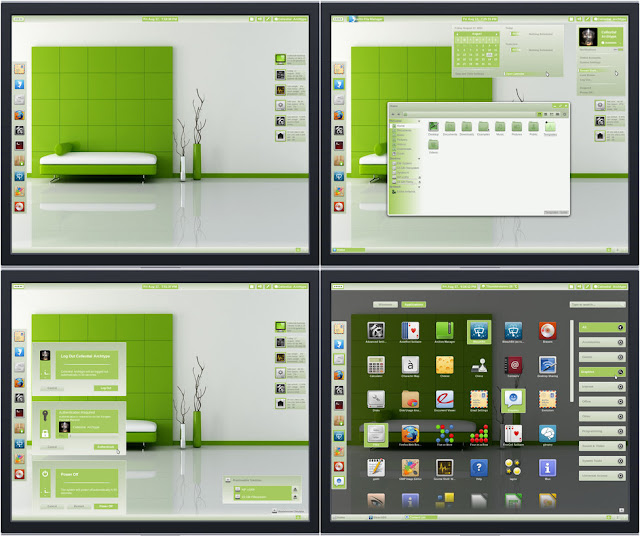
sudo apt-get install energreen-theme
9. ACID ( GNOME-Shell 3.4)
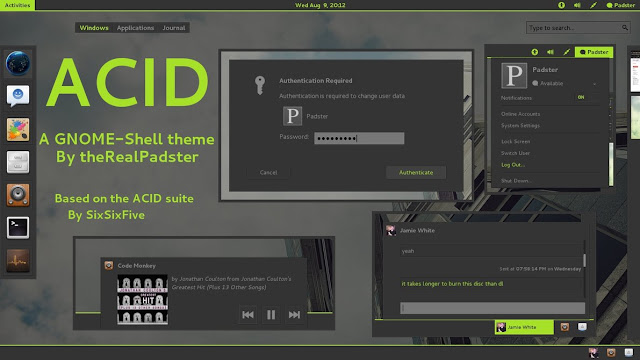
sudo apt-get install gs-acid
10. Contrail
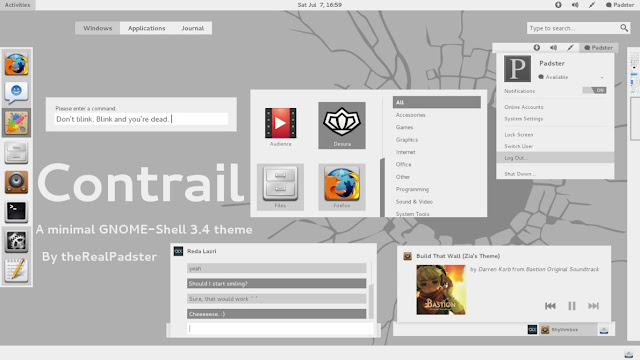
sudo apt-get install gs-contrail
11. Nocturnal (Gnome 3.4 & Cinnamon 1.4)
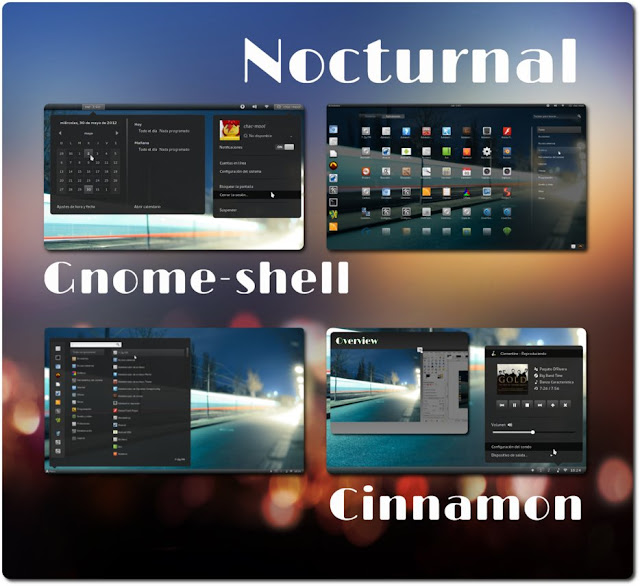
sudo apt-get install gs-nocturnal
12. GrayRevenge

sudo apt-get install gs-grayrevenge
13. Mictlan (Gnome 3.4 & Cinnamon 1.4)
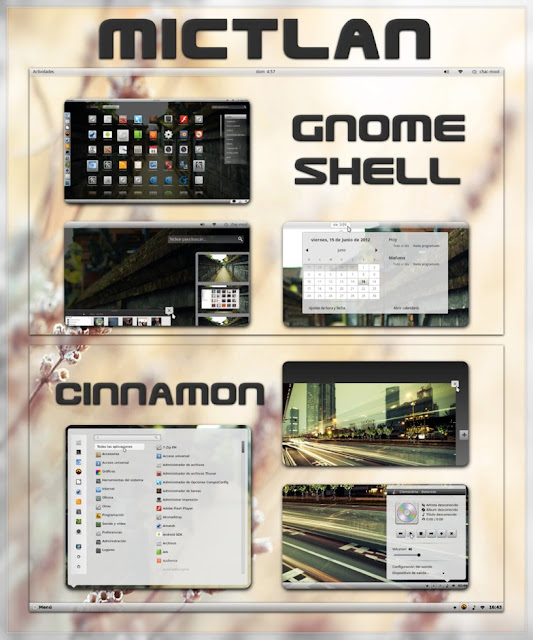
sudo apt-get install gs-mictlan
14. Light Dark Balance (gnome shell - Cinnamon - GTK2/3)
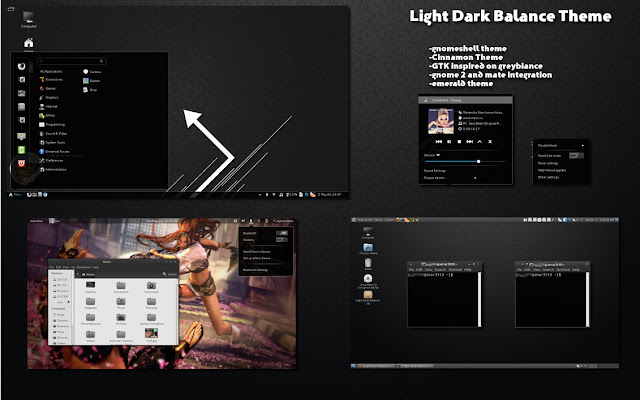
sudo apt-get install light-dark-balance-theme
15. Majestic Reloaded (Gnome Shell - Cinnamon - GTK2/3)
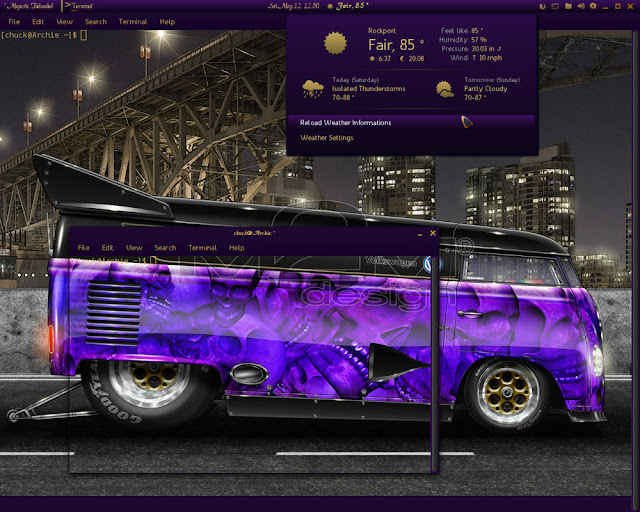
sudo apt-get install majestic-reloaded-theme
RemoteBox 1.4 Adds Support To VirtualBox 4.2.X, Installation From PPA Available For 12.10/12.04/Linux Mint 13/12
RemoteBox is an application with GUI written in Perl that allows users to manage VMs (virtual machines) created with VirtualBox either remotely or locally. You can manage from a remote server your VirtulBox OS's as if they were installed locally.

Here are some of the features for RemoteBox:
- VirtualBox client with GTK interface
- Manage VirtulBox Guests remotely with the possibility to create / edit guests
- Installation of RemoteBox doesn't require Apache / IIS
- Start/stop/pause/save VMs
- View/interact with VMs using RDP (Remote Desktop Protocol)
- Configure system/display settings (processor, video display, shared folders, input devices, audio, I/O ports, etc.)
- Configure network settings, etc.
echo "deb http://download.virtualbox.org/virtualbox/debian $(lsb_release -sc) contrib" | sudo tee /etc/apt/sources.list.d/virtualbox.list
wget -q http://download.virtualbox.org/virtualbox/debian/oracle_vbox.asc -O- | sudo apt-key add -
sudo apt-get update
sudo apt-get install virtualbox-4.2
RemoteBox 1.4 Installation
To install RemoteBox 1.4 from PPA on Ubuntu 12.10/12.04/11.10 or Linux Mint 13/12, open the terminal and issue these commands:
sudo add-apt-repository ppa:upubuntu-com/virtual
sudo apt-get update
sudo apt-get install remotebox
To start the application, you can search it in the Unity Dash:

Or start it from the terminal with this command:
remotebox

For other distributions, you can download RemoteBox from here.
Subscribe to:
Posts (Atom)