Tuesday, January 22, 2013

Install Linux Kernel 3.7.4 in Ubuntu/Linux Mint


Another update for Kernel 3.7 series has been made available recently which brings various bug fixes and improvements. As usual, we have updated our simple bash script to be able to install Linux Kernel 3.7.4 with just a few commands on the terminal.

But let's first see some of the changes and fixes in this latest kernel taken from the changelog:


  •     USB: io_ti: Fix NULL dereference in chase_port()
  •     drm/radeon: fix a bogus kfree
  •     drm/radeon: fix NULL pointer dereference in UMS mode
  •     ALSA: usb - fix race in creation of M-Audio Fast track pro driver
  •     s390/time: fix sched_clock() overflow
  •     sh: Fix FDPIC binary loader
  •     mxs: uart: fix setting RTS from software
  •     staging: vt6656: Fix inconsistent structure packing
  •     staging: wlan-ng: Fix clamping of returned SSID length


  Linux Kernel 3.7.4 Installation

To install Linux Kernel 3.7.4 (Ubuntu 12.10/12.04 or older and Linux Mint 14/13 or older) in your system, open the terminal and enter these commands at your own risk:

cd /tmp 
wget http://dl.dropbox.com/u/47950494/upubuntu.com/kernel-3.7.4 -O kernel-3.7.4 
chmod +x kernel-3.7.4 
sudo sh kernel-3.7.4 
sudo reboot

If you have encountered any troubles while installing this kernel in a system having the Nvidia driver installed, you can try to fix it by enabling text mode (CTRL+ALT+F2) and executing these commands:

cd /usr/src/linux-headers-3.7-030704/arch/x86/include 
sudo cp -v generated/asm/unistd* ./asm 
sudo apt-get install --reinstall nvidia-current

In case you want to uninstall Linux Kernel 3.7.4, issue this command:

sudo apt-get purge linux-image-3.7.4*

Monday, January 21, 2013

Install Ubuntu Server Manager Utility in Ubuntu/Linux Mint


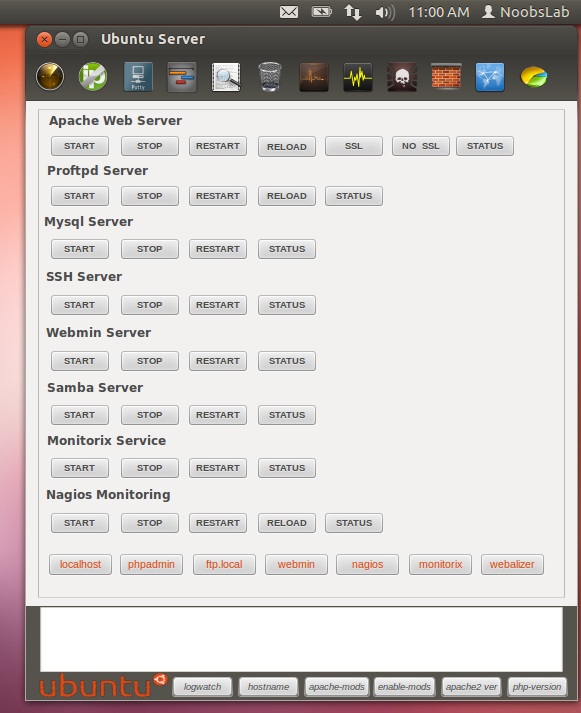
Ubuntu Server Manager is a Graphical-User-Interface to install and manage (Apache 2, MySQL, Proftpd, Samba, Monitorix, SSH, Nagios, Webmin) and to monitor the server log activity.
There are several other options for services like: Net activity viewer, Update dynamic IP, Putty for ssh, Open Ports to see server open connections, Logs, Clear logs option, Localhost scan using Nmap, Perform scan of IP/Domain name using Nmap, RKhunter to check if system is effected with rootkit, Firewall configuration option, Open apache www default folder as root, Webalizer to generate report of site.
This utility only manage local machine.


To install services Go to Help & Install > About & Install Servers 
ubuntu server manager

Installation and removal of services
ubuntu server

To install Ubuntu-Server-Manager in Ubuntu/Linux Mint open Terminal (Press Ctrl+Alt+T) and copy the following commands in the Terminal:
  • wget -O usm.deb http://goo.gl/QECjX
  • sudo dpkg -i usm.deb && sudo rm usm.deb
That's it

Wine 1.5.22


A new development release of Wine has been announced bringing us to version 1.5.22. The new items in this release include:
  • New version of the Gecko engine.
  • Beginnings of the Mac graphics driver.
  • Support for ARM64 platforms.
  • Fixes for RTL text in Uniscribe.
  • Various bug fixes.
Download: [ Wine 1.5.22 ]

Snowlinux 4 "Xfce", "E17"


Lars Torben Kremer has announced the availability of two new editions of the Debian-based Snowlinux 4: "The team is proud to announce the release of Snowlinux 4 Xfce and E17. Snowlinux 4 Xfce is based upon Debian GNU/Linux 7.0 'Wheezy' and uses Linux kernel 3.5. Snowlinux 4 Xfce and E17 are available in two ISO images. The Xfce edition contains Xfce 4.10 and the E17 edition contains Enlightenment 0.17. While the Xfce edition fits on a CD, the E17 edition doesn't. Both use Firefox, Thunderbird, AbiWord, Shotwell and Pidgin by default. New features: LightDM; Snowlinux LightDM greeter; Snowlinux Plymouth theme; improved Snowlinux Metal theme and icons; SnowMount; Firefox 17; Thunderbird 17; Snowlinux HD backgrounds; updated software; improved speed and response; system improvements." Read the rest of the release announcement for more information and screenshots. Download links (MD5): snowlinux-4-xfce-amd64.iso (697MB, snowlinux-4-e17-amd64.iso (853MB).

Sunday, January 20, 2013

Install Lock Keys indicator in Ubuntu 12.10 using ppa


This simple and brief tutorial will show you how to install the Lock Keys indicator in Ubuntu using ppa. If your Ubuntu laptop doesn’t have any LED indicators for the lock keys, it may be useful. The indicator displays notifications on top-right corner when you press on Lock Keys and the applet on top-panel shows you whether your caps lock, num lock, or scroll lock keys are on.
You can set it to show the indicator when lock key is inactive.
Install Lock Keys indicator using ppa:
The keylock indicator daily build ppa provides latest packages for Ubuntu 12.10 Quantal, 12.04 Precise and 11.10 Oneiric.
Hit Ctrl+Alt+T to open terminal, then run following 3 commands to install it from the ppa repository:
sudo add-apt-repository ppa:tsbarnes/indicator-keylock-daily
sudo apt-get update
sudo apt-get install indicator-keylock
Once installed, launch it from the Unity Dash. It will be set to automatically start at next login.

How to Disable Apps Running In The Background in Android


If you ask any Android expert for the solution to fix a slow phone, one of the answer you will receive is to uninstall the unnecessary apps so they won’t run in the background. But what if you need an app to be installed (even though you are only using it occasionally) and yet preventing it from running in the background?
One solution is to make use of a Task Manager and kill the background running app regularly. Alternatively, you can disable the app totally so it won’t (and can’t) be running in the background at all.
Here’s how you can manually disable apps from running in the background without your permission.
Note: This trick will only work in selected phone. It does not work in the stock Android in the Nexus device.
1. Go to the “Settings” section in your phone.
2. Scroll down and go to Applications manager.
Android Settings Application Manger
3. Swipe from right to left until you reach the “All applications” tab.
Application Settings in Android
4. Now, tap on the app you want to disable from running in the background and it will show you two buttons: Disable and Force Stop. Tap on Disable.
Disable button for Apps in Android
It will ask you for confirmation whether you want to disable the app, just tap OK.
Confirmatin in disabling app in Android
And you are done. Now, the app will not run in the background even if any other application tries to execute it. If you want to enable it, just follow the same steps. However, one thing you should note here is that if you disable any application, it will disappear from the App Drawer and will not be available till you enable it again. You can also use the Force Stop to temporarily stop the app from running.