Wednesday, October 10, 2012

How To Repair A Failed AMD Catalyst Driver Installation On Ubuntu 12.10/12.04/Linux Mint 13


We have previously seen an article for installing correctly the Nvidia driver under Ubuntu/Linux Mint using Recovery Mode. Today we will focus on AMD drivers in which we will see two methods for fixing an incompatible driver installation of AMD Catalyst driver (12.x) that resulted in system crash, graphics problems, or boot failure.

We will try our best to show you how to install the AMD Catalyst driver correctly on your system without any troubles and I hope this article find your satisfaction. Whether you are working on a laptop or computer, these instructions are workable for the following Linux distributions:


  • Ubuntu 12.10 (Quantal Quetzal)
  • Ubuntu 12.04 (Precise Pangolin)
  • Linux Mint 13 
Method 1

If you are able to reach the login screen, press CTRL+ALT+F2 to enter CLI mode, then enter your login credentials and kill Xserver with this command:

sudo service lightdm stop

Uninstall now the current AMD driver with these commands:

sudo sh /usr/share/ati/fglrx-uninstall.sh

sudo apt-get remove --purge fglrx fglrx_* fglrx-amdcccle* fglrx-dev* xorg-driver-fglrx

These commands also allow to delete current AMD driver:

cd /usr/share/ati

sudo sh ./fglrx-uninstall.sh

Let's now install some dependencies with these commands:

sudo apt-get install cdbs fakeroot build-essential dh-make debconf

sudo apt-get install debhelper dkms libqtgui4 libstdc++6 libelfg0 execstack dh-modaliases

For 64-bit systems, you need to install also these dependencies:

sudo apt-get install ia32-libs-multiarch i386 lib32gcc1 ia32-libs libc6-i386 ia32-libs

Now download the latest stable version of AMD driver (currently 12.8) with these commands:

cd ~/; mkdir catalyst12.8; cd catalyst12.8/

wget -c http://goo.gl/ZZkYR -O amd-driver-installer-12-8-x86.x86_64.zip

unzip amd-driver-installer-12-8-x86.x86_64.zip

chmod +x amd-driver-installer-8.982-x86.x86_64.run

Now create Debian packages out of the downloaded *.run file with this command for Ubuntu 12.04 (Precise Pangolin):

sudo sh amd-driver-inst*.run --buildpkg Ubuntu/precise

For Ubuntu 12.10 (Quantal Quetzal), run this command:

sudo sh amd-driver-inst*.run --buildpkg Ubuntu/quantal

At the end of this operation, three deb packages will be created which are:

- fglrx_8.982-0ubuntu1_i386.deb
- fglrx-amdcccle_8.982-0ubuntu1_i386.deb
- fglrx-dev_8.982-0ubuntu1_i386.deb

You can list them in the terminal with this command:

ls *.deb


Install all these deb packages with this command:

sudo dpkg -i *.deb

Then finish the installation with this command:

sudo aticonfig --initial

Reboot now your system:

sudo reboot

To verify if the driver is well installed, run this command:

fglrxinfo

Method 2

If you can't reach the login menu to be able to enter CLI mode, you can use instead the Recovery Mode by following these instructions:

- Hold down the Shift key after powering on your computer or laptop to enable the Grub boot menu and boot into Recovery Mode:


- In the next screen enable networking:


- Select now "Drop to root shell prompt" and press Enter:


- Your filesystem is read-only, to enable read/write permissions, run this command:

mount -rw -o remount /

- Now use all commands given in Method 1 to install the AMD driver.

Tuesday, October 9, 2012

How To Install The LAMP Server Using Tasksel In Ubuntu 12.10/12.04/Linux Mint 13


Few months ago we have seen the installation of LAMP server under Ubuntu, you can check it here. Today, we will also see another method for installing the LAMP web server using Taksel under Ubuntu 12.10/12.04/Linux Mint 13 or older.

Gettinsg Started

Open the terminal and install firstly Tasksel with this command:

sudo apt-get -y install tasksel

Start now Tasksel with this command:

sudo tasksel

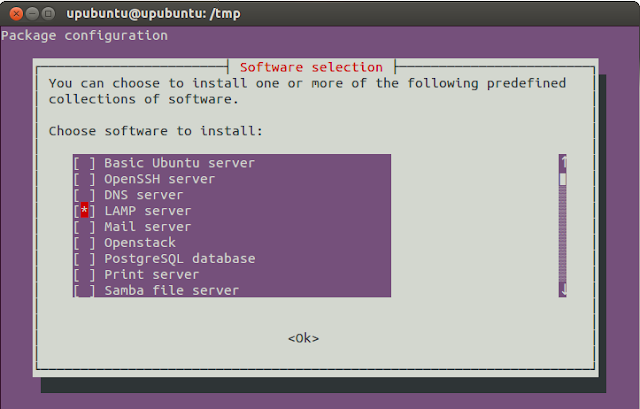
Select now "LAMP server" from the given list using your spacebar and press Enter:


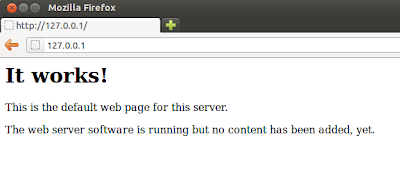
After you finish the installation of the LAMP server, check if it is working by opening one of these links (use IP server if needed):

http://localhost/

or

http://127.0.0.1/

You must see this page:


If nothing appears, try to restart Apache with this command:

sudo /etc/init.d/apache2 restart

You can also install LAMP server with this command:

sudo tasksel install lamp-server

To test if PHP is well installed, run these commands:

echo "" | sudo tee /var/www/test.php

sudo /etc/init.d/apache2 restart

Then open this link:

http://localhost/test.php

Finally, your PHP files and projects must be placed in this folder:

 /var/www/

You can access it with root privileges using this command:

sudo nautilus /var/www/

The List Of First Steam Games That Will be Ported To Ubuntu/Linux


As you know, a private beta version of Steam for Linux will be made available soon for evaluation. The beta version of the Steam client will include one game and will be supported by Ubuntu 12.04/12.10. Some games that are reported to be the first list to be ported to Linux have been published on the web and are as follows:

1. World of Goo


2. Eversion


3. Trine 2


4. Serious Sam 3: BFE


5. Galcon Fusion


6. Amnesia: The Dark Descent


7. SpaceChem


8. Steel Storm


9. Solar 2


10. Dynamite Jack


11. Crusader Kings II


12. Superbrothers: Sword & Sworcery EP


13. Waveform


14. Cubemen

More games will be added next year, here are some of them:

  • Dead Cyborg
  • Euro Truck Simulator 2
  • Blue Libra
Left 4 Dead 2, Counter-Strike: Global Offensive, Half-Life 2, and Team Fortress 2 are also scheduled and being ported to Linux. This is just the first drop of rain and we hope more games are added to the Steam database when reaching the stable version. Games listed can be found here.

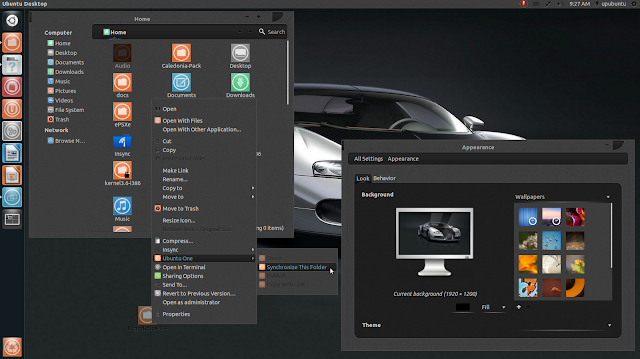
Malys Rought: An Elegant Dark Theme For Unity and Gnome Shell - Ubuntu 12.10/12.04/Linux Mint 13 (Maya)


In this tutorial we will see another GTK3 theme for Ubuntu/Linux Mint called Malys Rought that will be appreciated by dark theme lovers. The theme is compatible with both Unity and Gnome Shell. Here is a screenshot of it under Ubuntu Unity:


The PPA for Malys Rought is compatible with the following Ubuntu/Linux Mint distributions:

  • Ubuntu 12.10/12.04/11.10/11.04
  • Linux Mint 13 (Maya)
Malys Rought (1.0) Installation

Open the terminal and run these commands:

sudo add-apt-repository ppa:upubuntu-com/gtk3
sudo apt-get update
sudo apt-get install malys-rough-theme

Note: Fonts for Malys Rought is included in the PPA.

You can use Gnome Tweak Tool or MyUnity to enable this theme, or use the following terminal commands:

   Version 1

gsettings set org.gnome.desktop.interface gtk-theme 'malys-rough-left'

gconftool-2 --set --type string /apps/metacity/general/theme 'malys-rough-left'

   Version 2

gsettings set org.gnome.desktop.interface gtk-theme 'malys-rough-right'

gconftool-2 --set --type string /apps/metacity/general/theme 'malys-rough-right'

Credits for this theme go here

Arch Linux 2012.10.06


Pierre Schmitz has announced the release of Arch Linux 2012.10.06, the latest release of the project's installation CD image - now with systemd as the service manager: "The October release of the Arch Linux install medium is available for download and can be used for new installs or as a rescue system. It contains a set of updated packages and the following notable changes: systemd is used to boot up the live system; initscripts are no longer available on the live system but are still installed by default on the target system - this is likely to change in the near future; EFI boot and setup has been simplified; Gummiboot is used to display a menu on EFI systems; the following new packages are available on the live system: ethtool, FSArchiver, Gummiboot, Midnight Commander, Partclone, Partimage, rEFInd, rfkill, sudo, TestDisk, wget, xl2tpd." Here is the brief release announcement. Download: archlinux-2012.10.06-dual.iso (415MB, MD5, torrent).

Saturday, October 6, 2012

How To Block Access To Facebook (HTTP & HTTPS) On Ubuntu 12.10/12.04/Linux Mint 13


Facebook is a popular social networking site that allows users to stay connected with their friends and family online. Sometimes, Facebook may have some disadvantages like parents worrying that their children will be addicted to Facebook, and the bad effect that Facebook addiction may bring on students results. Also, using this distracting social media website may decrease productivity in work-related environments (office, companies, etc.).

Whether you want to block access to Facebook for yourself or keep other users from doing so, you can easily follow this simple method to block access to Facebook under Linux-based systems. The method will block access to both HTTP and HTTPS protocols and can be used in the following Linux distributions:


  • Ubuntu 12.10/12.04/11.10
  • Linux Mint 13/12
  • Debian 6.0 (Squeeze)
Getting Started

1. Open the terminal and edit the /etc/hosts file with this command:

sudo gedit /etc/hosts

Note: For Linux Mint, you can use "pluma" instead of "gedit".
2. At the end of the file, add these lines:
# Block Facebook
127.0.0.1 www.facebook.com


Save and exit, the reboot your system with this command:

sudo reboot

You have now remapped "facebook.com" to 127.0.0.1. Anyone who tries to browse Facebook will get this:


Note: You can use this method to block other websites.