Saturday, August 11, 2012

What type of Linux users are you?


I just found this funny picture about the descriptions for various types of Linux user on this blog:


Personally, Im having 2 laptops that run Linux Mint 13 and Fuduntu, 1 netbook that runs Arch and 1 desktop with SolusOS. But I think I look better than the #2 pic :D.

How about you? Which distro(s) you are using? And do you think the picture above describes you to the tee :D?

Install LibreOffice 3.6 (Final) From PPA In Ubuntu 12.10/12.04/11.10/Linux Mint 13


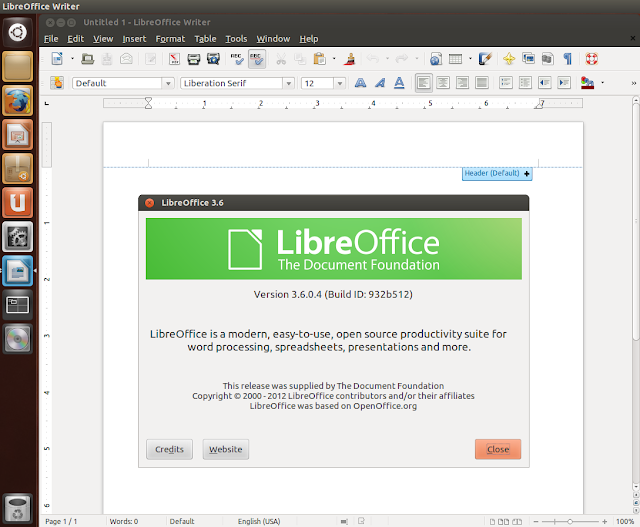
LibreOffice 3.6 is the latest version that has been released recently bringing more new features and improvements. This version comes with totally new redesigned splash screen in green, here is a screenshot of it:


You can find here the release notes for LibreOffice 3.6. If you want to install LibreOffice 3.6 manually, you can refer to the download page here. As this latest version hasn't been added to the official PPA of LibreOffice, you can simply install it via our custom PPA as described below. The PPA is workable for Ubuntu 12.10/12.04/11.10 and Linux Mint 13 or older.


LibreOffice 3.6 Installation

Uninstall firstly the older version with these commands:

sudo apt-get purge libreoffice*

sudo apt-get autoremove

To install the 32-bit/i386 version of LibreOffice 3.6 under Ubuntu/Linux Mint, open the terminal and run the following commands:

sudo add-apt-repository ppa:upubuntu-com/libreoffice
sudo apt-get update
sudo apt-get install libreoffice

For the 64-bit/amd64 version of LibreOffice 3.6, run these commands:

sudo add-apt-repository ppa:upubuntu-com/libreoffice64
sudo apt-get update
sudo apt-get install libreoffice

Log out and log back in so that LibreOffice 3.6 icons show up in the dash, or simply restart Unity with this command:

unity --replace

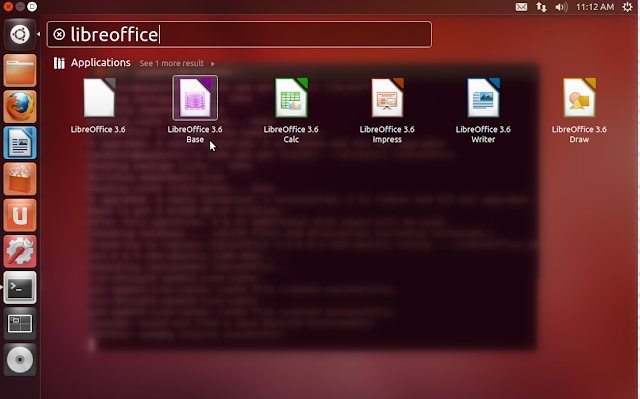
You can now search for LibreOffice 3.6 via the Unity Dash and drag and drop its related icons into your Unity Launcher:


If you find troubles installing from our PPA, you can simply uninstall with the following commands:


sudo apt-get install ppa-purge
sudo ppa-purge ppa:upubuntu-com/libreoffice
sudo apt-get update
sudo apt-get purge libreoffice*
For 64-bit systems, uninstall with these commands:
sudo apt-get install ppa-purge
sudo ppa-purge ppa:upubuntu-com/libreoffice64
sudo apt-get update
sudo apt-get purge libreoffice*

Friday, August 10, 2012

10 things to do after installing Fuduntu


As you have read my previous post, I just installed Fuduntu 2012 and really like it. Although Fuduntu is a great distro, there are still several things to take care of after the installing. Here is the list of 10 things I did for my new Fuduntu 2012 box:


1 - Update system

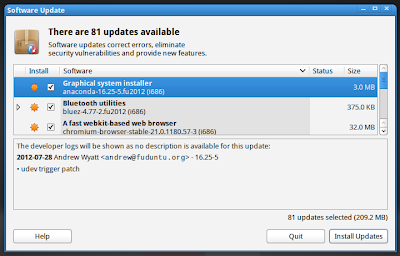
Im using the latest version of Fuduntu but it doesnt mean that I got all the upgrades to the softwares that were bundled. To update system in Fuduntu, you can go to the menubar on the Gnome panel, click on System > Administration > Software Update and the Update manager window will open. It will check for new updates for a while. After that, you can select to either install all the new updates or just some necessary ones.


2 - Get new themes and icons

The default theme and icon of Fuduntu dont look bad but they will become monotonous very soon in my opinion. To get new themes and icons, the best place is Gnome look. After downloading the compressed files , extract them to ~/.icons for icon themes and ~/.themes for gtk themes. ( Create these folders first if you dont have these .icons and .themes folders in your /home partition)

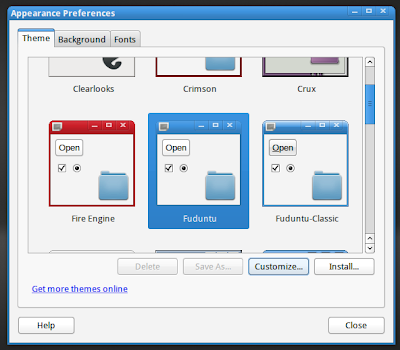
After that, to change themes and icons, right click on the desktop and select "Change Desktop Background" to open the Appearance Preferences window and select the new themes and icons for your Fuduntu desktop:


3 - Get a nice conky

Conky is one of the most amazing applications in the Linux world, an elegant conky setup will make your desktop look really better and it also helps you monitor your system with ease. Even some screenshots on the Funduntu homepage have conky on them.

A Fuduntu desktop screenshot with conky on the right

To get a nice conky config for your Fuduntu desktop, you can check my article about some beautiful conky configs on Gnome look.

4 - Add the shutdown button to the Gnome panel

By default, there is no shutdown button on the desktop of Fuduntu. Therefore the simplest way to shutdown or reset or hibernate your computer is to go to the menu bar then click System > Shutdown, which is pretty redundant in my opinion. Adding the shutdown button to the Gnome panel will save a lot of time.


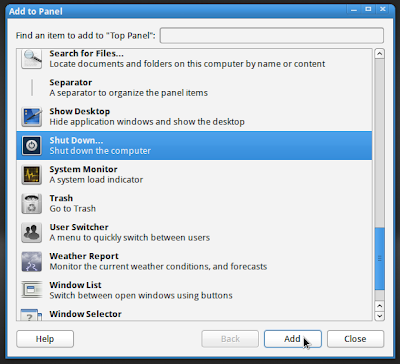
To add the shutdown button to the Gnome panel, just right click on the panel and select "Add to Panel" to open the applets list, then scroll down to find the Shutdown button applet and click the "Add" button.


5 - Allow user to use root privileges

By default, the local user is not allowed to use root privileges. It may annoy you if you are a former user of Ubuntu and just want to run the "sudo" command to install new packages.

To allow user to use root privileges, open the terminal and type the following command to become root:
su

Then run the following command to edit the sudoers list:
visudo

Then scan through the file to find the line:
root ALL=(ALL) ALL

Right below this line, add the following line:
your-user-name ALL=(ALL) ALL

To read more about this issue, you can check this page on the official wiki of Fuduntu.

6 - Install Gnome-utils

The default screenshot tool of Fuduntu is shutter. It's perhaps just my preference but shutter is too bloated and complicated for my taste. Im too accustomed to the good old gnome-screenshot. To use gnome-screenshot and some other familiar Gnome tools like the dictionary, disk usage analyzer .. in Fuduntu, the package you need to install is gnome-utils. You can either search for it in the Software Center or run the following command:
yum install gnome-utils
 
7 - Install a torrent client

I use torrent a lot so getting a torrent client is a must for my Fuduntu box. You can type "torrent" in the Software Center and it will give you various packages for you to choose. Of if you already know the name of the package you can open the terminal and install it with yum. For example, my favorite torrent client in Transmission and and used the following command to install it in Fuduntu:
yum install transmission-gtk

8 - Install LibreOffice

The only office package in Fuduntu is Google Docs, and since my internet is unstable, I prefer using something offline. My choice is LibreOffice. To install LibreOffice, the command will be:
yum install libreoffice

9 - Install GIMP

Just like for office work, Fuduntu doesnt offer much for graphic work with only Shotwell preinstalled by default. That's why GIMP was what I needed to add after the fresh installation. The command to install GIMP in Fuduntu is:
yum install gimp

10 - Add more applications to the AWN dock

By default, there are only 4 applications on the AWN dock ( actually 3 because the Gmail icon is to launch Chromium). For quicker launching, I added more applications to the dock.

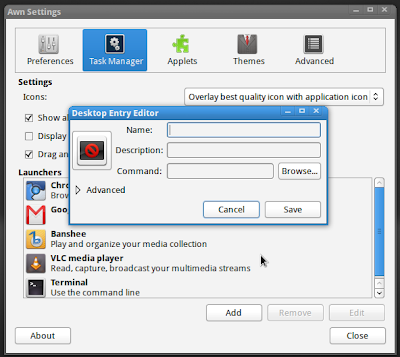
To add applications to the AWN dock, you can either go to the Task Manager in the AWN settings window then create new custom launchers:


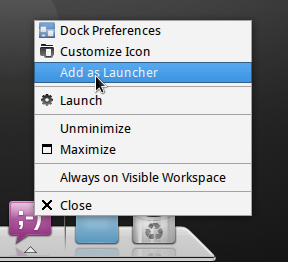
A faster and easier way to do the task is when you are running an app, right click on its icon on the dock and select the "Add as Launcher" option:


 Here is my AWN dock with some additional applications I just added:


*******************************
That's the first 10 things I did for my new Fuduntu box. Fuduntu is a pretty cool distro, I will keep exploring and messing around with it and if I find anything new to tweak, I will write about it soon.

FreeNAS 8.3.0-BETA1


Josh Paetzel has announced the availability of the first beta build of FreeNAS 8.3.0: "The FreeNAS development team is pleased to announce the availability of FreeNAS 8.3.0-BETA1. This is the first public release of the 8.3.0 branch of FreeNAS, which upgrades the underlying base system of FreeNAS to FreeBSD 8.3-RELEASE-p7. This update brings with it Version 28 of the ZFS file system, as well as a number of updates to the drivers and utilities in the base system. FreeNAS 8.2.0 brought with it the ability to install plugins, this functionality is present in FreeNAS 8.3.0 as well. At the moment upgrading the plugin jail to the version included with FreeNAS 8.3.0-BETA1 will cause plugins to stop working and will require re-installation and reconfiguration of all plugins to resume normal operation. Our recommendation at this time is to avoid upgrading working components of the plugin system." See the release announcement for notes on new ZFS file system features. Download: FreeNAS-8.3.0-BETA1-x86.iso (156MB, SHA256), FreeNAS-8.3.0-BETA1-x64.iso (168MB, SHA256).

Slackware Linux 14.0 RC1


In the most recent changelog entry, Patrick Volkerding declares the Slackware "Current" tree, the distribution's development branch, release-candidate quality: "Good hello and happy Thursday! Mercury went direct early yesterday morning and it was like the bugs started to fix themselves. It's almost enough to get me believing in that hocus-pocus nonsense. So, here's a bunch of updates that fix all of the reported issues in the beta and we'll call this the 14.0 release candidate 1. Still some updates needed for the top-level documentation files, but we're clearly in the home stretch now (finally). Test away, and report any remaining bugs!" Today's changelog entry also includes a big update to KDE 4.8.5. Quick links to download recent unofficial installation DVD images: slackware-current-07_Aug_2012-DVD.iso (2,333MB, MD5), slackware64-current-07_Aug_2012-DVD.iso (2,287MB, MD5).

Untangle Gateway 9.3


Untangle, Inc. has announced the release of Untangle Gateway 9.3, a Debian-based network gateway with pluggable modules for network applications: "Untangle, Inc., a network software company, today announced the release of Untangle 9.3, the latest version of its award-winning multi-functional firewall software. The new version includes full tunnel OpenVPN, performance improvements, and enhanced reporting. Support for full tunnel OpenVPN allows administrators to force all remote client or remote site traffic through Untangle before going out to the Internet. This new feature allows an unprecedented level of control for network administrators using Untangle to protect remote offices and employees. The connected VPN clients and sites can now benefit from Untangle's full suite of features, including web content filtering, application control, anti-virus, spam blocking and more." Read the press release for more details. Download (MD5): untangle_930_x32.iso (423MB), untangle_930_x64.iso (428MB).